

Setting Up Your Service Detail Fields
You define your fields once, in Preferences. Each appears on the capture screens described in Capturing Details at Checkout.
Before you start
- The Preferences · Modify permission.
- A plan with Service Details (Starter and up).
Steps
Open the Service Context tab
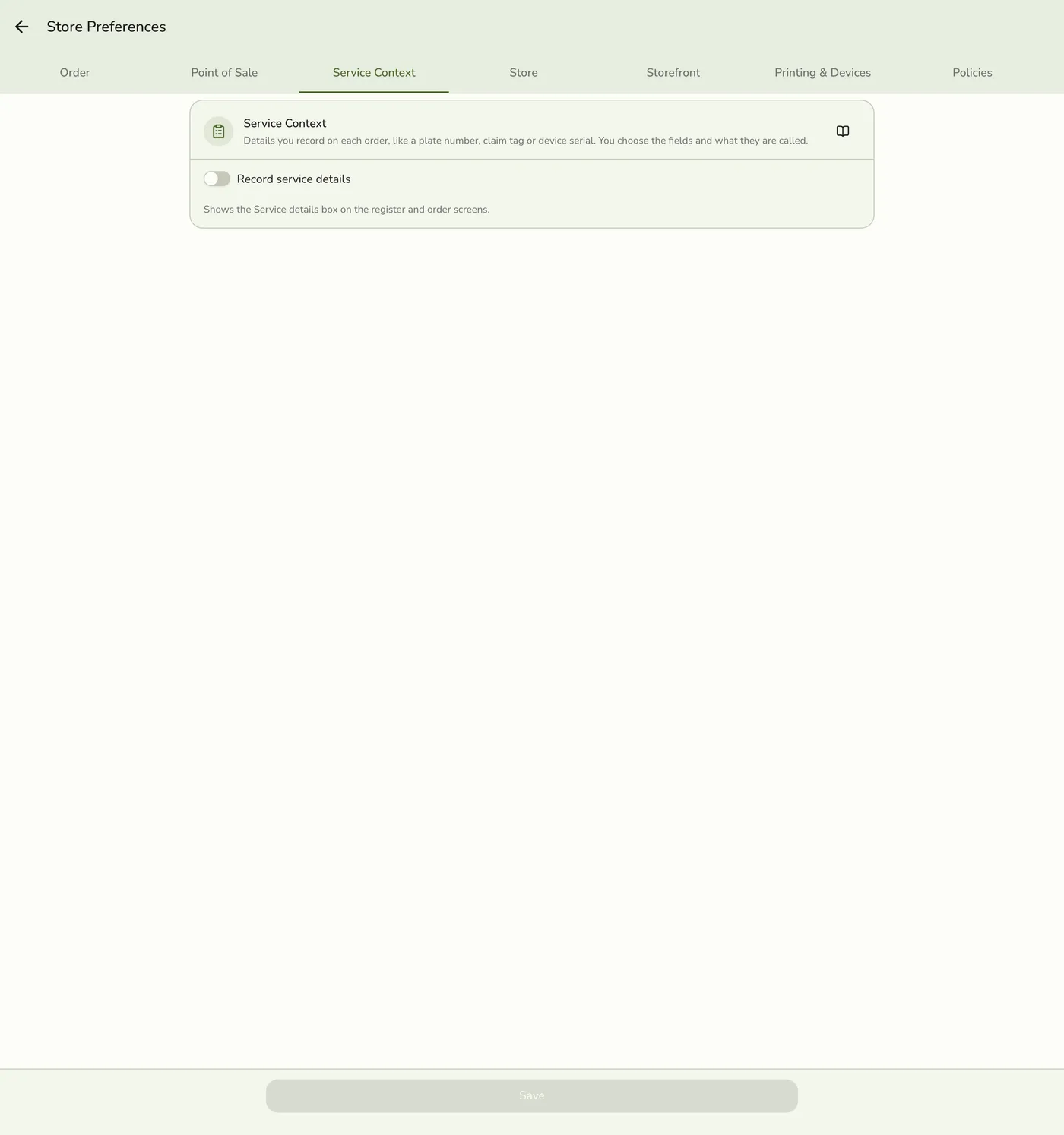
Open the menu → Configurations → Preferences, then the Service Context tab. If you do not see the tab, the store is on Basic.

Turn on Enable service details
The field list appears only while this is on.
Add a field
Tap Add field. Enter a Label staff will see, such as Plate number. Set a short Key, such as plateNumber, with letters, numbers and underscores, starting with a letter and unique. Choose the Type: Text, Number, Dropdown or Yes / No.
A new field card expanded — screenshot coming soon
Fine-tune the field
Text: set a Max length and Normalization (none, uppercase and trim, or uppercase letters and numbers only). Dropdown: add at least one option. For any type, choose Show on, whether it is Required, and whether it is Searchable.
Field options — screenshot coming soon
Reorder, then save
Press and drag the dotted grip to reorder. The order matches the capture screen. Tap the trash icon to remove a field. Tap Save at the bottom.
Dragging a field card — screenshot coming soon
What happens next
- Your team sees the fields at the register. Existing orders keep the values they were saved with.
Edge cases
- Show on offers register, waiting list, queue ticket, customer display and Reports (a column on the Daily Sheet and its downloads). Receipt is listed but does not print today.
- Pick one Searchable field, usually the plate or claim tag. It is the headline identifier, for example on the customer display. The editor allows only one.
- Up to 10 fields. Two or three well-chosen ones are usually enough, since each is one more thing a cashier fills in.
- Removing a field affects new orders only.
- Plan. Basic does not show the tab. Preferences saves every tab at once, so check other tabs before saving.
- Several cars, bags or guests. The switch and its name picker sit under the fields. See Several Cars, Bags or Guests on One Order.
Works with
| Add-on or plan | What changes on this page |
|---|---|
| Plan | Service Details needs Starter and up, or the free trial. On Basic the tab and capture screens are hidden, but details already saved on past orders stay visible. |
| Waiting List add-on | The same fields appear when a customer joins the queue. |
| Daily Sheet report | A column per field, and a Serviced tile when several cars, bags or guests are on one order. |