

Starting a Claim Store Handover
Start the handover from your device, show the customer the code, and wait for them to claim. Only the store owner can do this.
Before you start
- You are signed in as the store owner.
- The store is not linked to an organization, and no email ownership transfer is pending.
- The customer is with you.
Steps
Open Claim Store
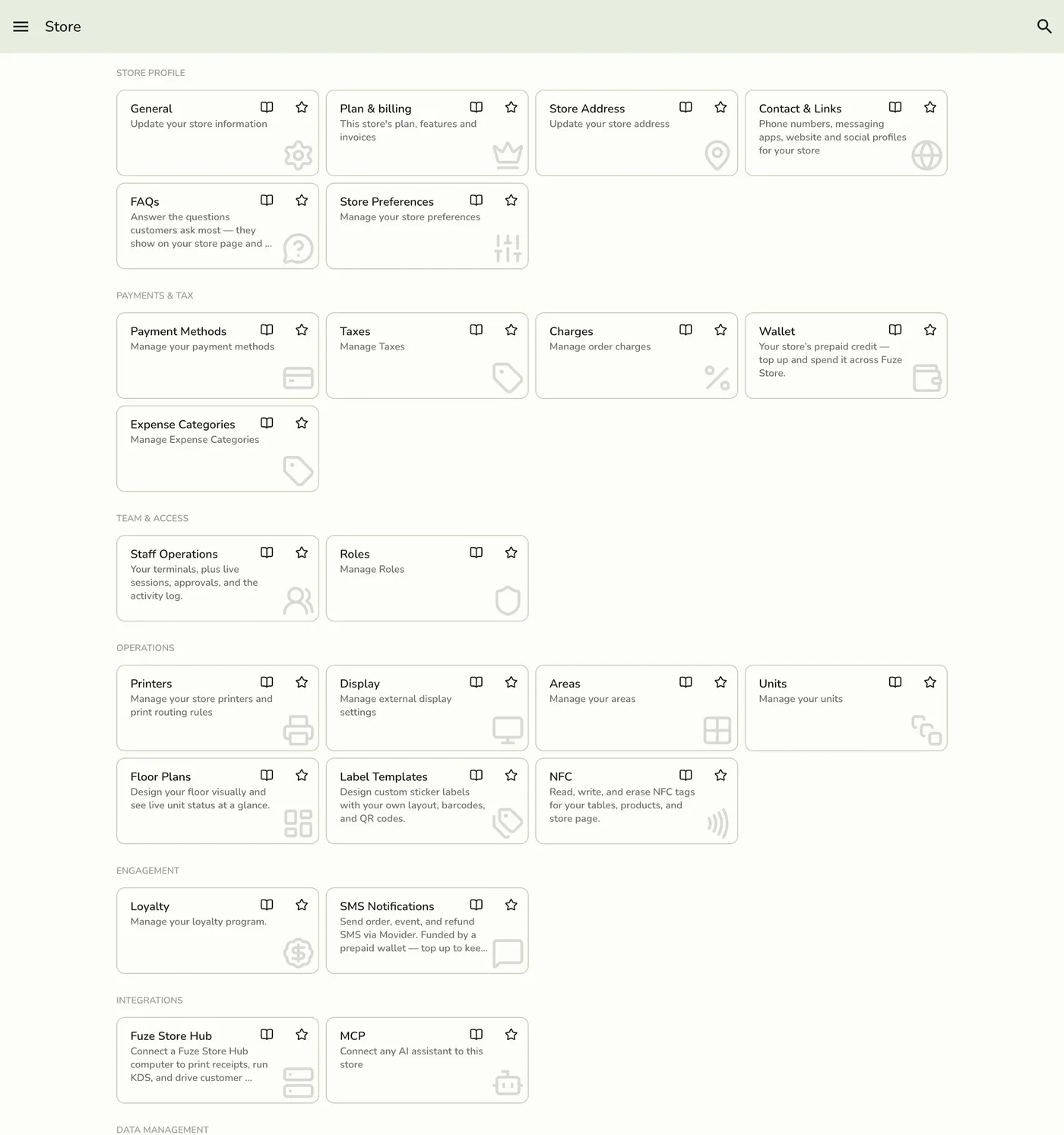
Open Configurations. Under Advanced, tap Claim Store.
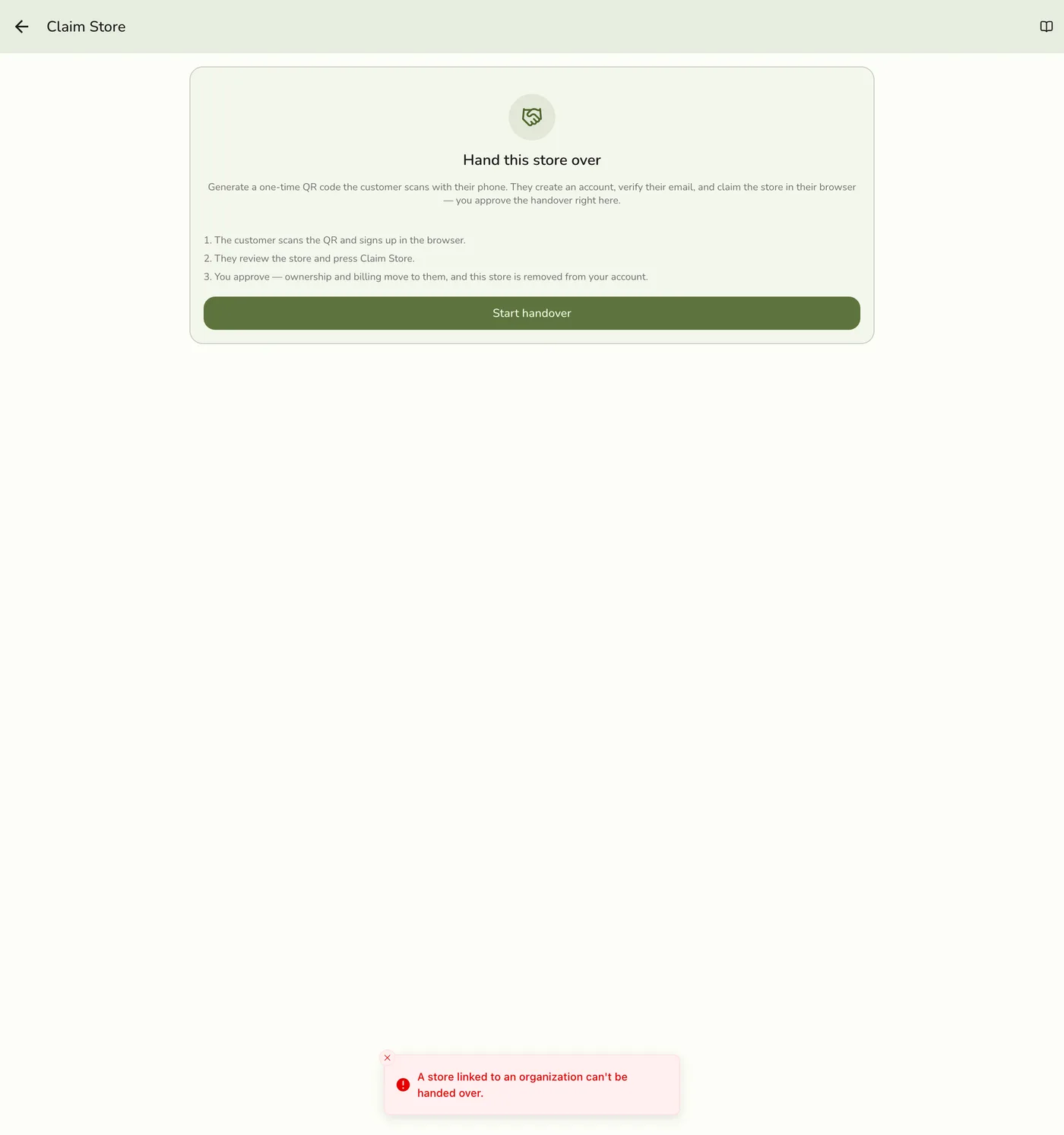
Tap Start handover
Fuze shows a one-time QR code with a 20-minute countdown and a Cancel handover button.
Let the customer scan
Ask the customer to scan the QR code with their phone camera. It opens the claim page in a normal browser, and they do not need the Fuze Store app yet. The page shows your store's name, logo, business type, how it serves, its city, and the masked first name of whoever set it up.
The customer's claim page in a browser with the store preview — screenshot coming soon
Wait while they claim
The customer signs up or signs in (and verifies email if the account is new), reviews the preview, and taps Claim Store. They then see Waiting for approval. Stay nearby: email verification can take a minute. Then see Approving the handover.
The Claim Store screen waiting for the customer to claim — screenshot coming soon
What happens next
- The screen checks for the live link every few seconds. When someone claims, a banner with their name appears wherever you are in the app, and the Claim Store screen shows their name and masked email with Approve handover and Decline.
- Without a live connection the screen finds the claim on its next check.
Edge cases
- The QR is shown once. There is no copyable link. If you leave the screen or reload, the code is gone. Tap Generate a new code to continue.
- One live handover at a time. Starting a new one replaces any handover in progress, and the old QR stops working. Do not start a second one while a customer is mid-claim.
- Twenty minutes in total. The whole handover, approval included, must finish within the link's 20 minutes. Past that, a claim or an approval is refused, and the customer's page says the code expired.
- You cannot start if the store belongs to an organization. You see "A store linked to an organization can't be handed over". Unlink it first.
- You cannot start while an email transfer is waiting. Cancel it under Transfer Ownership first. A transfer past its 24 hours no longer blocks.
- First to claim wins. Anyone else who claims gets "not pending". The claimant needs a signed-in, verified email that is not the one that made the link.
- Customer stuck on verify email? After they verify, the success page can bring them back. They can scan the QR again to find their place while it is still valid.
- Sign-in expired. If the customer's browser sign-in is stale, the claim page asks them to log in again and then returns to where they left off.
- To end it yourself, tap Cancel handover and confirm. The customer's page says it was cancelled. Finished links are kept for 90 days as a record, then deleted.
Works with
| Add-on or plan | What changes on this page |
|---|---|
| Any plan | Claim Store works on every plan. |
| Organization add-on | A store inside an organization must be unlinked first. |