

Invoices
Every renewal, plan upgrade and add-on purchase raises a numbered invoice that is emailed to you with its PDF. The account's invoices are listed in Account → Invoices.
Steps
Open Invoices
Open Account, then Invoices, or tap View all invoices on Subscription. The newest come first.
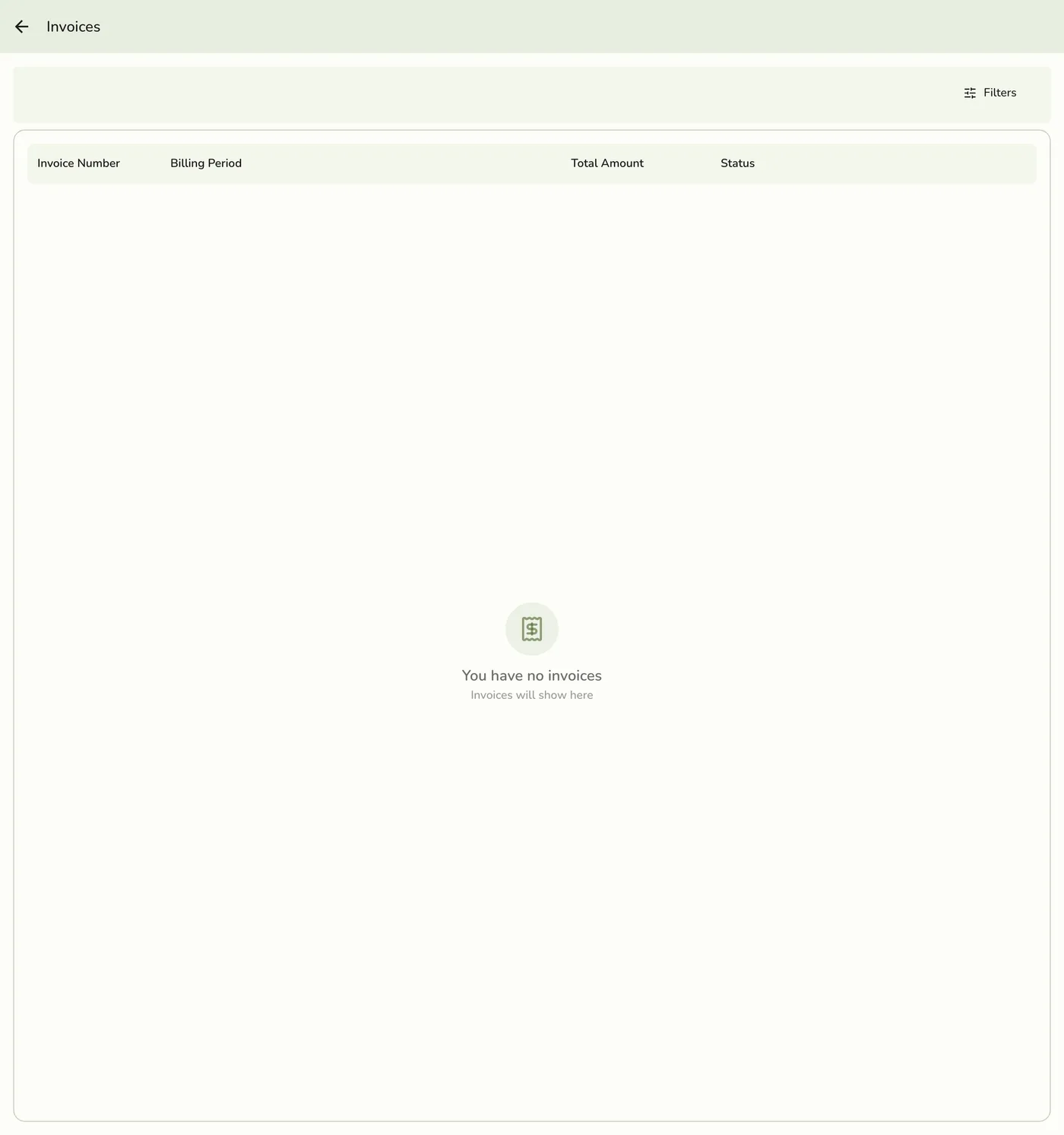
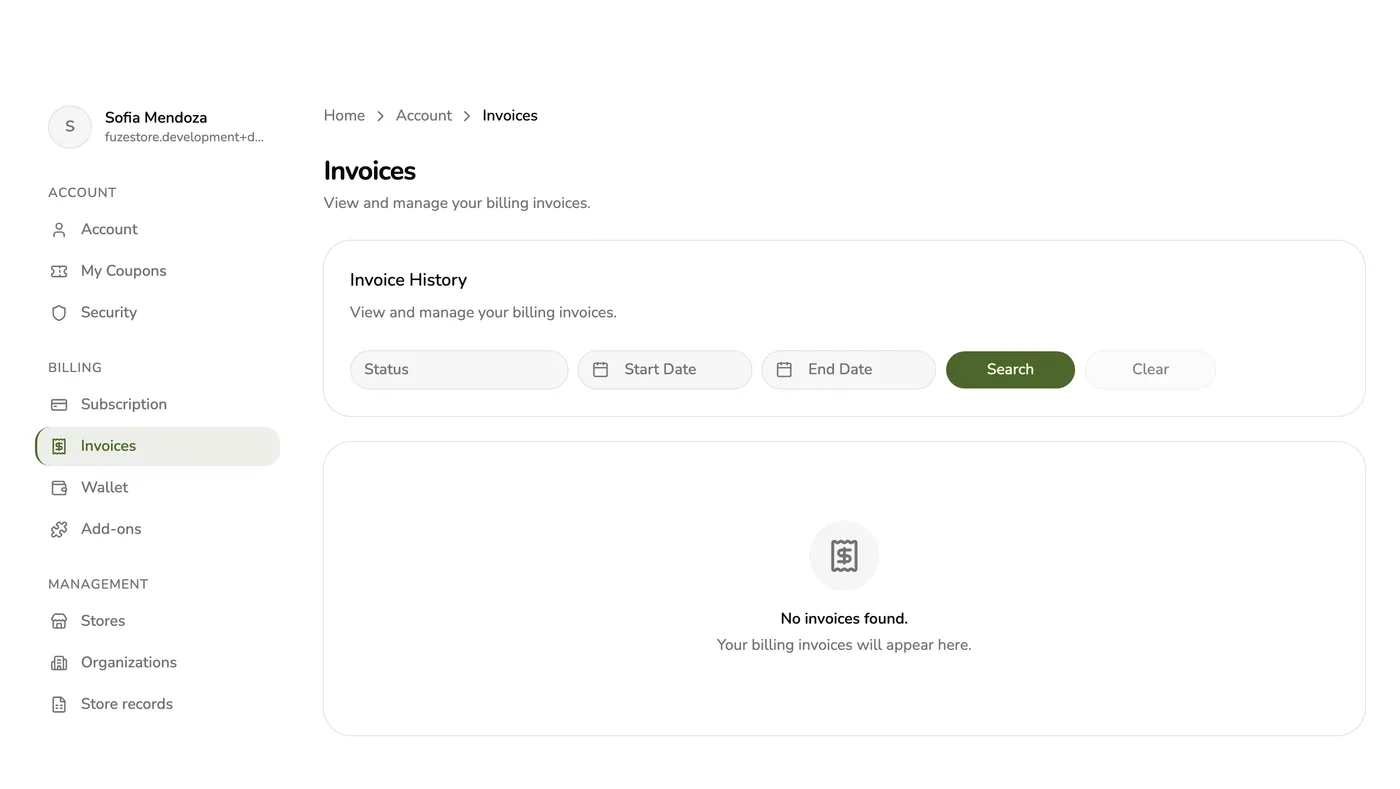
Filter if you need to
Filter by status (pending, awaiting payment, paid, failed, written off) and by billing dates.
Open an invoice
Tap one to see its number, billing period, each line (each paid store's plan, each add-on per store, bundle and coupon discounts), subtotal, discount, tax and total, and every payment try.
An invoice with its lines and payments — screenshot coming soon
Download the PDF
Tap Download. A brand-new invoice can take a moment because the PDF is made in the background.
The Download button on an invoice — screenshot coming soon
What happens next
- The PDF opens from a link you can save or share.
- To pay an unpaid invoice, use Pay now on the account website, or from the Payment failed notice. It charges your default card for the invoice total.
- A store's Plan & billing page lists only the invoices that carry that store's plan line or its own upgrade.
Edge cases
- Pay now refused: with no saved card, with a card that is not the default, or while an earlier try is still in progress. A paid invoice is never charged twice.
- Only the account's own invoices are listed; staff never see them.
- Early release: the recent invoices on Subscription are hidden while payments are paused.
Works with
| Add-on or plan | What changes on this page |
|---|---|
| Store plans | Each paid store has its own line on the invoice, named by store. |
| Add-ons | Each add-on appears per store, with the 20% bundle discount when a store has three or more. |
| Coupons | A coupon discount shows as its own line. |