

How to Update a Product
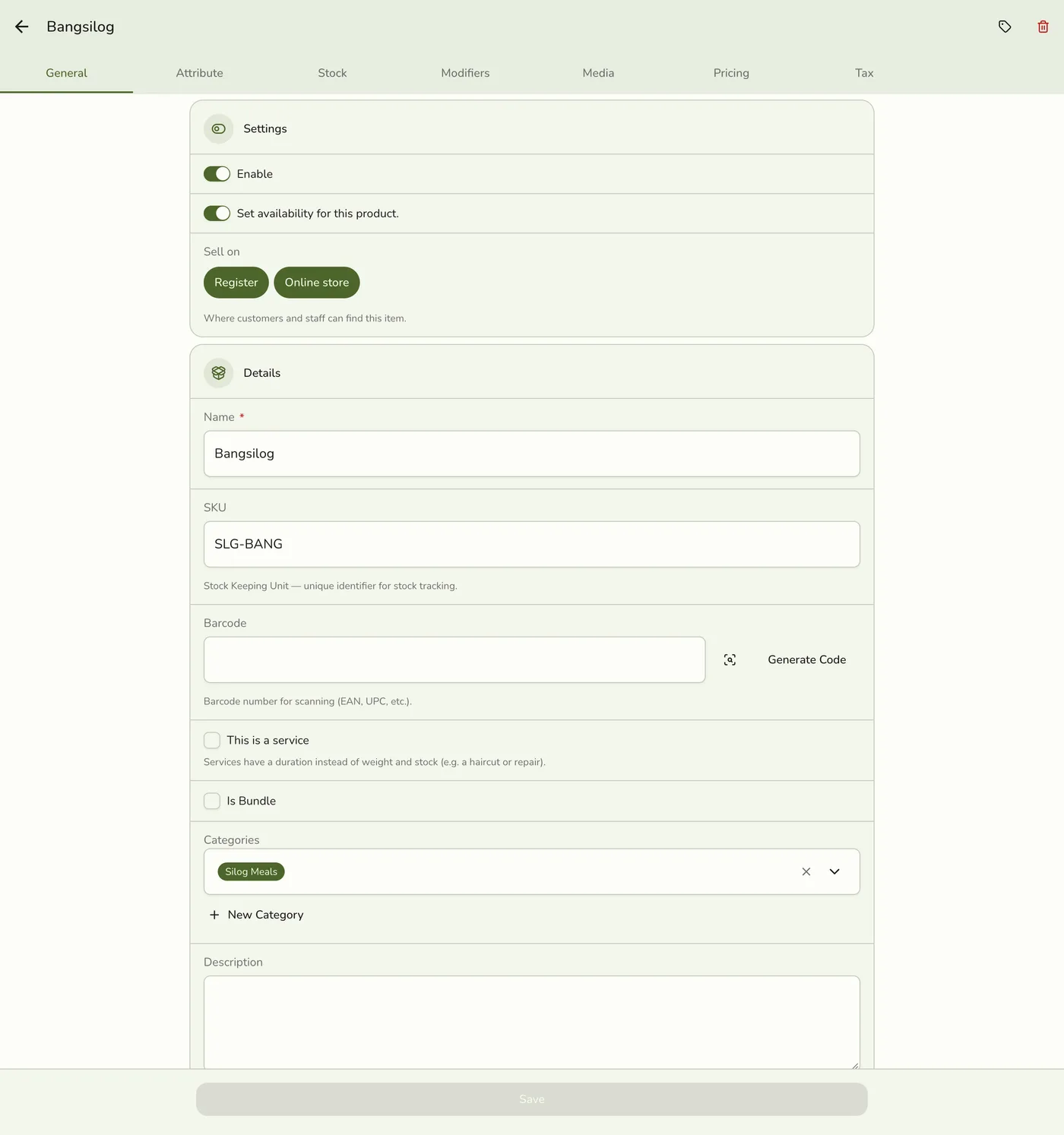
Keep your products current so your register and menus match what you offer. Tapping a product opens the same tabbed form you used to create it.
Before you start
- The Products · Modify permission to save. Anyone with Products · View can open the form read-only.
Steps
1
Go to Products
Open the sidebar menu and choose Products (under Catalog).

2
Choose a product
Tap the product, or open its ⋯ menu and tap Edit. Without the Modify product permission the entry reads View details and the form opens read-only.

3
Edit the details
Update any field on any tab, including This is a service if you are converting between product and service. See the Product Overview for what each field means. To print a barcode or price label from here, use Print label in the toolbar (needs the Advanced Printing add-on).

4
Save
Tap Save. The change reaches the register and your public menu.
What happens next
- The cached product list, the register's item list, and your public menu are cleared, so the next read on every device shows the change. Other devices are told only on plans with live sync, and a failed broadcast never undoes the save.
- Renaming an item never changes its public page link, so links customers saved or shared keep working.
Edge cases
- Changing Quantity adjusts stock. On a simple product that tracks stock, a changed Quantity is recorded as an inventory movement ("Product quantity updated") at your main location, under your name. Leaving it untouched never changes stock, even if sales came in while the form was open. With the Staff Operations add-on, staff without approve permission need a manager's approval: the rest of the product saves, and the stock changes once a manager approves.
- Sell on cannot be turned off everywhere. The check runs on the saved result, so a partial save cannot turn both channels off. An older app that leaves Sell on out keeps the stored values.
- Loyalty points shows only when the store has the Loyalty add-on, you may view loyalty, and a program exists. The app sends it only when it changed.
- Categories you cannot see are not cleared. If your role cannot see categories, saving leaves them alone.
- Serving schedules follow the same rules as on a new item. An older app that sends a single days-and-hours window has it turned into a shared schedule, or ignored on a plan without serving schedules.
- Organization-managed items refuse changes to the name or description. The SKU, barcode, and linked-record checks run next.
- Converting between product and service swaps stock fields for duration, so check the Attribute and Stock tabs.
Works with
| Add-on or plan | What changes on this page |
|---|---|
| Basic plan | Up to 150 items. Tax rules and serving schedules are not available. |
| Starter and up | Higher item limits, Tax, and Serving schedules. |
| Organization add-on | Name and description lock for master-catalog items, and the price follows the master unless Custom price is on. See Catalog Sync. |
| Advanced Printing add-on | Adds Print label in the toolbar. See Label Printing. |
| Loyalty add-on | Adds Loyalty points on the Pricing tab. |