

Bundles
A bundle is a product that sells several catalog items together as one line, at one price: a silog combo, a wash-and-wax package, a starter kit. The register adds the bundle as a single item, and the products inside it deduct stock as usual.
Before you start
- The simple products you want to bundle already exist.
Steps
Start a new product
Open Products and tap New Product. Give it a name and, if you like, categories and a description.
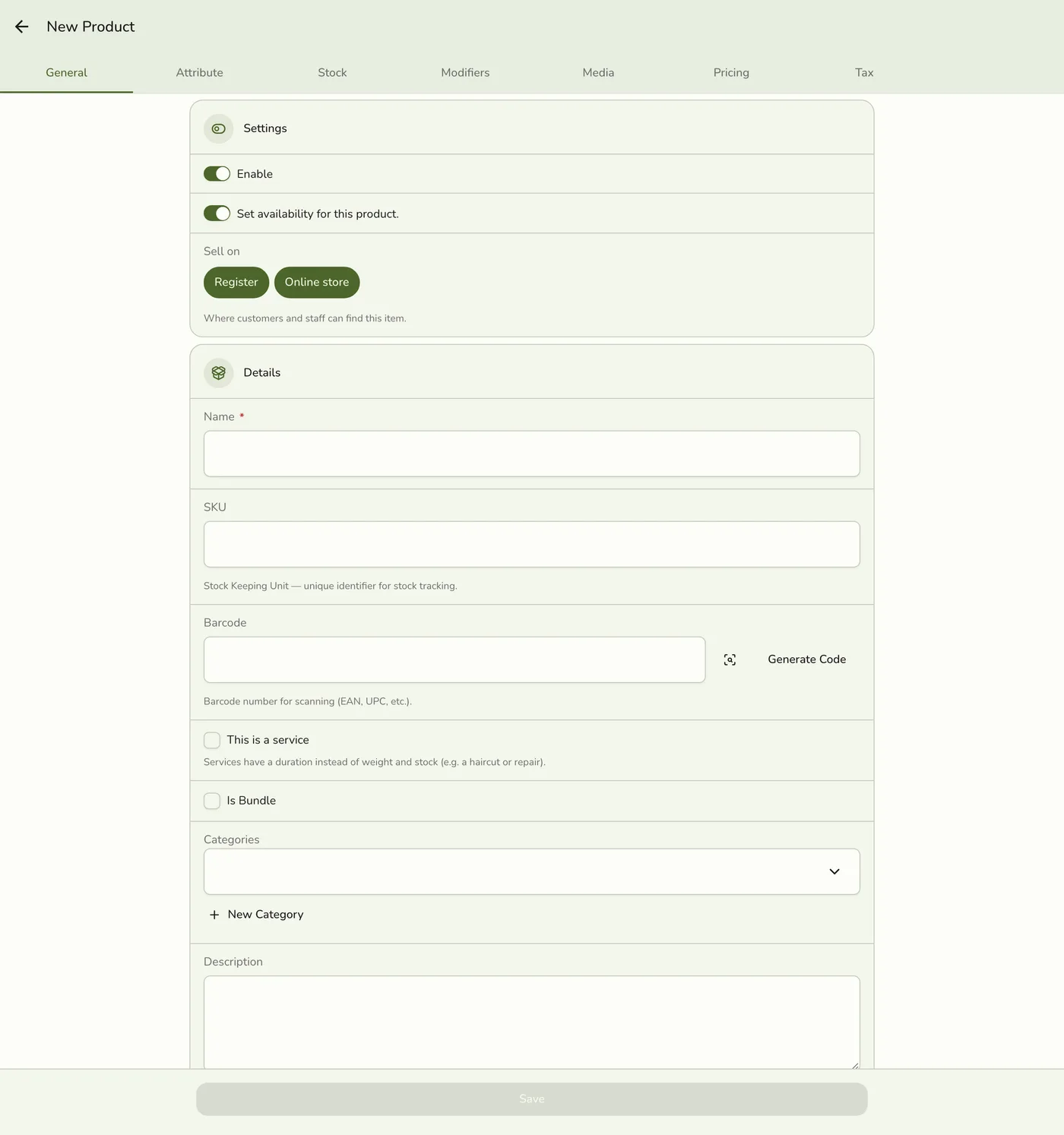
Turn on Is Bundle
On the General tab, switch on Is Bundle. The Stock tab is replaced by Bundle Items.
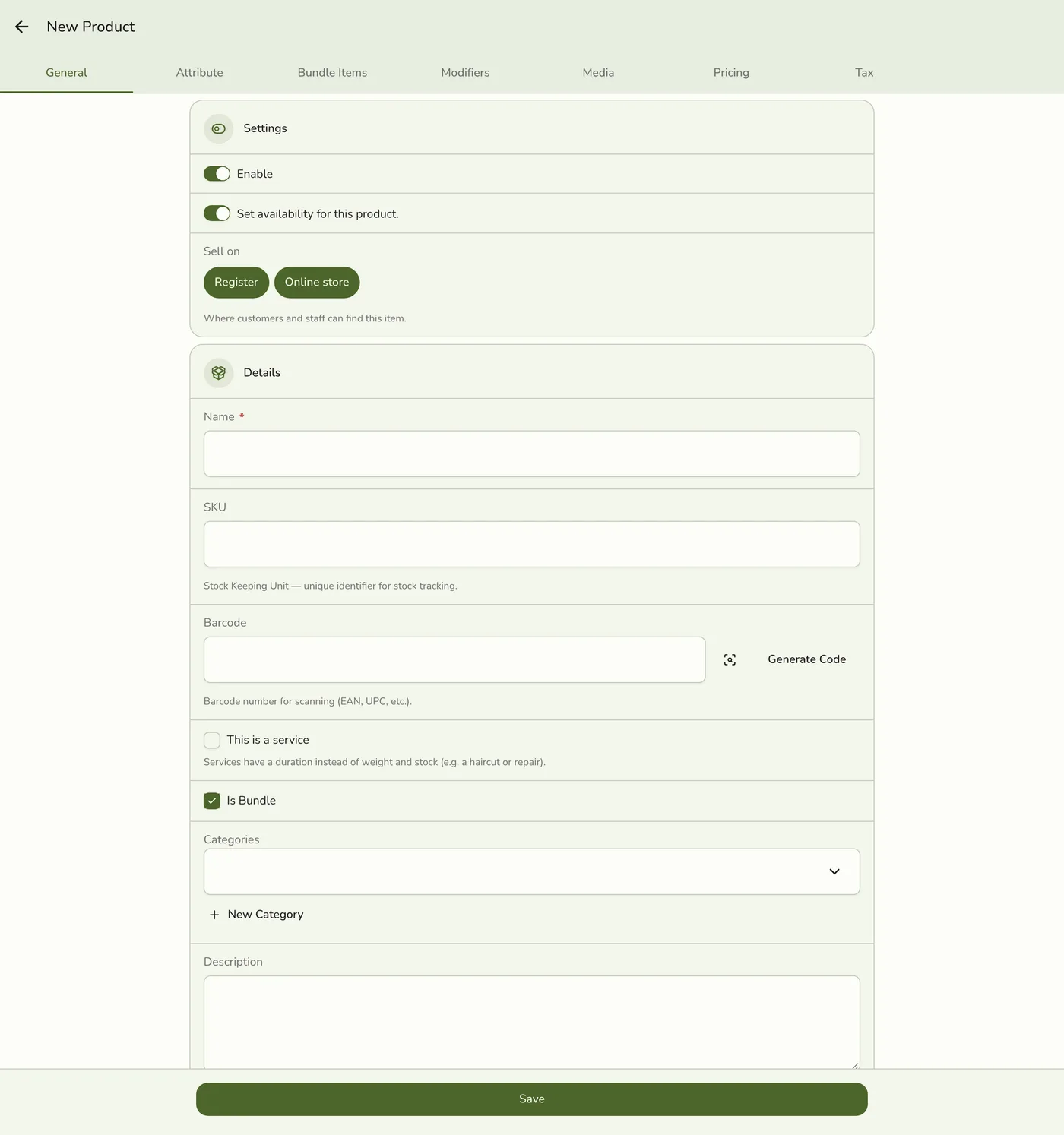
Pick the items
Open the Bundle Items tab and tap Select Items. Search, then tap each product to add it. Each row shows the item's SKU, price, and stock so you can check what you are bundling.
The Product Bundle picker dialog with a search field and a list of catalog items showing SKU, price, and stock — screenshot coming soon
Set quantities
Back on the tab, set how many of each item one bundle includes. Tap Remove to take an item out. A bundle needs at least one item before it can be saved.
Price it and save
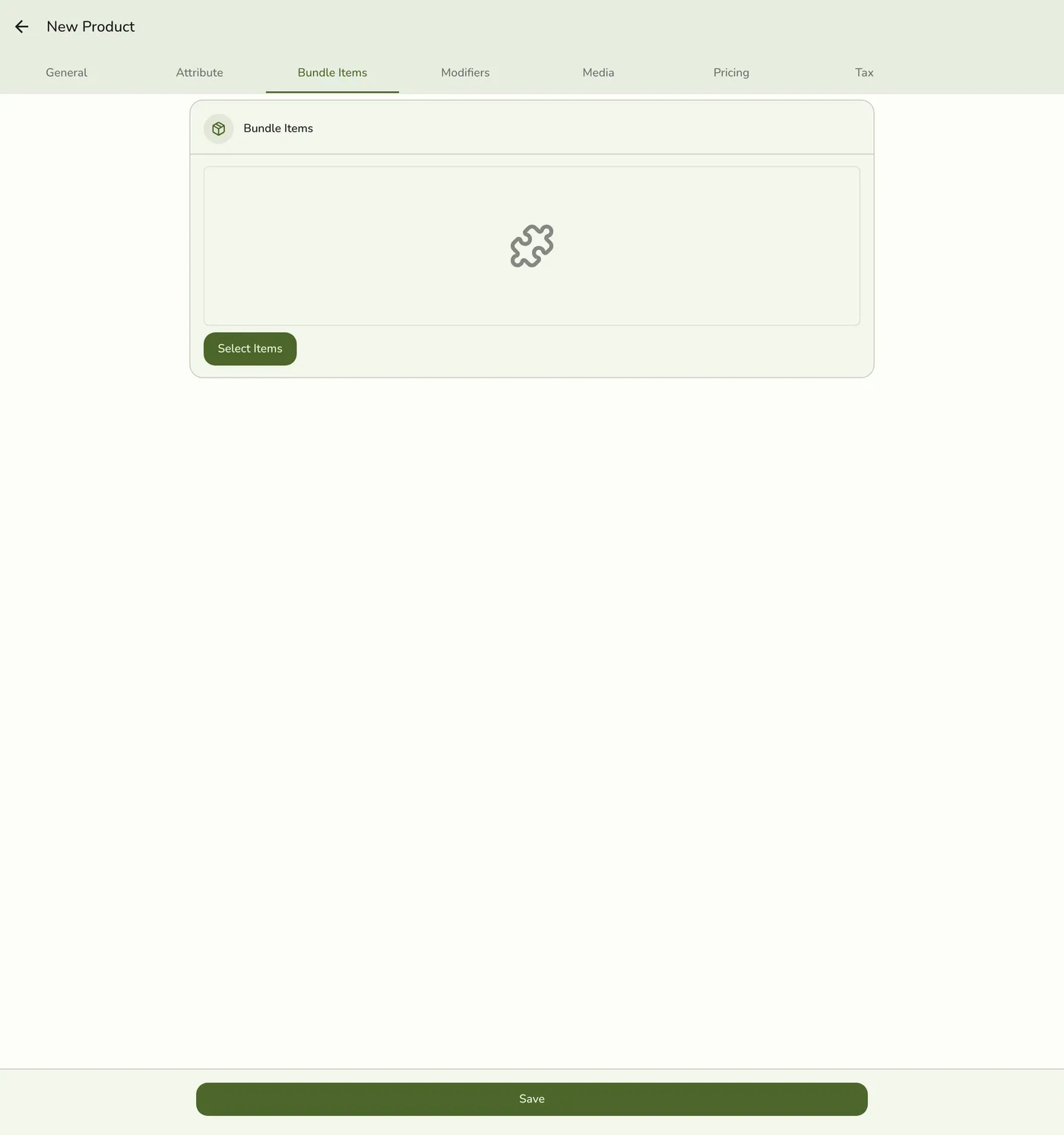
On the Pricing tab enter the bundle's own Price. It does not need to match the sum of the items. Tap Save.
What happens next
- The register and your menus show the bundle as one item at its own price. Modifiers and taxes attached to the bundle apply to the whole line.
- Each product inside it deducts stock when the bundle is sold, so a bundle runs out when any of its items does. A bundle has no Stock tab: stock lives on the items inside it.
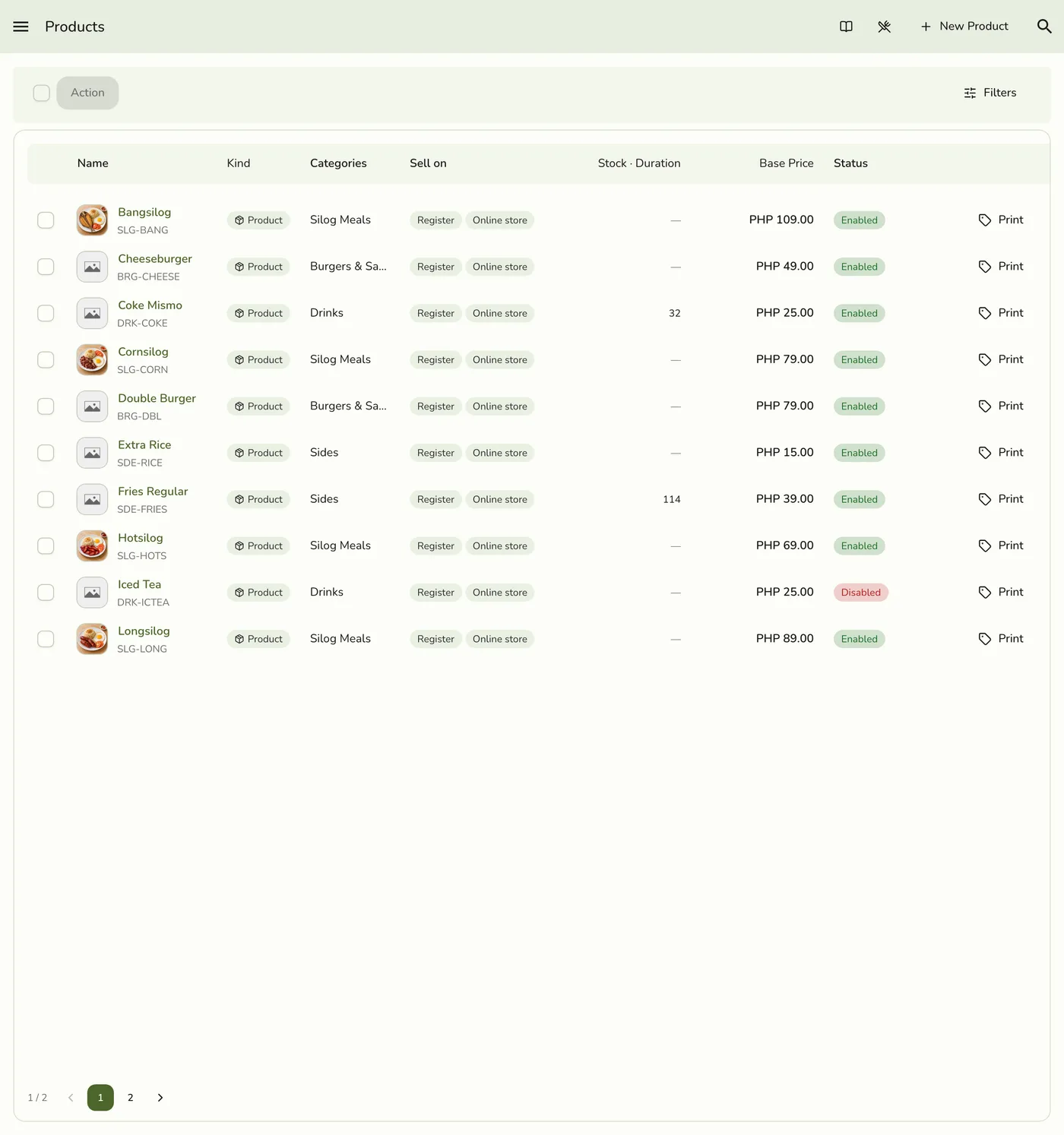
- In the list, a Bundle badge marks it. Filter by Type: Bundle to see all of them.
- To edit, open the bundle from Products and change items, quantities, or price on the same tabs. Changes apply to new orders only. Past receipts keep what they were sold with.
Edge cases
- A bundle may hold only simple items from this store. A bundle inside a bundle is refused.
- Deleting an item inside a live bundle is refused. The message names the item and the bundle. Remove the item from the bundle first, or delete the bundle. See Deleting a Product.
- Copying a store. A bundle arrives as a plain product without its items. Set its items up again.
- Commissions. With staff commissions on, a Commission override on the bundle applies to the whole line.
- The plan limits how many items you can hold. Free Trial 500, Basic 150, Starter 500, Lite 1,000, Standard 3,000, Premium no limit. Products and services count together. At the limit, saving is refused, and a spreadsheet import follows the same limit: a file whose new rows would go past it is refused whole.
Works with
| Add-on or plan | What changes on this page |
|---|---|
| Any plan | Bundles work on every plan. Each bundle counts toward the item limit. |
| Advanced Inventory add-on | Stock per location applies to each item inside the bundle. |
| Staff Operations add-on | A commission override on the bundle covers the whole line. |