

Serving Schedules
A serving schedule is a named set of hours, like Breakfast or Weekend Specials. Attach it to the items it covers, and your online menu offers those items only while the schedule is open. Outside it, customers see them as unavailable, then they come back on their own. One schedule can cover many items, so changing breakfast hours is one edit, not one per dish.
Before you start
- A plan with serving schedules (Starter or up, or the free trial).
- Products · Modify to create, edit, switch off, reorder, or duplicate; Products · Delete to delete; Products · View to see the list.
Steps
Open Serving Schedules
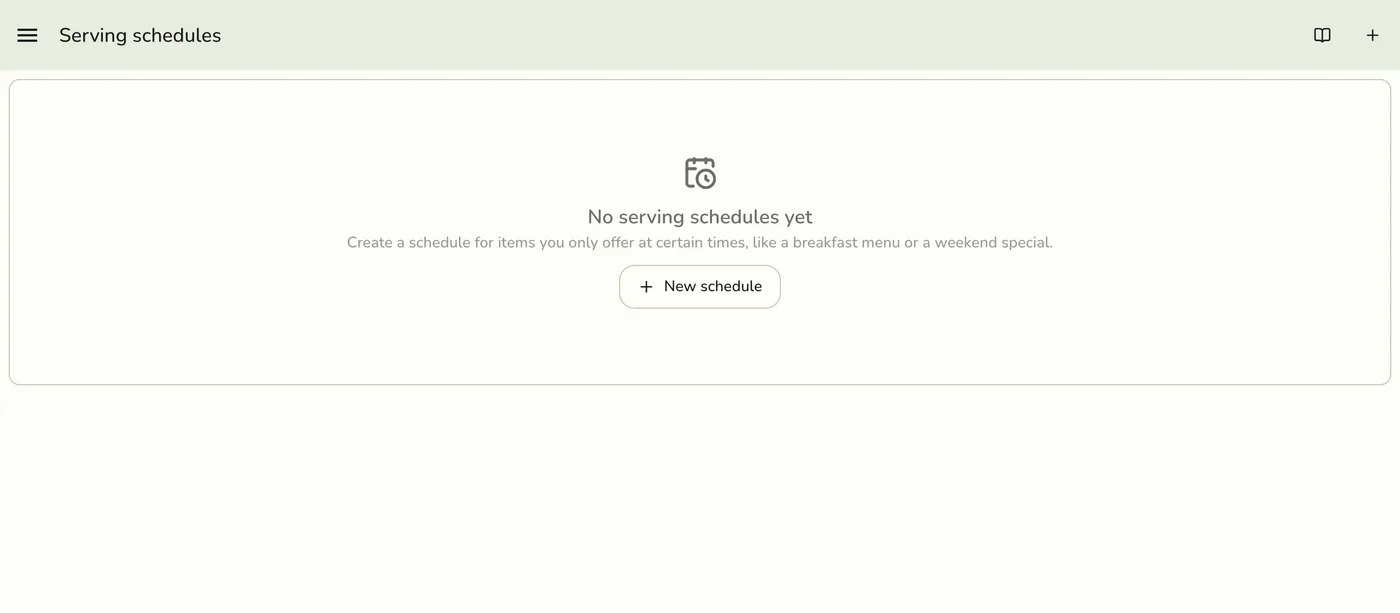
Open the main menu and tap Serving Schedules in the Catalog & Inventory section. Tap New schedule. You can also reach it with Manage schedules in the product form.
Name it
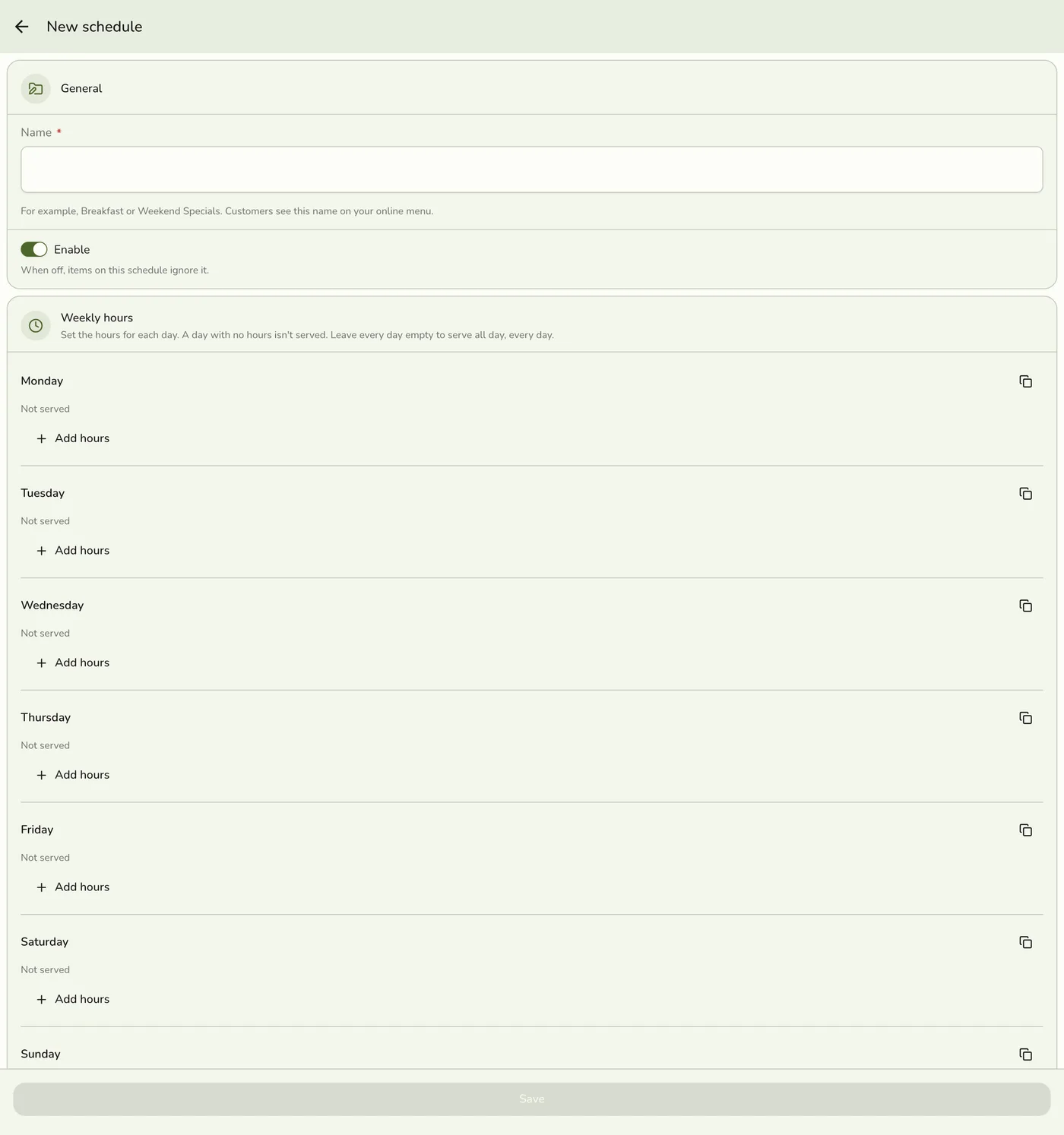
Under General, pick a name customers will understand, such as Breakfast or Weekend Specials. Customers see it on your online menu. The Enable switch decides whether the schedule is in effect. Leave it on.
Set the weekly hours
Under Weekly hours, tap Add hours on each day it is served and fill in Opens and Closes. A day can have up to four sets of hours, for example 11:00 AM to 2:00 PM and 5:00 PM to 9:00 PM. A day with no hours is not served. Leave every day empty and the schedule is open all day, every day. Leave both times of a set empty to serve all day on that day. An end earlier than the start runs overnight. Set one day up, then tap Copy hours to copy to Mon–Fri, Sat–Sun, or every day. Copying replaces what those days had, so you confirm first.
The Weekly hours section with lunch and dinner hours on each weekday — screenshot coming soon
Change specific dates (optional)
Under Specific dates, tap Add a date for a holiday or a one-off. A new row is set to the next free date and already Closed all day. Switch that off to give the date its own hours. A date replaces that weekday's usual hours for that one day. You can add up to 120 dates.
The Specific dates section with a holiday closed all day — screenshot coming soon
Limit when it applies (optional)
Under Active dates, set Starts on and Ends on for a seasonal menu. Outside those dates the schedule is closed. Tap Clear to remove a date.
The Active dates section with Starts on and Ends on — screenshot coming soon
Save, then attach it to items
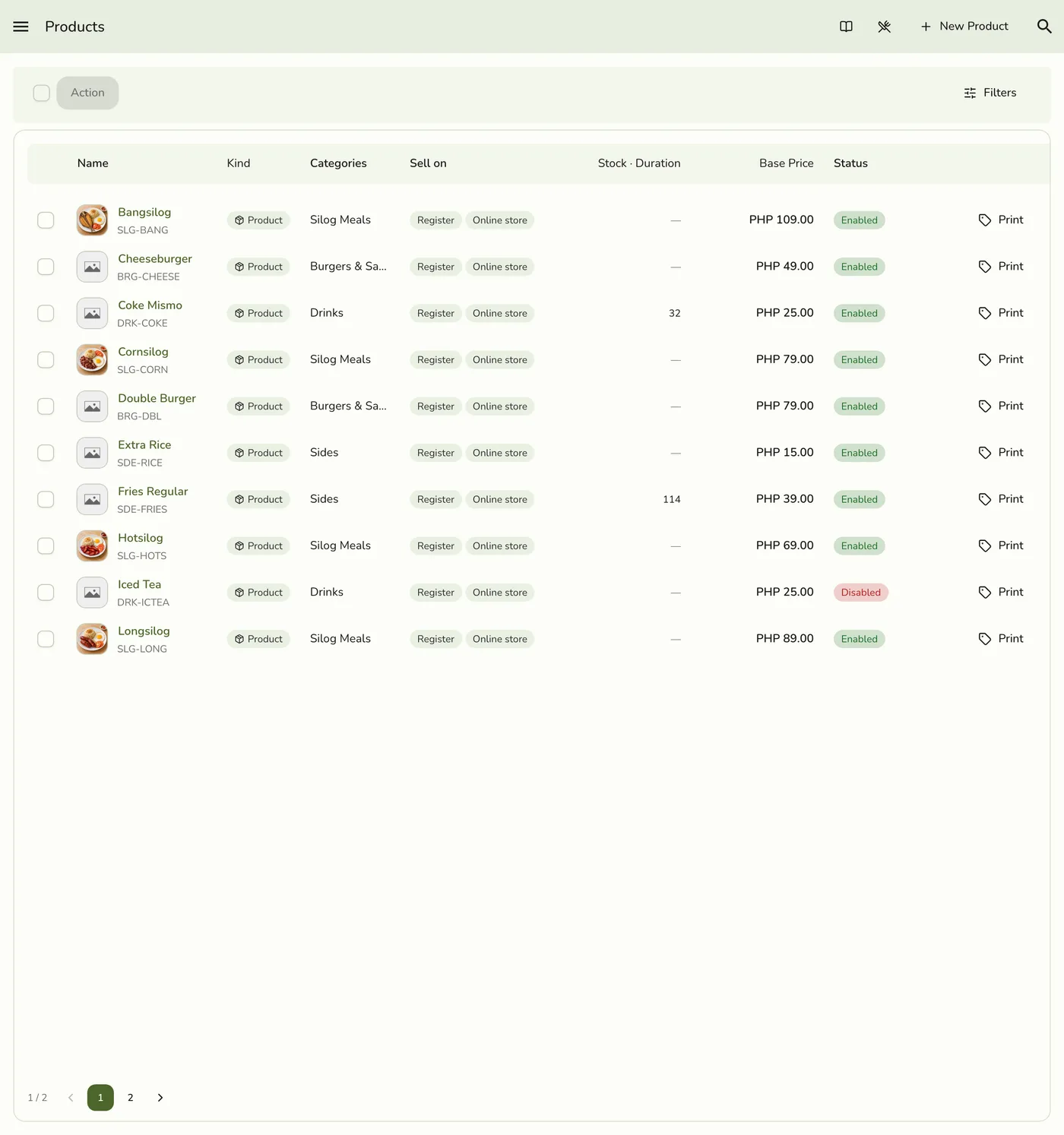
Tap Save. The schedule appears with its live status: Serving now · until 2:00 PM, Next: 5:00 PM, or Next: Sep 24, 2026, 6:00 AM. Then open an item in Products, and on the General tab open Serving schedules and tick each schedule it follows. Each shows when it next opens. Tap Save.
What happens next
- The register's cached items and schedules and your public menu are refreshed. Other devices are told only on plans with live sync.
- Your online menu groups items by schedule and says when each opens. Schedules serving now sit with your categories, and customers can tap one at the top. Schedules that open later move to a Coming up list beside the menu, or behind a Coming up button on smaller screens.
- Each switched-on schedule gets its own button in the register's category bar, marked with a clock. On a phone it is a tile right after All Products, in the order you arranged.
Edge cases
- Schedules never stop a sale at the register. A customer in front of you can buy an item at any hour. Only an item you marked unavailable or switched off cannot be rung up. An online order placed during serving hours can still be rung up after the schedule closes.
- An item on several schedules is offered whenever any is open. An item on none is offered whenever it is available.
- Marking an item unavailable always wins. A schedule never brings back something you marked sold out on Today's Menu.
- Times are your store's local time, whatever time zone the phone showing the menu is in.
- Hours cannot overlap on one day. The second set is flagged and Save stays off until you fix it. Back-to-back hours are fine.
- A name another schedule has is refused, in any letter case. A last day before the first day is refused.
- Manage: switch a schedule off with its switch (items ignore it while off, and nothing is deleted), reorder by dragging, Duplicate from the ⋯ menu (the copy keeps hours and items and opens for renaming), and Delete. Deleting detaches it from its items. An item left with no schedule is offered whenever it is available. A schedule whose Ends on has passed shows Ended, and its items stay off your online menu until you attach another or extend the date.
- Leaving the form unsaved asks whether to discard. Keep editing returns with everything you typed.
- After a downgrade to Basic while the list is open, the list shows the upgrade notice, but Add can still open the create form, whose save is refused.
- Reordering must name every schedule the store has, or it is refused.
Works with
| Add-on or plan | What changes on this page |
|---|---|
| Basic plan | The screen is hidden and schedules are ignored. Items are offered whenever they are available. Your schedules are kept and return if you upgrade. |
| Starter and up, and the free trial | Serving schedules are available. |
| Online store | Schedules narrow only what customers can order online. See Taking Orders Online. |