

Today's Menu (Availability)
Today's Menu is the fast way to keep your catalog honest during the day: mark items available or unavailable (sold out) with one switch each, or flip everything at once. Nothing is deleted or hidden from your catalog. An unavailable item simply cannot be ordered until you switch it back.
Before you start
- The Products · Modify permission. Staff without it do not see the Today's Menu button or the bulk actions.
Steps
Open Today's Menu
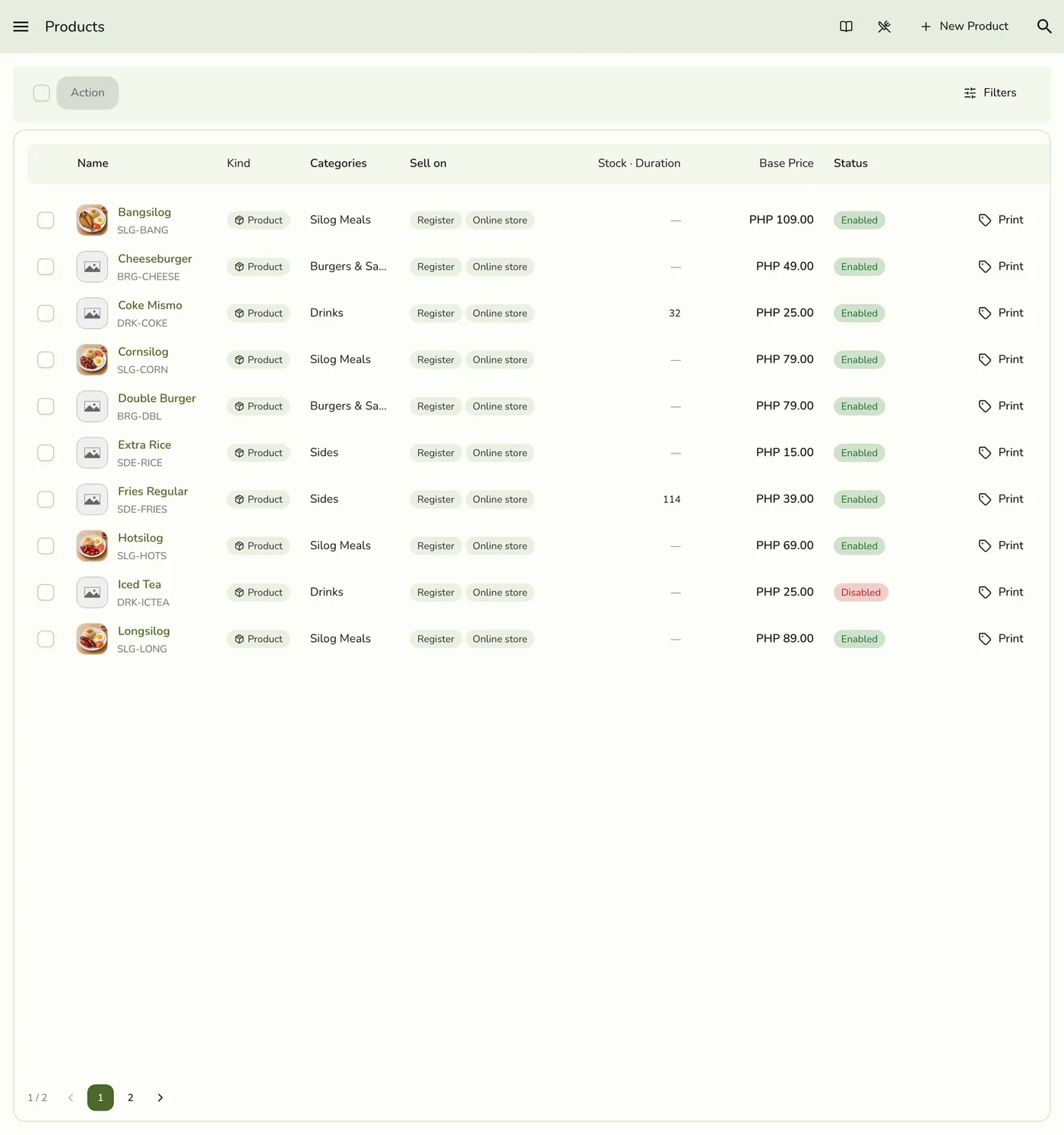
Go to Products and tap the Today's Menu button in the header. It shows only to people who may change products.
Flip individual items
Each item has a switch. On means available, off means sold out. Items load 100 at a time as you scroll, so a large catalog is all there. The header shows a live count for your whole catalog, such as 3 of 5 available, even before every item has loaded. A change applies at once, with no confirmation.

Or mark everything at once
Use Mark all available at the start of the day, or Mark all unavailable when you close. They cover every enabled item in your catalog, not only the ones on screen, and only items that would actually change are updated.

What happens next
- The register shows unavailable items greyed out so staff cannot ring them up.
- Your public store page stops offering the item immediately, with a sold-out label. The register and menu caches are cleared.
- Your catalog stays intact: prices, photos, and settings are untouched. Other devices are told only on plans with live sync.
- Sold-out items show an Unavailable badge on their product card.
Edge cases
- Availability is not Enable or Disable. Disabling removes an item from the register entirely. Unavailable keeps it visible with a sold-out state, the right choice when you will have it again tomorrow. Disabled items do not appear in Today's Menu, so enable them from the Products list first.
- Marking an item unavailable always wins over its serving schedule. If you mark something unavailable mid-service, a schedule will not bring it back. Switch it on yourself.
- Bulk from the list. You can also tick several items in Products and use Mark available or Mark unavailable from Action.
- Morning routine. If you sell through a group chat with a shared link, open Today's Menu, switch on what you cooked, and post the link.
- Stock. An item with tracked stock at zero shows as sold out on its own. This switch is separate.
Works with
| Add-on or plan | What changes on this page |
|---|---|
| Any plan | Today's Menu is free on every plan. |
| Serving schedules (Starter and up) | A schedule decides when items are offered online, and never overrides this switch. See Serving Schedules. |