

Stock Tracking
Applies toEvery plan, including free BasicNeeds Products · Modify; Point of Sale · ModifyUsually owner, manager
Stock tracking on the product form is built in. You do not need Advanced Inventory to turn on Track stock, set a quantity or a low-stock level, or let the register deduct stock.
Before you start
- The Products · Modify permission.
Steps
1
Open the product
Go to Products and tap Add Product, or open an existing product. Services have no Stock tab, since stock applies to products.

2
Turn on Track stock
Open the Stock tab and turn on Track stock.

3
Set the quantity and low-stock level
Enter the quantity on hand and, optionally, a Low Stock level. Save the product.

4
Check it any time
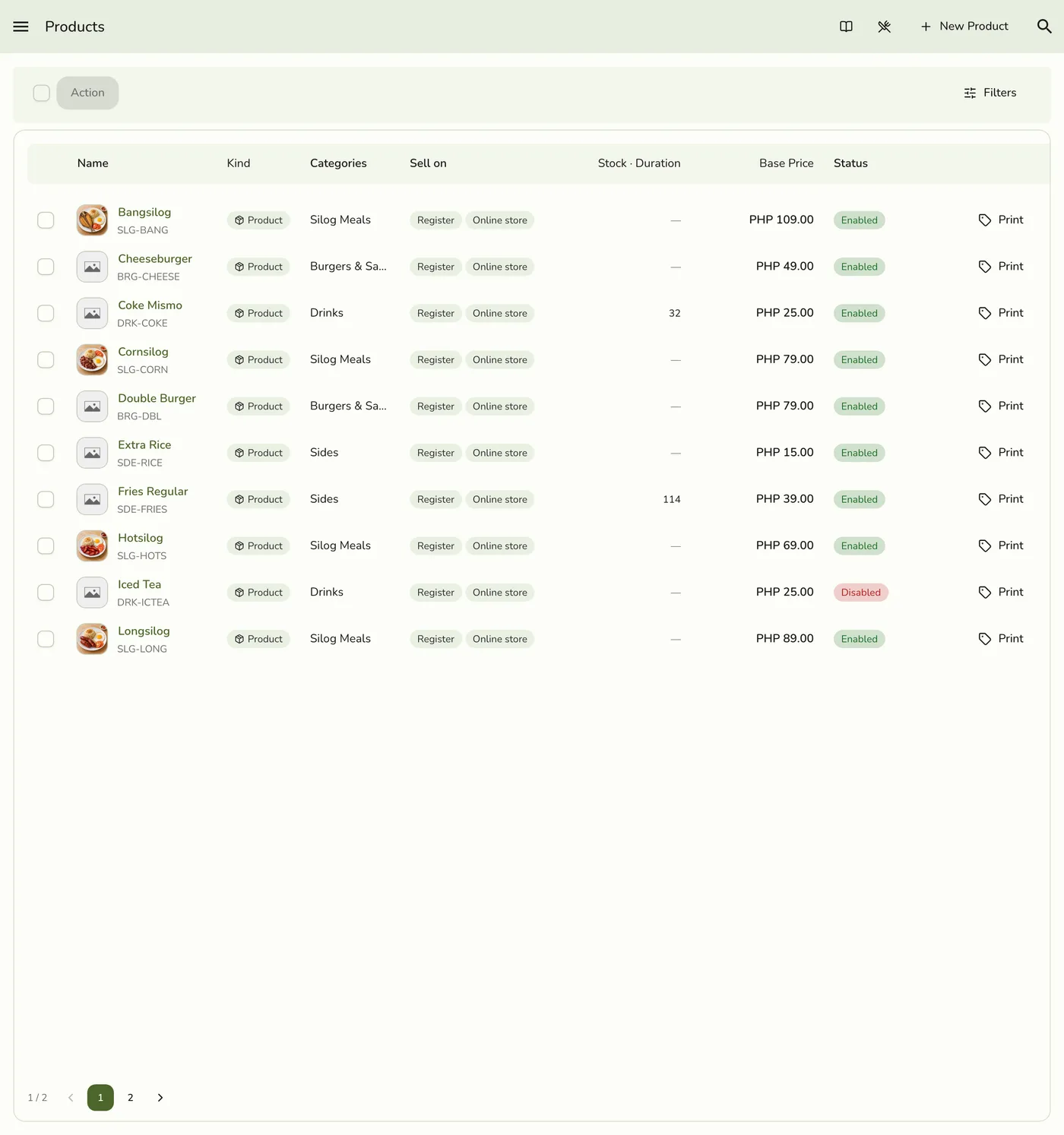
Open the product to see its stock on the detail screen. Products at or below their low-stock level are highlighted on the list.
What happens next
- Each sale subtracts, or reserves, the ordered quantity at the default sale location. Completing the order later does not deduct again.
Edge cases
- Hold stock for open orders. With Preferences → Product → Hold stock for open orders on, an open order reserves its stock and on hand stays the same, with available going down. Editing follows the change, and a bundle reserves the products inside it. Completing takes the reserved quantity off on hand. Cancelling or voiding a line releases it, even if you switch the setting off meanwhile.
- Available stock is on hand minus what open orders reserve. It is the number the register shows and checks a sale against.
- What the register checks. A tracked product needs enough available stock, and the register says out of stock or how many are left. A bundle needs every product inside it in stock, and lines in one order are counted together. Services and untracked products are never checked.
- A refused bundle you can actually fill means a product inside has an out-of-date count. Correct it under Inventory → Stock, or switch off tracking on it.
- Quantity on the product form changes stock without the approval step. With Staff Operations on, a person without approve permission still triggers an approval for it. See Manager Approvals.
- Set quantities carefully when first adding products. With the add-on, count and adjust regularly.
Works with
| Add-on or plan | What changes on this page |
|---|---|
| Advanced Inventory add-on | Adds more locations, counts and audited adjustments. |
| Plan | Available on every plan. |