

Managing Locations
Applies toEvery plan, including free BasicAdvanced Inventory add-onNeeds Inventory · Modify; Inventory · ViewUsually owner, manager
A location is a place where stock is counted separately. Every store starts with one called Main. A second location matters once stock is moved there by a transfer or received there from a purchase order.
Before you start
- The Advanced Inventory add-on.
- The Inventory · Modify permission.
Steps
1
Open Locations
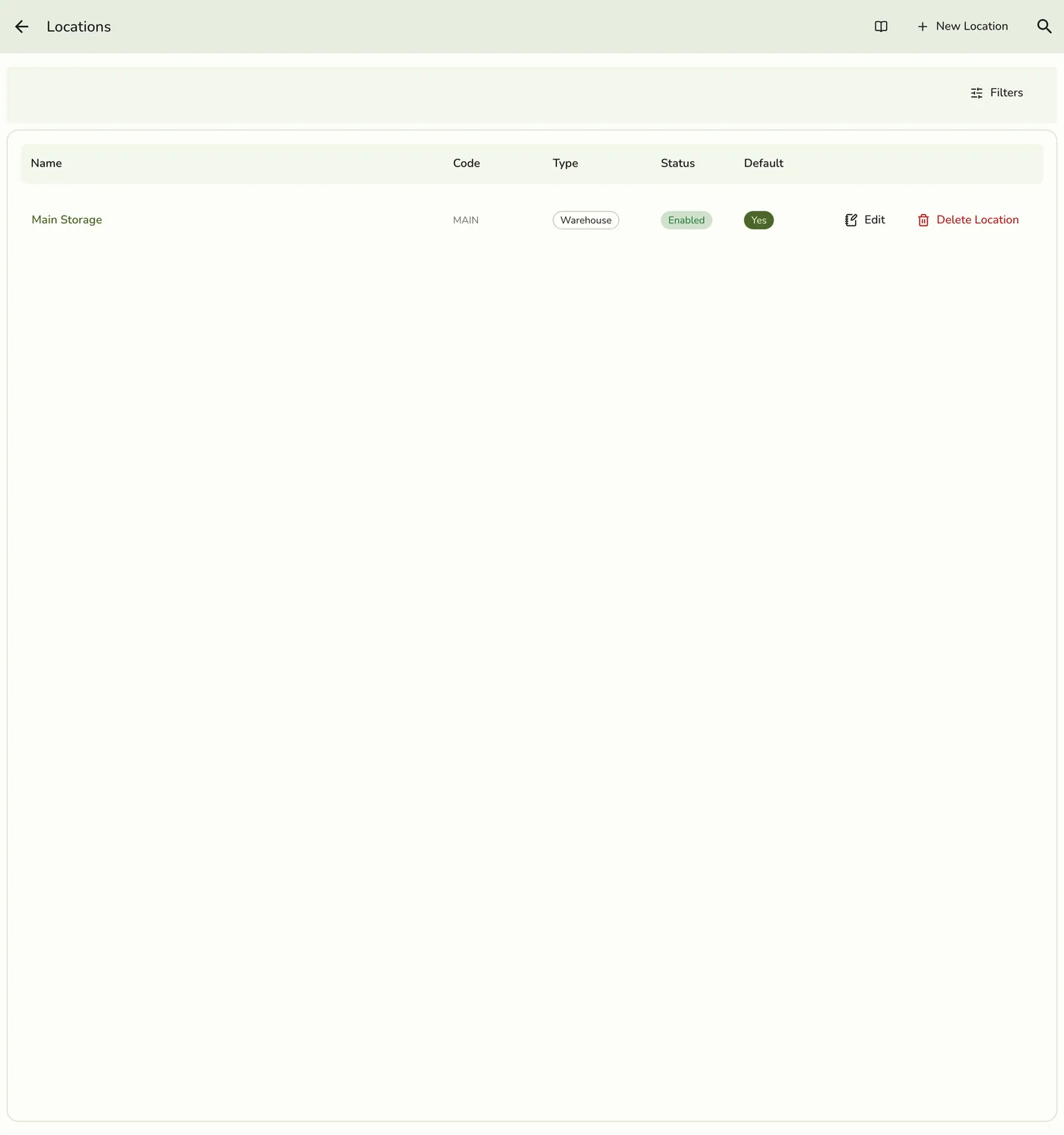
Open Advanced Inventory, then Locations, and tap New Location. The button shows only to people who may change inventory.
2
Fill in the details
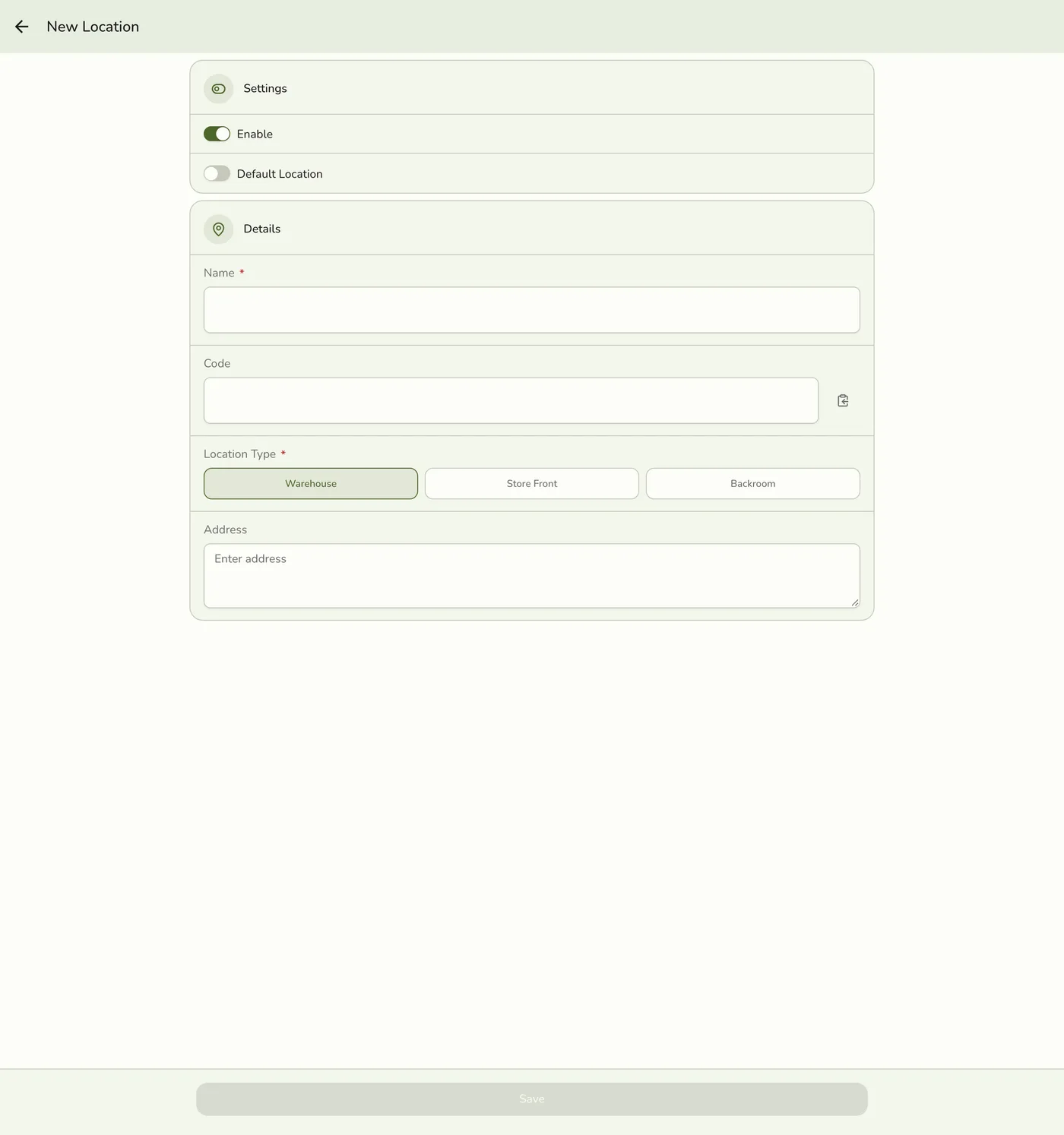
Enter a Name, pick a type (store front, backroom or warehouse), and optionally a short code, an address and Default.
3
Save
Tap Save. Without a code, one is made from the name.
The Locations list with the new location — screenshot coming soon
4
Change or delete one
Tap a location to rename it, switch Enable off, or make it the default. Tap Delete and confirm, or use the row menu.
A location being edited — screenshot coming soon
What happens next
- Other devices see the change at once with live sync.
Edge cases
- The type is a label only. Every type holds stock the same way.
- One default. Marking one default takes it off the others. The register sells from it. A switched-off location stops being the sale location and the first active one takes over. Only an active location can be default.
- Deleting is refused while it is your only active location, holds stock, or has an unfinished purchase order or transfer. A location with past sales or stock history (movements or a count) cannot be deleted for good and can only be switched off.
- Staff can be limited to locations, but the app has no screen to assign them today. See Approvals and Permissions.
- The Enable switch on the new-location form can be ignored. Check it after saving.
- Permissions. Deleting needs Inventory · Delete.
Works with
| Add-on or plan | What changes on this page |
|---|---|
| Advanced Inventory add-on | Required for locations, purchase orders, suppliers, transfers and audited adjustments. It is the one add-on not unlocked during a free trial: activate it with a saved payment method on file. |