

Adjusting Stock
Every adjustment is written to the stock history with the quantity before and after, the type, the reason and who made it. The app has no screen that shows that history yet.
Before you start
- The Advanced Inventory add-on.
- The Inventory · Modify permission.
Steps
Open Stock Levels and find the item
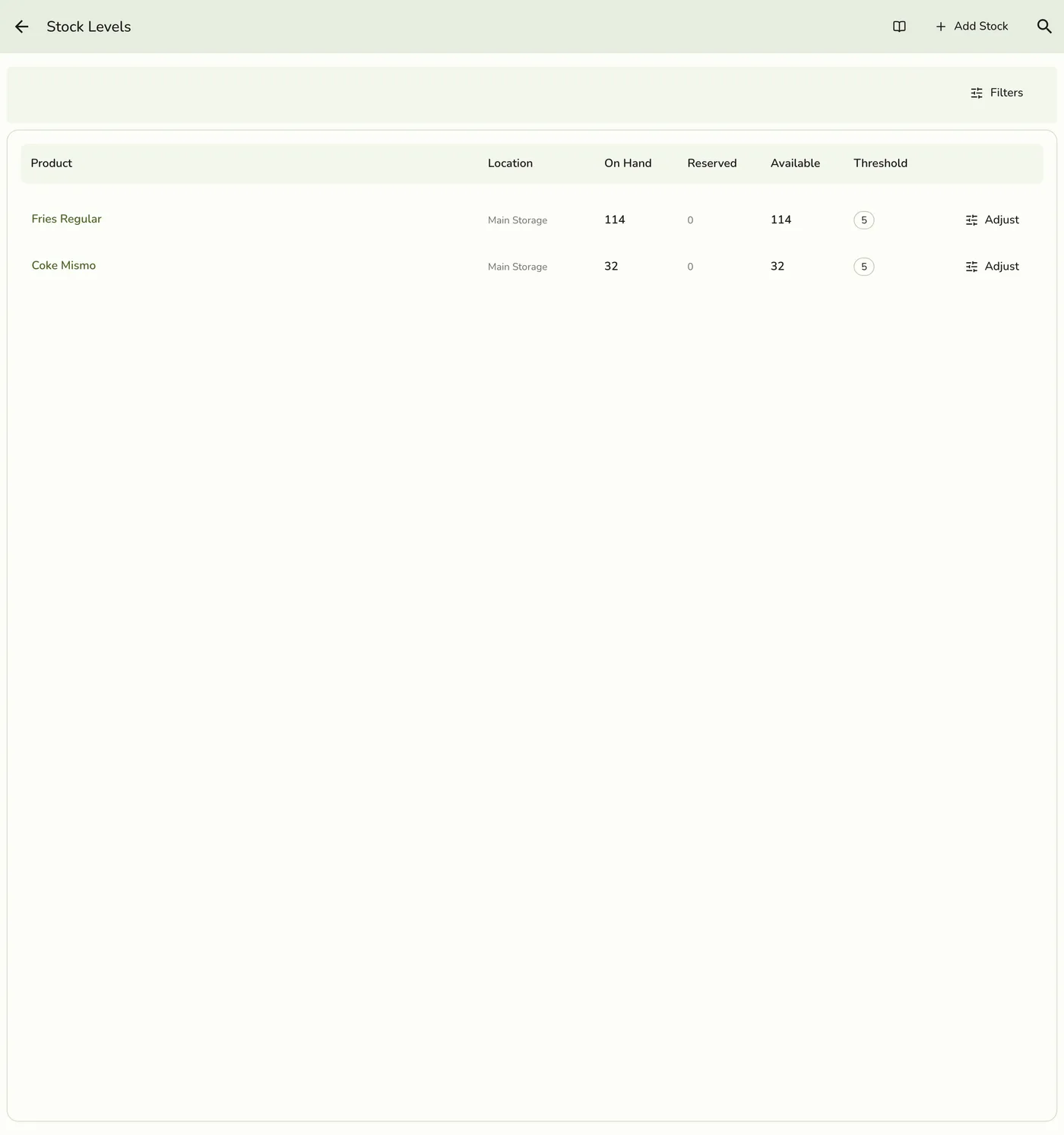
Open Advanced Inventory → Stock. Search by item or location, or filter by location and by in stock, low or out of stock. Only items that track stock are listed. Each row shows on hand, held for open orders and available.
Start the adjustment
Tap Add stock and pick the item and location, or open the item's stock page and tap Adjust on a location's row.
The item stock page with Adjust — screenshot coming soon
Pick the type and enter the number
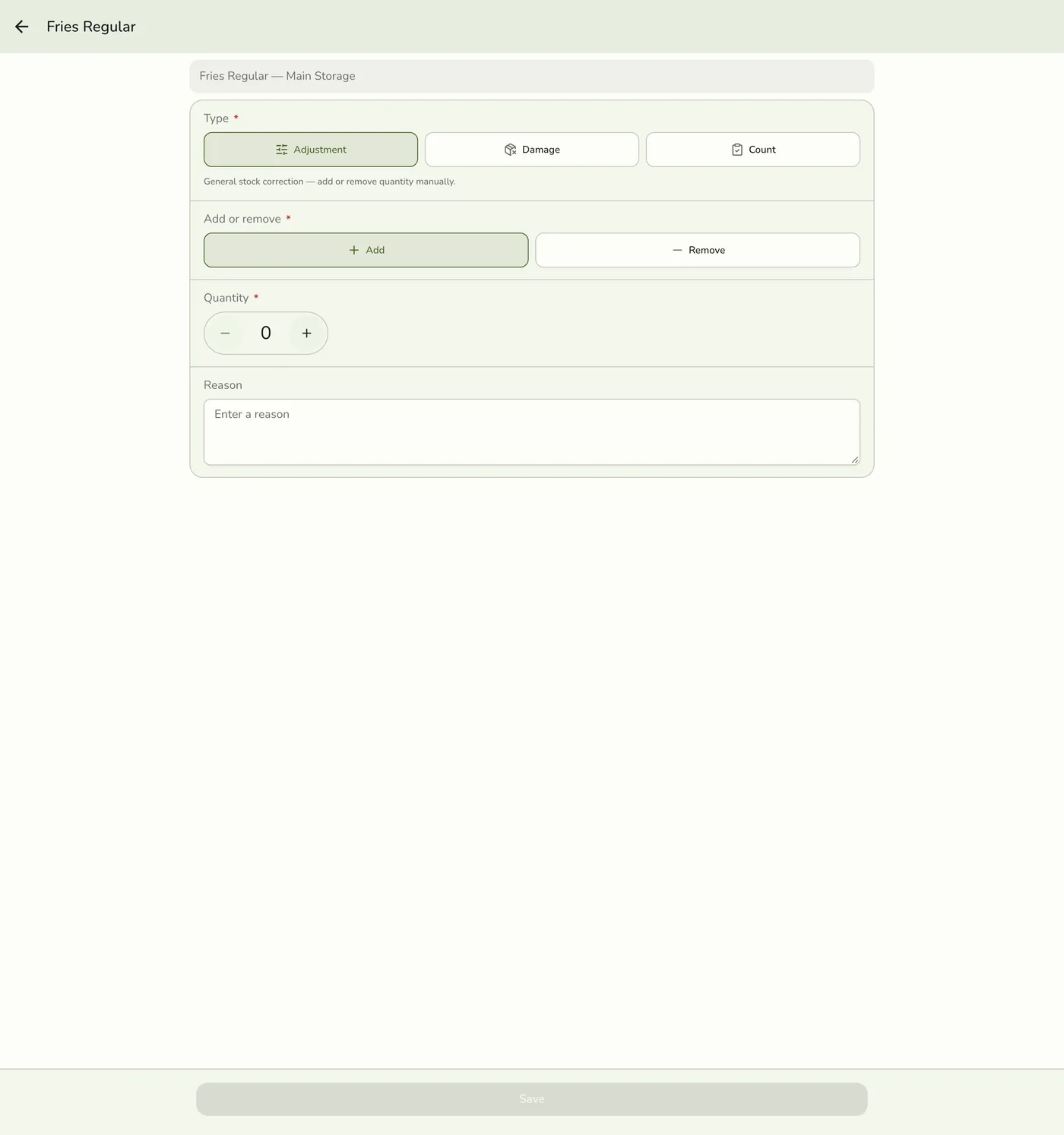
Adjustment adds or removes, with an Add or Remove switch. Damage takes that many off. Count sets the stock to the number you counted, and shows what is on hand now. Enter a reason.
Save
Tap Save. If approval is needed, the manager approval sheet opens on the same screen.
The Save button — screenshot coming soon
What happens next
- Stock changes and the movement is recorded. The stock row is locked while it changes, so two adjustments at once cannot lose one.
Edge cases
- Approval. With Staff Operations on, a person without approve permission, or an adjustment at or above your threshold, waits for a manager. Owners, managers and approvers go straight through. A count waits as the difference it found when asked for, so what sold while it waited stays sold.
- Not below zero. If your store prevents negative stock, removing more than is on hand is refused.
- Locations. A staff member limited to other locations is refused.
- Quantity on the product form also changes stock, without this approval step.
- Needs the add-on. Reading stock does not.
Works with
| Add-on or plan | What changes on this page |
|---|---|
| Advanced Inventory add-on | Required for locations, purchase orders, suppliers, transfers and audited adjustments. It is the one add-on not unlocked during a free trial: activate it with a saved payment method on file. |
| Staff Operations add-on | Adds manager approval for placing purchase orders, adjusting stock and completing counts. |