

Purchase Orders
A purchase order (PO) records stock you are ordering. You draft it, place it, then receive the items into a location when they arrive.
Before you start
- The Advanced Inventory add-on.
- The Inventory · Modify permission.
- A supplier and the products in your catalog.
Steps
Open Purchase Orders
Go to Advanced Inventory → Purchase Orders and tap New Purchase Order.

Pick the location and supplier
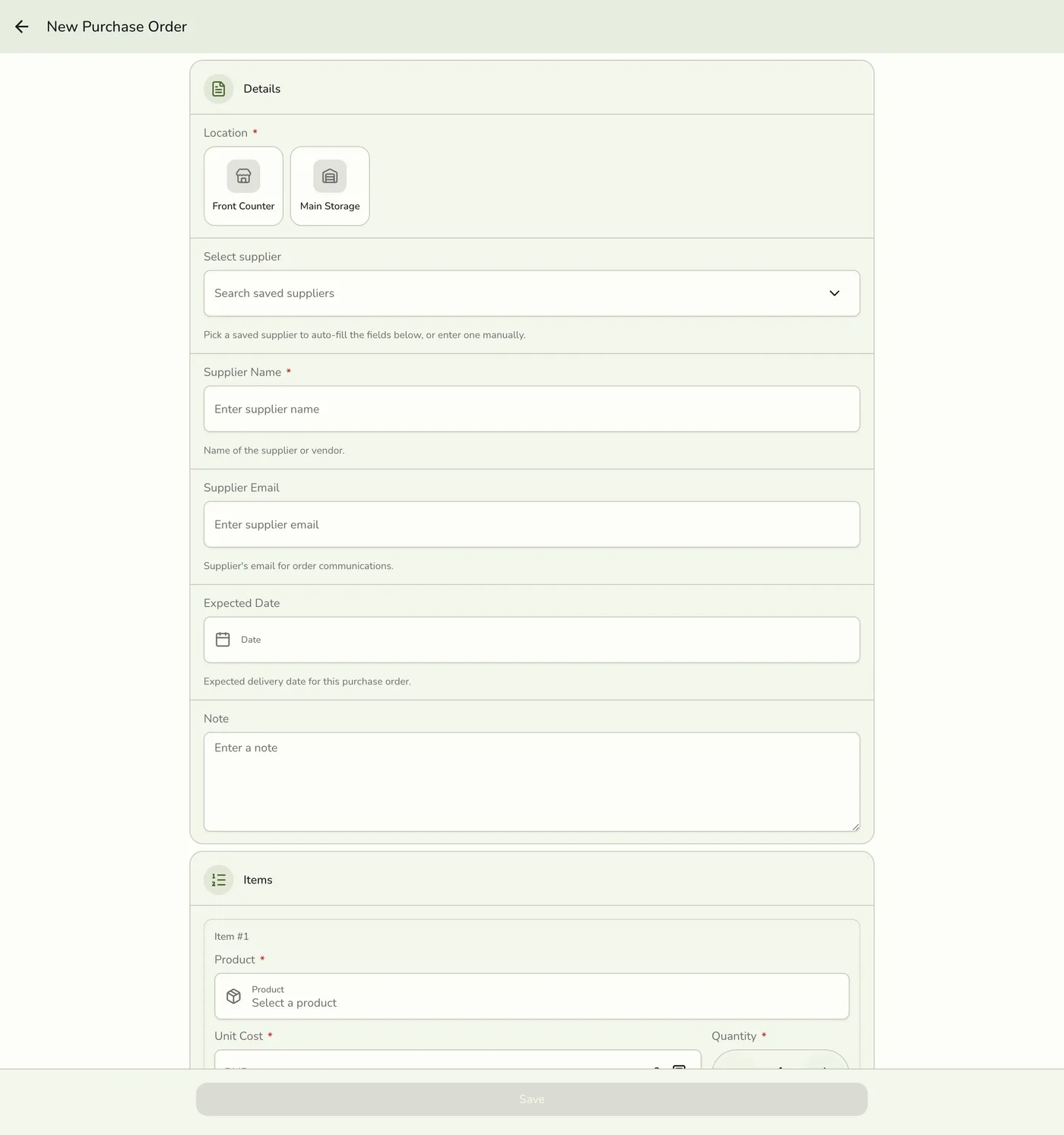
Choose the destination location, which is required, and a saved supplier. Its name and email fill in and stay editable for a one-off. Set an expected date if you know it.

Add items
Add each product, with a quantity and a unit cost in your store currency. Save the draft. It needs a location, a supplier name and at least one item.
Place the order
Open the draft, tap Place Order and confirm. This only records the date it was ordered. Nothing is sent to the supplier.

Receive the delivery
Open the placed order and tap Receive. Each line starts at what is outstanding. Lower it for a short delivery, then confirm.

What happens next
- Stock increases at the destination, each line is a "purchase receive" movement, and the location's average cost is blended with the line's unit cost. A short delivery leaves the order Partially Received with the rest still outstanding.
Edge cases
- Numbers. PO-000001, PO-000002 and so on, counted per store. Orders made before 17 October 2026 keep older numbers such as PO-7KQ2M9XA.
- Statuses. Draft, Ordered, Partially Received, Received, Cancelled. A partly received order's status bar stays on Ordered.
- Receiving needs a placed order. A draft is refused, so receiving cannot skip placing and its approval. A line never takes in more than is outstanding.
- Approval. With Staff Operations on, placing a large order waits for a manager, and by default the approver must be someone other than the person placing. See Approvals and Permissions.
- Cancel a draft, placed or partly received order. Stock already received stays. A received or cancelled order cannot be cancelled.
- Locations. A person limited to other locations cannot receive at the destination.
- Auto-reorder drafts appear here, noted "Auto-generated reorder".
- An order made in the app keeps the supplier name as typed, even if the saved supplier changes later.
Works with
| Add-on or plan | What changes on this page |
|---|---|
| Advanced Inventory add-on | Required for locations, purchase orders, suppliers, transfers and audited adjustments. It is the one add-on not unlocked during a free trial: activate it with a saved payment method on file. |
| Staff Operations add-on | Adds manager approval for placing purchase orders, adjusting stock and completing counts. |