

Stock Counts
Applies toEvery plan, including free BasicAdvanced Inventory add-onNeeds Inventory · Modify; Inventory · ViewUsually owner, manager
A stock count compares what you physically have with what the system thinks you have, and surfaces shrinkage, miscounts and unrecorded waste. In the app today, you record a count with the Count type of an adjustment.
Before you start
- The Advanced Inventory add-on.
- The Inventory · Modify permission.
Steps
1
Count the shelf
Count quietly, when stock is not moving. Write down each item and its quantity.
2
Open the item's stock page
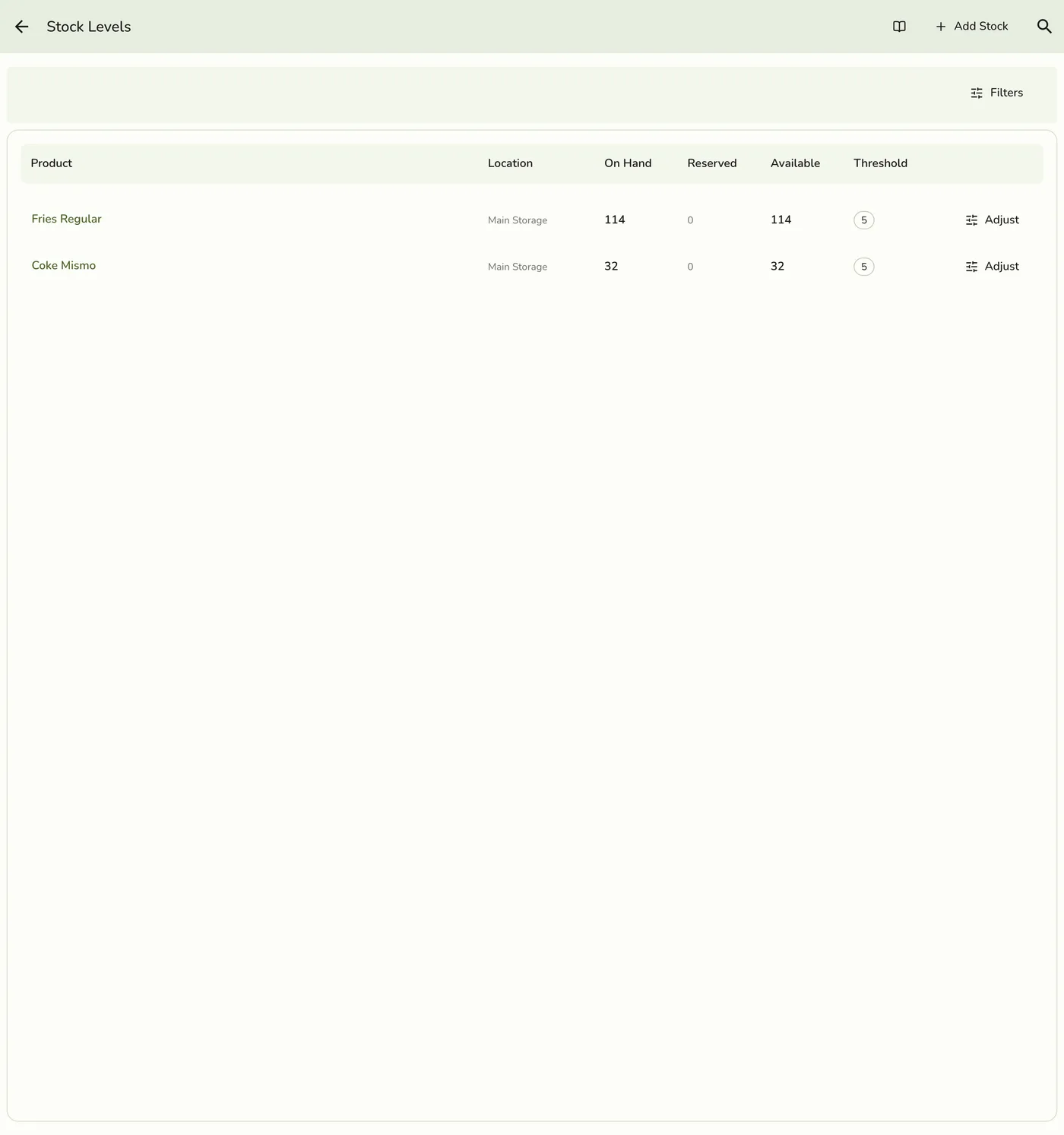
Open Advanced Inventory → Stock and tap the item. Tap Adjust on the location's row.
The Adjust button on a location row — screenshot coming soon
3
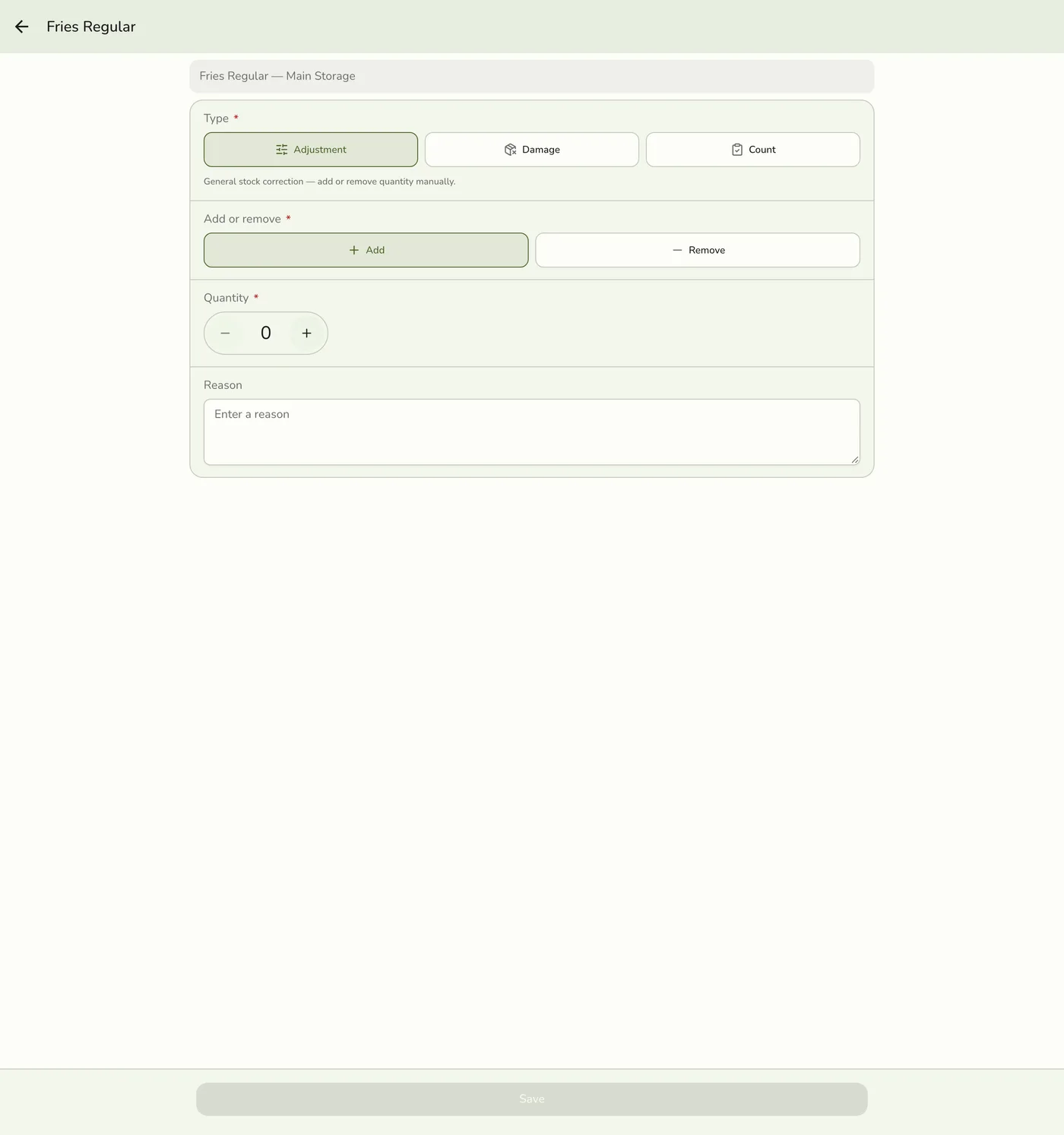
Choose Count and enter the number
Pick Count. The screen shows what is on hand now. Enter the number you counted, which can be 0, and a reason such as the date of the count.
4
Save and repeat
Tap Save. The difference is applied to current stock and recorded as a movement. Repeat for each item.
Saved count — screenshot coming soon
What happens next
- Stock matches your count. A count turns into its difference under a lock, so a sale made after you counted is kept.
Edge cases
- There is no Stock Counts screen in the app yet. A formal stock count document, with draft, in progress, completed and cancelled states, exists on the server and can be run through the API. The app does not show it.
- How a formal count works. The expected quantity is what is on hand when you enter each item, so a sale made before you reached the shelf is not counted as missing. Completing applies each item's difference to current stock, and items left uncounted are untouched. It all happens together or not at all. With Staff Operations on, a staff member who cannot approve gets an approval request.
- Variance. Negative means less than expected, which is shrinkage. Positive means more. Repeated variances on one product are worth investigating.
- Approval. With Staff Operations on, the count waits for a manager the same as an adjustment.
- Not below zero when your store prevents negative stock.
Works with
| Add-on or plan | What changes on this page |
|---|---|
| Advanced Inventory add-on | Required for locations, purchase orders, suppliers, transfers and audited adjustments. It is the one add-on not unlocked during a free trial: activate it with a saved payment method on file. |
| Staff Operations add-on | Adds manager approval for placing purchase orders, adjusting stock and completing counts. |