

How to Apply a Gift Card to an Order
Customers can use a gift card to pay for part or all of their order at checkout.
Before you start
- The Gift Cards add-on is active and the card exists.
- The Point of Sale · Modify permission, and Gift Cards · View to see the sheet.
Steps
Build the order
Open the POS Register and add items to the cart as usual.
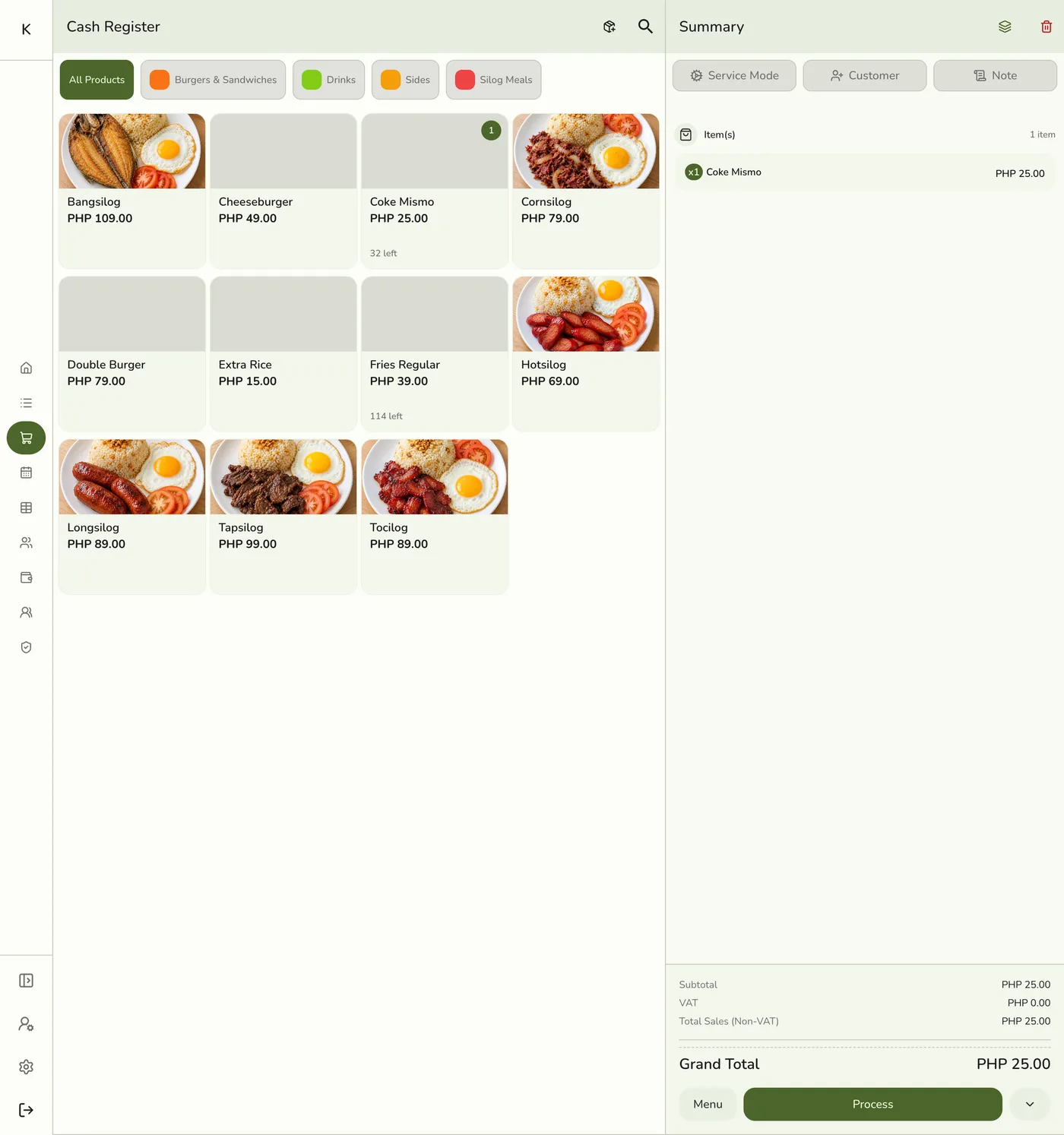
Open Menu → Gift Cards
Tap Menu, then Gift Cards to open the Gift Cards sheet. If the order's customer has their own active cards with money left, the Summary also offers up to three of them under Gift cards, with the code and what is left. Tap Apply on one to check and add it as if you had typed its code. Cards are offered once the cart has items, and only to staff who can view gift cards.

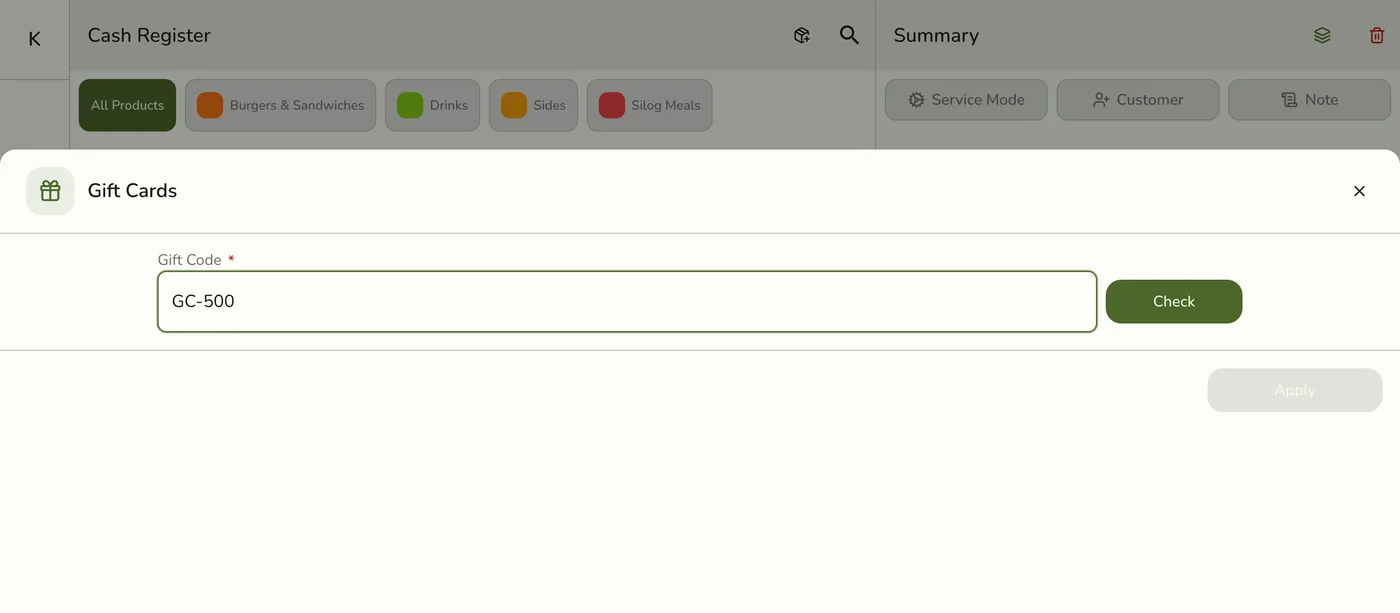
Enter the code and check it
Type the customer's code into Gift Code and tap Check. The code must match exactly. The card's balance and status appear and Apply becomes available.

Apply and complete
Tap Apply, review the total, and complete the sale. The card is a row in the Summary's Gift cards section showing what this sale uses and what is left. A second card the sale does not need says Not needed. Before the order is saved you can swipe a card row left and tap Remove. Collect any remaining amount in the payment screen.
What happens next
- The cards cover the order after tax, charges, and delivery, never more. The rest of a card stays on it and is never given as change. Cards are used in the order the server reads them, each giving up to its balance. A card the order did not need is left untouched.
- The printed receipt lists each gift card with what it paid, such as "Gift card WALK-LEXI-100 -100.00", and any loyalty points redeemed.
- Paying fully with a card or points. When the card (or the card plus redeemed points) covers the whole sale, Grand Total reads 0.00 and the payment screen is skipped. With Complete the order completes at once and no 0.00 payment is recorded. The Payment Method reads Gift Card, Points, or Gift Card + Points, and the order's Payments section says Paid with Gift Card. A state such as Process & Pay is kept and the order is already paid. If the payment screen opens anyway, tap Complete order. Opening the order again to edit keeps it paid.
Edge cases
- Check before you apply an order that is already open. Once a card is applied to an open order from the order page, it cannot be taken back off. Cancel and rebuild the order if you picked the wrong card. Cancelling puts the amount back on the card.
- Refused codes. No such card is "not found". A card switched off or expired is invalid. A card with a zero balance or every use spent is used up.
- Used on another register. If the same card was used elsewhere after you applied it, placing the order is refused, the card is taken off the sale, and you apply it again to see what is left.
- An order that already has a payment. The card covers only what is still owed. A fully paid order does not take a gift card.
- Cheaper after applying. If the order gets cheaper (a delivery fee is removed or lowered, or an item is voided), the card gets back what the order no longer needs, newest card first on a partial void.
- Cancel or void. Cancelling the order or voiding every line puts back on each card all it still has on the order and gives back the use it counted.
- Refunds. A refund on a closed order returns the cards' share to the cards. See Completing a Refund.
- More than one card can be used on one order. If the cards do not cover the amount, pay the rest with another method.
- Customers keep their codes safe. Remind them.
Works with
| Add-on or plan | What changes on this page |
|---|---|
| Gift Cards add-on | Required to create, edit, list, and delete cards. It is unlocked during the free trial. Without it the Gift Cards menu does not show. |
| Loyalty add-on | Redeemed points and gift cards are fitted to a smaller order together. |
| Store Sessions add-on | Gift card amounts are not cash and do not count in the drawer. |