

Attaching Tax to an Item
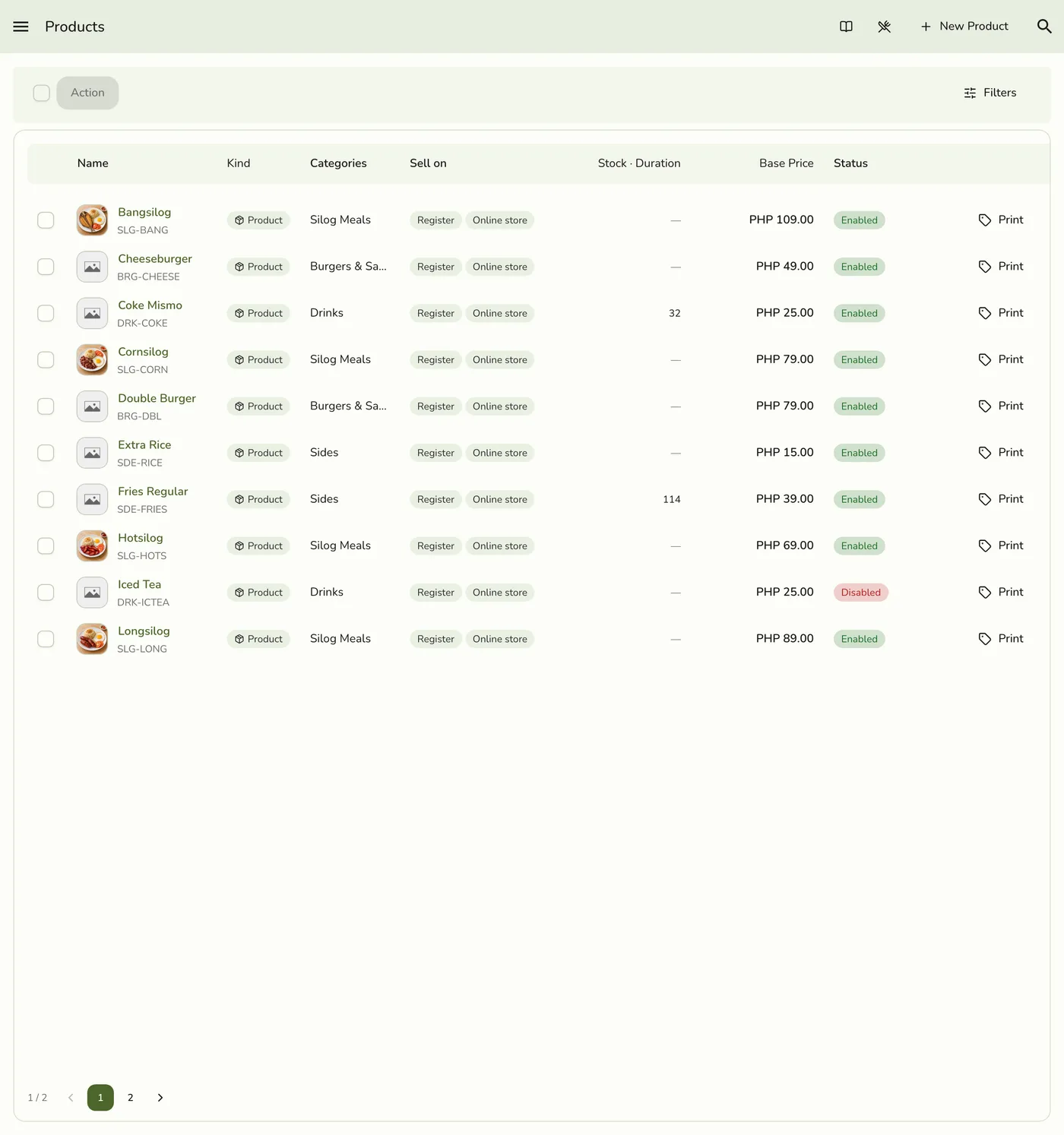
Products and services share one catalog. Attach tax on the item's Tax tab so the register applies it when that line is sold.
Before you start
- At least one tax exists. See Creating a Tax.
Steps
1
Open the product
Open Products from the sidebar and open the product or service to edit, or create a new one.
2
Open the Tax tab
On the product form, open the Tax tab.

3
Set the tax class and rate
Set Tax Class: Taxable Goods, or None if the item should stay tax-free. When the class allows tax, pick the Tax rate from your Taxes list. A taxable item needs a tax.
The Tax Class and Tax pickers — screenshot coming soon
4
Save
Save the product.
The product list after saving the tax setting — screenshot coming soon
What happens next
- On the next register sale of that item, the tax is taken out of its price by the attached rate. The register's item list is refreshed.
Edge cases
- One tax per item. Attaching replaces any tax the item had. Setting the class back to None removes the link.
- The tax picker shows only to people who may see taxes. Others see a notice.
- A tax from another store is refused.
- Special items. Pharmacy and other templates may seed special rates, such as VAT-exempt. Attach the right one per item.
- For a one-off tax-free sale without changing the product, use Removing Tax When Ordering.
- Custom register lines with no item get no tax.
- An order-level discount spread over the lines works the tax out again per unit, so a fixed tax still counts once per unit.
- The Tax preference. Tax is worked out only while your plan has Taxes and the store's Charge tax preference is on (Preferences → Store, on by default). With either off, new orders have no tax at all, saved orders keep what they recorded, and the taxes stay in place for later. This is how you stop charging tax for a while: there is no switch to turn a single tax off.
Works with
| Add-on or plan | What changes on this page |
|---|---|
| Basic plan | Taxes are locked. New orders compute without tax even if tax rows still exist. History keeps what was recorded. |
| Starter and up | Taxes are available. |