

How to Apply a Discount to an Order
Apply one of your catalog discounts to the order from the register's Menu.
Before you start
- The Point of Sale · Modify permission.
- At least one enabled discount inside its dates.
Steps
1
Build the order
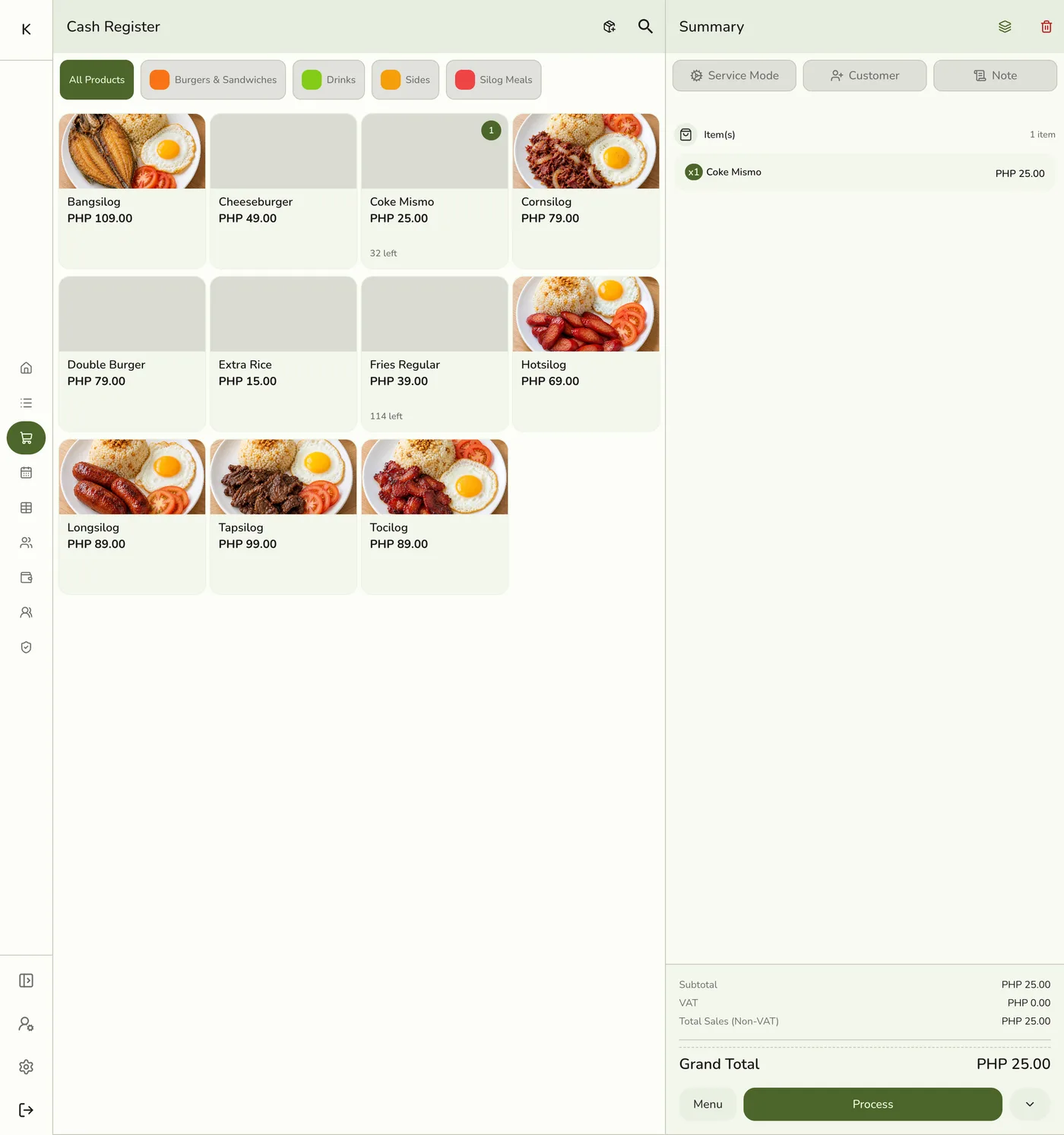
Open the POS Register and add items to the cart as usual. The discounts sheet needs items in the cart.
2
Open Menu → Discounts
Tap Menu, then Discounts to see your catalog discounts, each with its own Apply button.

3
Apply and confirm
Tap Apply on the discount the customer qualifies for, then Done. The summary shows the applied discount and the updated grand total.

What happens next
- Each applied discount is a row in the Summary's Discounts section with its rate and what it takes off this sale. Tap Add on the header, or tap a row, to apply another. Swipe a row left and tap Remove to take off just that one. A custom discount has its own Custom discount row: tap it to change the amount, or swipe it left and tap Remove.
- Percentage discounts come off first, then fixed ones, and the order keeps its own copy of each. Use Clear Discounts in the sheet to remove every applied discount.
Edge cases
- There is no promo-code box at the register. If a customer mentions a promotion, your cashier picks the matching discount from the list.
- A discount switched off while the register still showed it is refused when you place the order. It is taken off the cart, a message names it, and you check the total and place the order again. A discount past its end date is refused as expired.
- An open order keeps a discount it was rung up with, even if you switch it off later. Changing an open order checks the new discounts the same way, and replaces the order's copies.
- The total keeps loyalty points and gift cards already on the order, and never goes below zero.
- A removed message can be wrong. When a discount ended by its schedule, the register can keep it in the cart even though the message says it was removed, because the list is cached per store.
- A cart of free items with a typed fixed discount can show the totals as not-a-number on the register, because the subtotal is 0.
- Percentages compound. Two 10% discounts take off 19%.
- Mandated discounts. In the Philippines a registered store gets Senior Citizen and PWD discounts (20% each) set up at store creation, and grocery, convenience, and drugstore types also get Solo Parent. They take the percentage off the price after the tax is removed: on a ₱112 item with 12% VAT, 20% off leaves ₱89.60, which is 20% off the ₱100 net price.
Works with
| Add-on or plan | What changes on this page |
|---|---|
| Any plan | Basic discounts, including Senior Citizen and PWD, work on every plan, including Basic. |
| Staff Operations add-on | A discount can ask for a manager's approval. See Manager Approvals. |
| Loyalty add-on | Points come off after discounts. |