

How to Update a Discount
You can change a discount's name, rate, dates, or any other detail at any time. Updates take effect for new sales.
Before you start
- The Discounts · Modify permission.
Steps
1
Go to Discounts
Open the sidebar menu and select Discounts.

2
Choose a discount
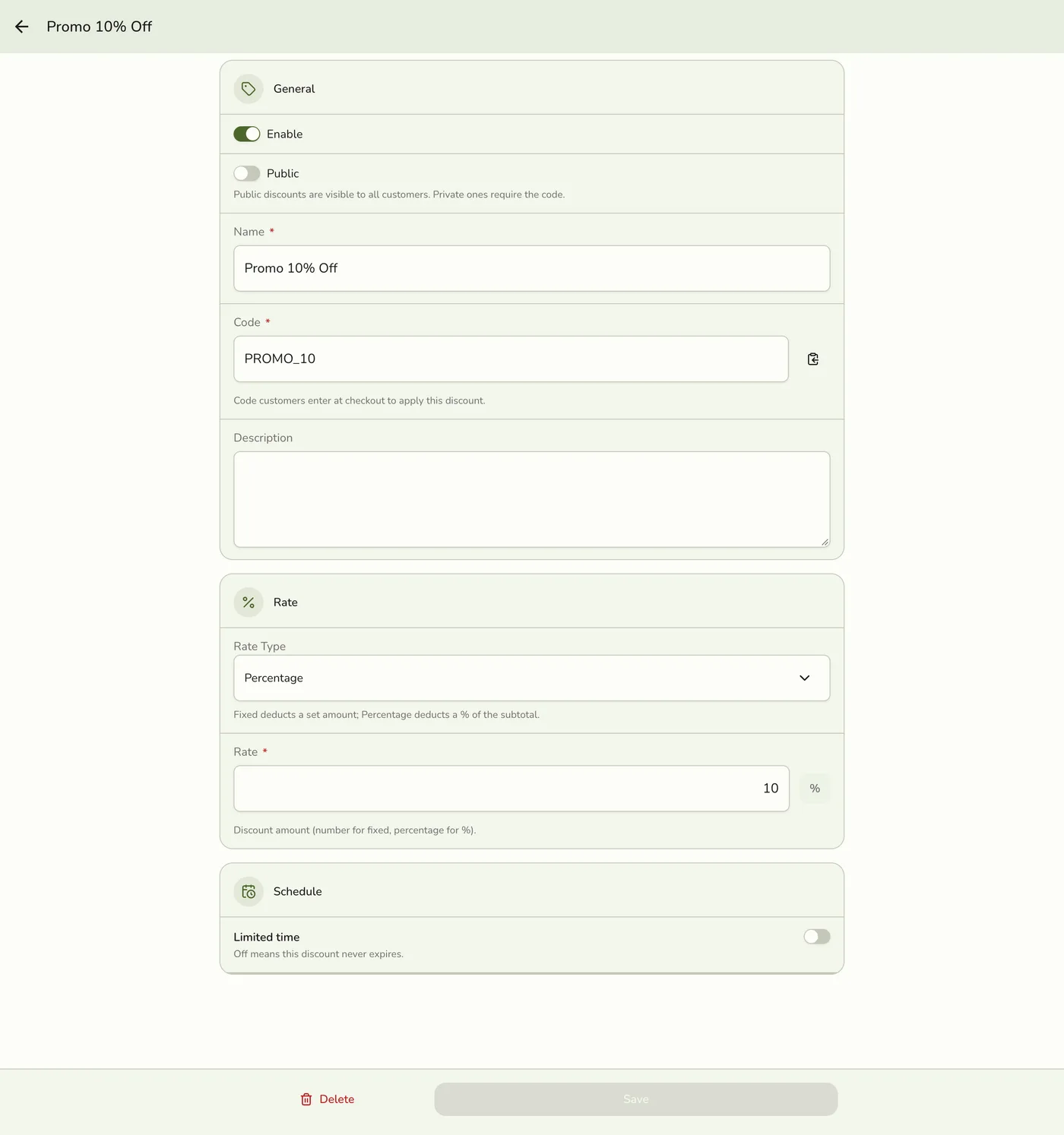
Tap Edit on the discount you want to update, or tap its name. People who may only view discounts see the same page read-only, without Save or Delete.

3
Edit the fields
Change Enable, Name, Code, Rate Type, Rate, Description, or the dates. Limited time shows as on when the discount has dates. Turning it off clears both dates, so the discount no longer ends.

4
Save
Tap Save. Your changes apply to new sales right away.
What happens next
- The saved and register discount lists are cleared, so the register picks up the new rate or dates. Other devices are told only on plans with live sync.
- Orders already placed keep the copy of the discount they were given.
Edge cases
- Codes stay unique. The discount keeping its own code is fine. Another discount's or coupon's code is refused.
- Every save clears the server-side limits (use limit, per-customer limit, minimum order, scope), because the app never sends them.
- Every field is saved, not only the ones you touched.
- A disabled discount leaves the register list. Use the Enable switch to turn one on or off without deleting it.
Works with
| Add-on or plan | What changes on this page |
|---|---|
| Any plan | Basic discounts, including Senior Citizen and PWD, work on every plan, including Basic. |