

Managing Customers
The customer list and each customer's page are where you find someone and see their history.
Before you start
- The Customers · View permission.
Steps
Search or filter
Open Customers, tap Filter, and search by name, mobile number or email, or filter by gender. On a phone each customer is a card with initials, name and mobile (or email, or "No contact details"). Tap it to open, or ⋯ for View details and Delete.

Open a customer
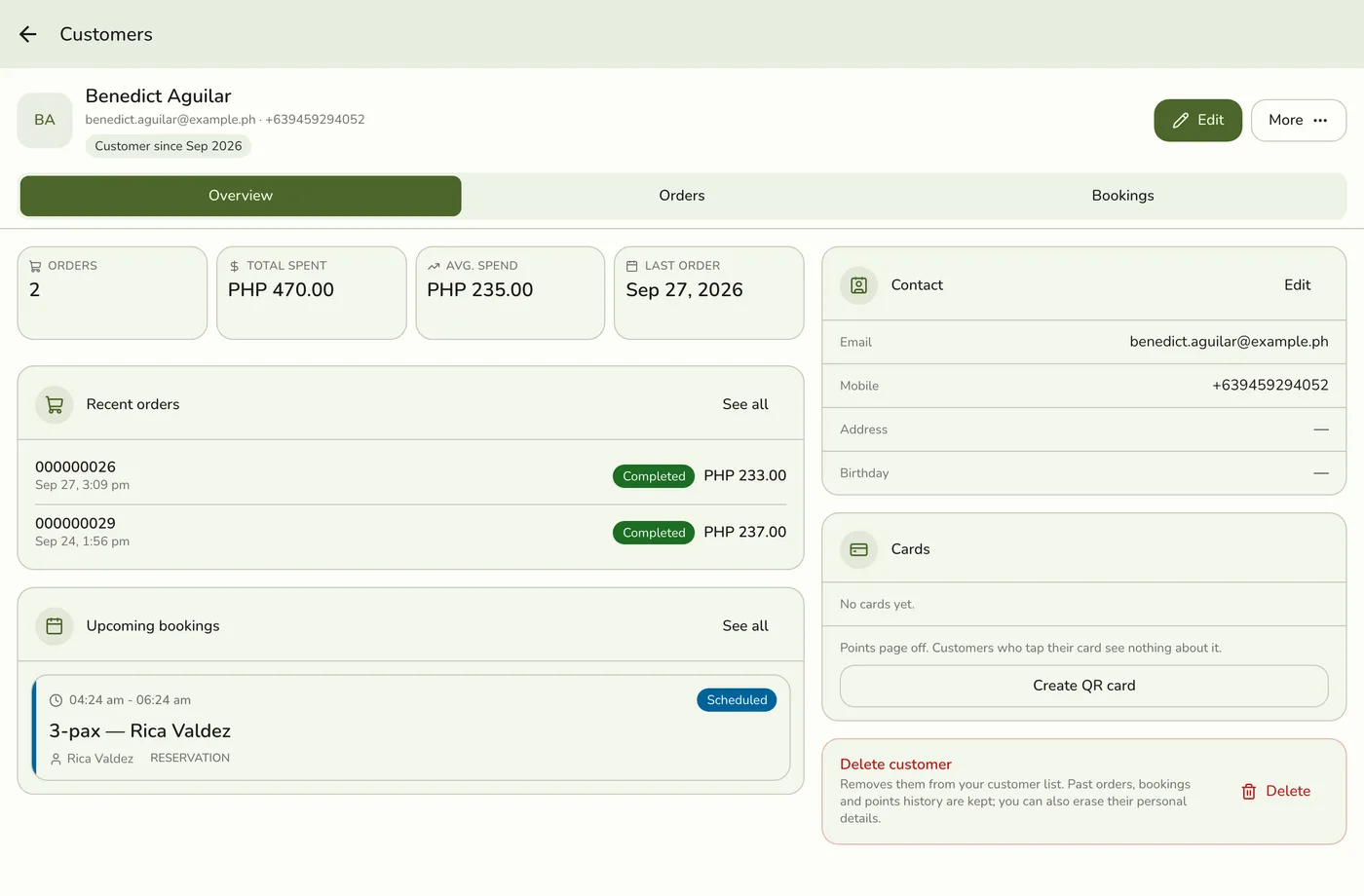
The top shows their name, email, mobile, how long they have been a customer and their loyalty tier. Edit and More sit at the top right.
Use the tabs
Overview: totals (orders, total spent, average order, last order), five newest orders, next bookings, contact details and a red delete card. Orders: all orders with filters. Bookings: appointments linked to them and reservations where they are a guest. Loyalty: points and tier, for enrolled members.
The customer page tabs — screenshot coming soon
Book or sell from their page
Tap More → Book appointment, or Book on the Upcoming bookings card. Or tap New sale on the Recent orders card to open the register with them attached.
Book appointment and New sale actions — screenshot coming soon
What happens next
- Booking from here links the appointment to the customer, and saving returns you to their page.
Edge cases
- Totals count completed and closed orders only. A cancelled order is listed on Orders but not counted.
- The open tab is kept in the page address, so refreshing or sharing the link opens the same tab.
- New sale on a busy register. If a sale is already open, the customer is not added and a note says to add them from the cart, so the open sale is never changed.
- Bookings need a plan with events. Without one the tab and Book options do not show.
- The Loyalty tab shows only with the Loyalty add-on and an enrolled customer. See Members and Points.
- What you see depends on permissions. Orders and totals need the order permission, bookings the bookings permission.
- Customer cards. Tap a card at the register to find a customer. See Customer Cards.
Works with
| Add-on or plan | What changes on this page |
|---|---|
| Plan customer limit | Basic 200, free trial 2,000, Starter 1,000, Lite 5,000, Standard 5,000, Premium no limit. When the list is full, adding one on purpose is refused, though a sale still goes through without saving its customer. |
| Loyalty add-on | Adds enrolment, points, tiers and the Loyalty tab. Without it customers still work as a plain list. |
| Events (Starter and up) | The Bookings tab and Book appointment. |
| NFC add-on | Customer cards. See Customer Cards. |
| Live sync (Lite and up) | Other devices see the change at once. On lower plans they pick it up the next time they refresh. |