

How to Add a Customer to Your Store
Applies toEvery plan, including free BasicNeeds Customers · Modify; Point of Sale · ModifyUsually owner, manager, cashier
Only a first and last name are needed. Add more and you can send receipts and promos and personalize service.
Before you start
- The Customers · Modify permission, or the register permission when adding at checkout.
Steps
1
Open Customers
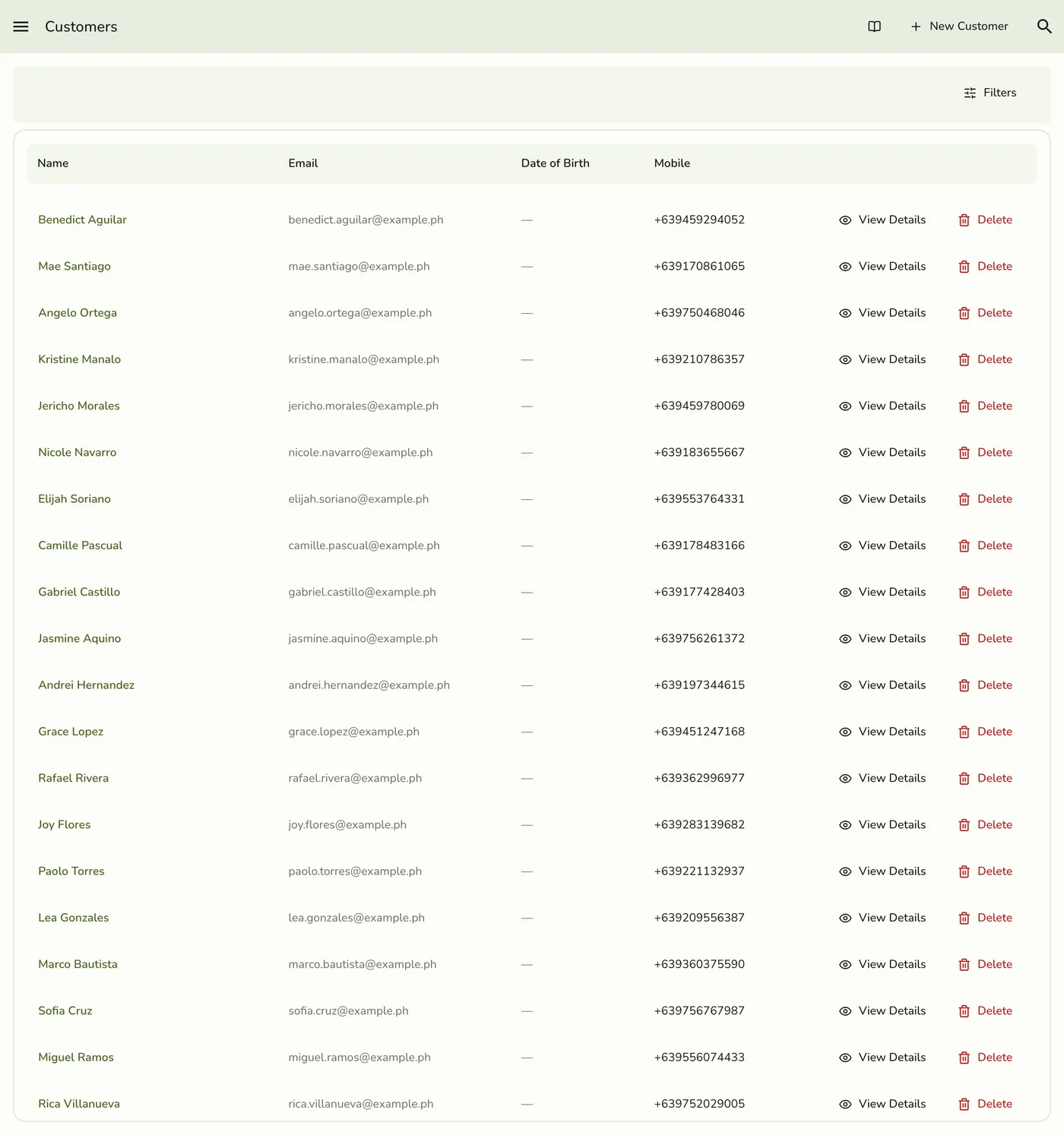
Open the menu and choose Customers.
2
Tap New Customer
The button is at the top right of the list.
3
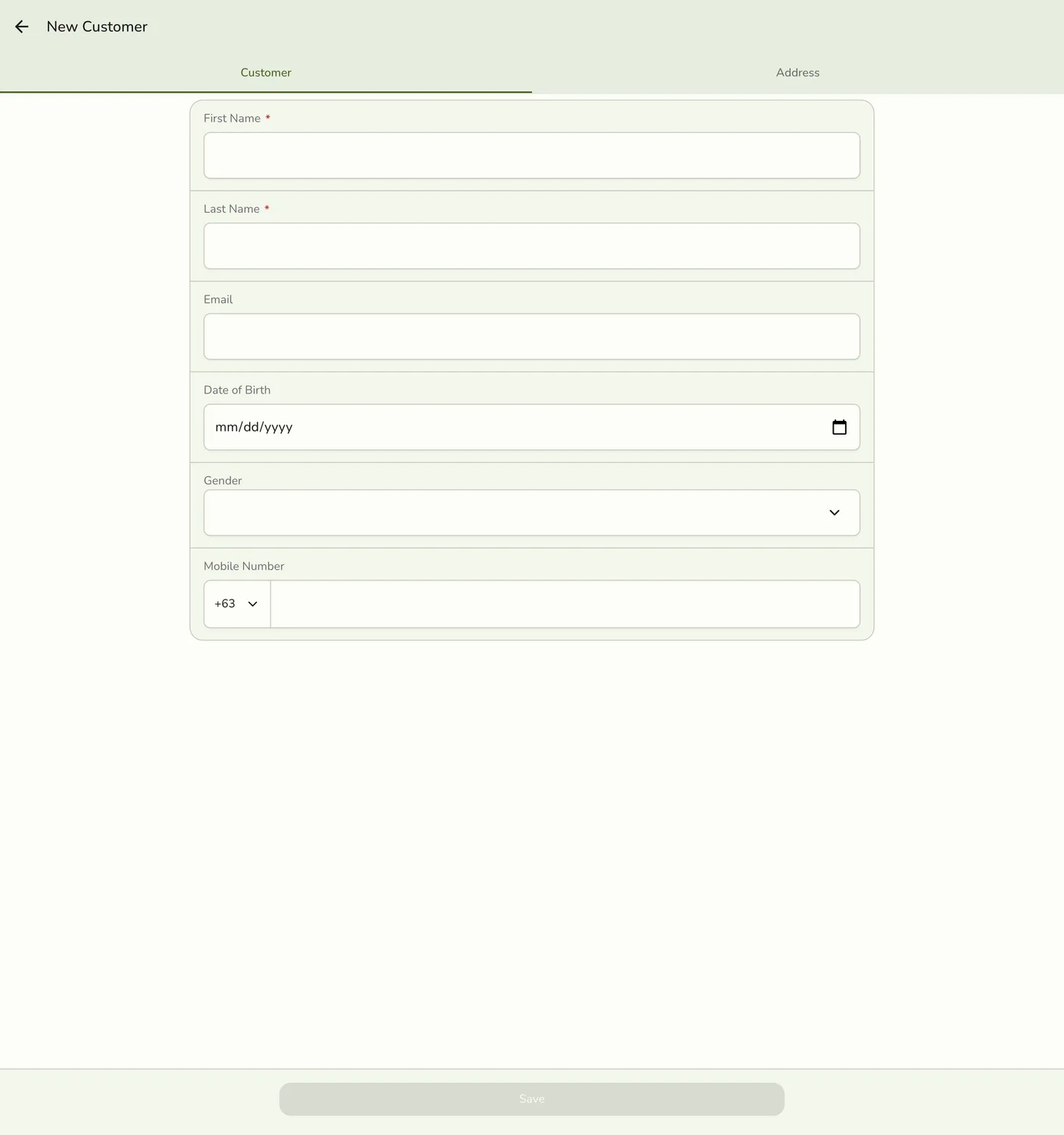
Fill in the details
Enter the first and last name, and a mobile number, email, birthday and gender if you have them. Turn on Address if you need one: it needs street, city, province and country. See Customer Overview.
The new customer form — screenshot coming soon
4
Save
Tap Save. The customer appears in the list and can be attached to orders.
The saved customer — screenshot coming soon
What happens next
- The customer shows in the list and the register's search straight away. They are not in your loyalty program until you enrol them.
Edge cases
- At the register. Open Customer, search, or tap New and save with Save customer ticked. With it unticked, the details go with this order only. A cashier needs only the register permission.
- Later, from an order. Open the order and choose Save customer (also offered on the payment result). It is refused if the customer is already saved, or a different saved customer already has that email.
- Automatic saving. With Save customers automatically on, a customer sent with an order is added to the list.
- Plan limit. The list stops at your plan's limit and refuses a new customer. A sale still goes through. See Customer Overview.
- Duplicate email. Another customer with that email is refused. Leave it empty or use their record.
- Address and customer save together. If the address is refused, the customer is not saved either.
- Loyalty. Adding a customer does not enrol them. See Members and Points.
Works with
| Add-on or plan | What changes on this page |
|---|---|
| Plan customer limit | Basic 200, free trial 2,000, Starter 1,000, Lite 5,000, Standard 5,000, Premium no limit. When the list is full, adding one on purpose is refused, though a sale still goes through without saving its customer. |
| Loyalty add-on | Adds enrolment, points, tiers and the Loyalty tab. Without it customers still work as a plain list. |
| Events (Starter and up) | The Bookings tab and Book appointment. |
| NFC add-on | Customer cards. See Customer Cards. |
| Live sync (Lite and up) | Other devices see the change at once. On lower plans they pick it up the next time they refresh. |