

How to Delete a Customer
Applies toEvery plan, including free BasicNeeds Customers · Delete; Customers · ModifyUsually owner, manager, cashier
Remove a duplicate or a customer you no longer need. Their past orders, bookings and points history are kept, unless you also erase their personal details.
Before you start
- The Customers · Delete permission.
Steps
1
Open the customer
From Customers tap View Details or their name. You can also delete from the list: use the row's ⋮ menu or the Delete button.

2
Choose Delete customer
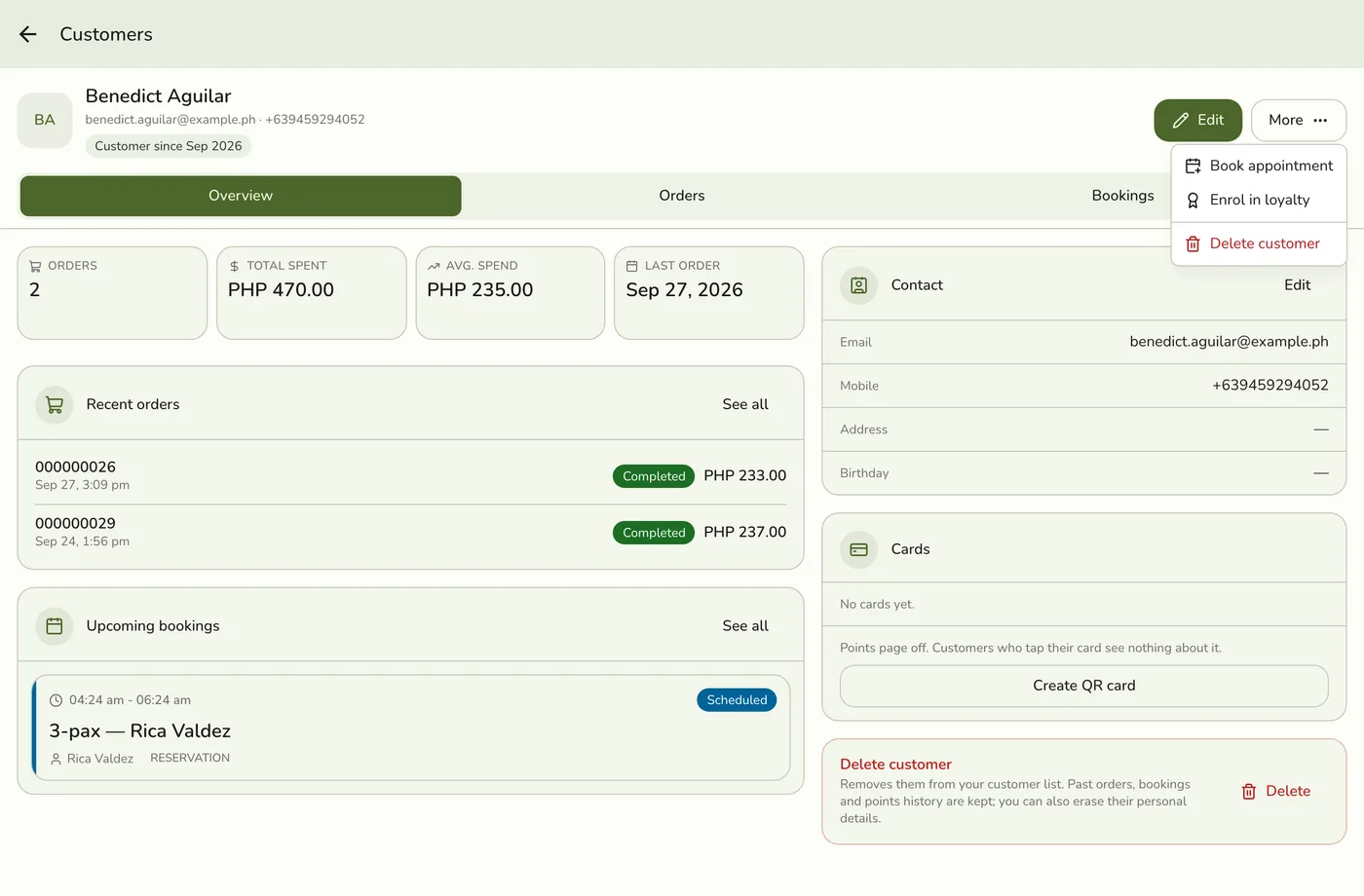
Tap More → Delete customer, or the red Delete card at the bottom of the Overview tab. Delete is also on the edit page.
3
Decide whether to erase personal details
In the dialog, turn on Also erase personal details if the customer asked you to remove them. It is off by default.
The delete dialog with the erase switch — screenshot coming soon
4
Confirm
Tap Delete customer.
The confirmation — screenshot coming soon
What happens next
- They leave the customer list, the register search, the loyalty members list and your plan's customer count. Their email is free to use again.
Edge cases
- What is kept. Past orders, bookings, gift cards and waiting-list entries still show their name. Their loyalty membership and points history stay.
- Points. If they hold points the dialog says how many. The points stay frozen on record and cannot be used unless the customer is restored. They also leave the loyalty members list.
- Erasing. The name becomes Erased customer on the record and on past orders, bookings and waiting-list entries. Their email, mobile number, birthday, gender and addresses are removed, their Fuze account is unlinked, and their cards are cancelled. Totals, payments, points and gift cards stay, so reports still add up. Receipts already printed or emailed cannot be called back. Erasing cannot be undone.
- Restore. There is no restore button. Contact support, who can restore them with their history and points, but not erased details.
- No merge. To fold a duplicate into another customer, delete the duplicate.
- Several at once can be deleted only through the API.
- If unsure, edit the customer instead.
Works with
| Add-on or plan | What changes on this page |
|---|---|
| Plan customer limit | Basic 200, free trial 2,000, Starter 1,000, Lite 5,000, Standard 5,000, Premium no limit. When the list is full, adding one on purpose is refused, though a sale still goes through without saving its customer. |
| Loyalty add-on | Adds enrolment, points, tiers and the Loyalty tab. Without it customers still work as a plain list. |
| Events (Starter and up) | The Bookings tab and Book appointment. |
| NFC add-on | Customer cards. See Customer Cards. |
| Live sync (Lite and up) | Other devices see the change at once. On lower plans they pick it up the next time they refresh. |