

How to Apply a Charge to an Order
On the POS register, charges are managed from the order's Menu.
Before you start
- The Point of Sale · Modify permission.
- At least one charge in the catalog, unless you add a custom one.
Steps
1
Build the order
Open the POS Register and add items to the cart as usual.

2
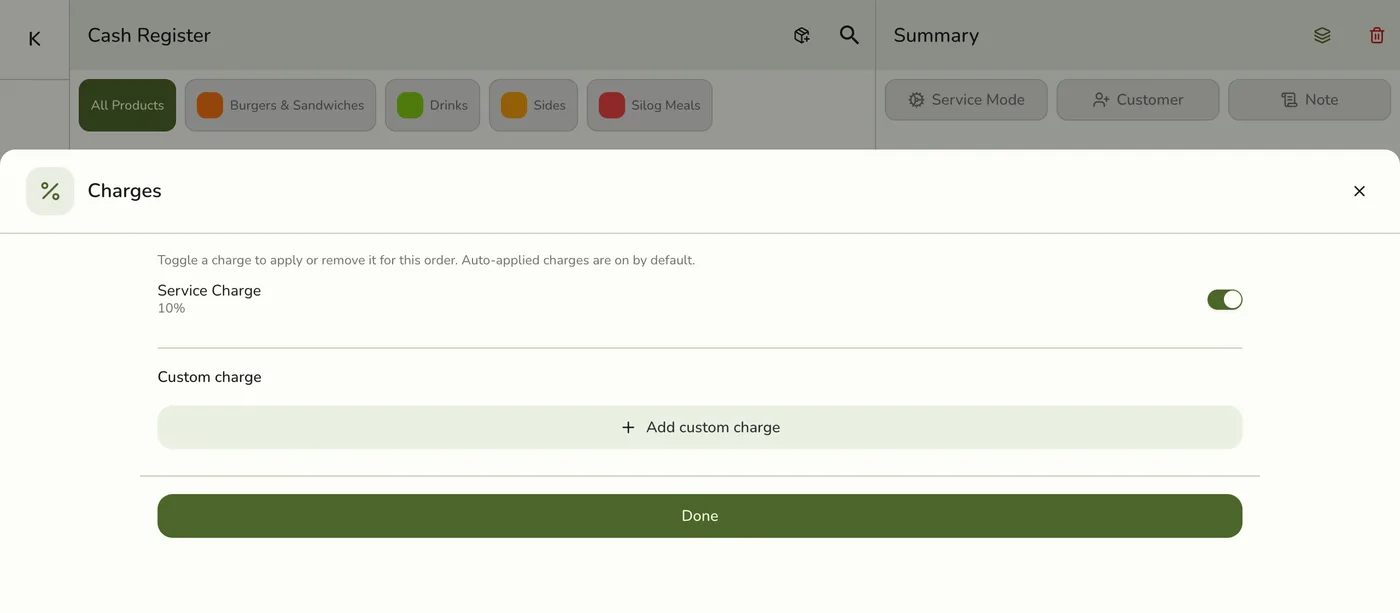
Open Menu → Charges
Tap Menu, then Charges to open the Charges sheet.

3
Toggle or add a charge
Auto-apply charges that fit the order's service mode show switched on. Turn one off to exclude it from this order only. Turn a non-auto charge on to apply it. Tap Add custom charge for a one-off named amount that is not in the catalog, then Add it.
4
Confirm
Tap Done. The order totals update to include the selected charges.

What happens next
- Each charge on the order is a row in the Summary's Charges section, with its rate and the amount it adds. Tap Add on the header, or tap a row, to open the Charges sheet. Swipe an automatic charge left and tap Exclude to drop it from this sale only. It stays as a dashed row marked Excluded for this sale, and Add back brings it back. Swipe a charge you added left and tap Remove.
- When you place the order, the register keeps the choices with the cart and sends them. The order keeps a copy of each charge line.
Edge cases
- Excluding does not delete. The charge stays in Configurations → Charges.
- What gets applied, in order. First every charge that is on and auto-apply, unless you switched it off or its service modes leave this order out. Then the added ones. Then one-off charges as typed.
- A charge turned off since you added it is refused when you place the order.
- Amounts. A percentage is taken of the total after discounts, tax included, and charges never stack on each other. Loyalty points come off after charges, so they do not lower a percentage charge.
- Changing an open order later works the charges out again: auto charges follow the catalog as it is now and the order's current service mode, and the order's charge lines are replaced.
- Do not double-charge. Check the summary so you do not stack a custom fee on top of an auto service charge. Delivery fee is not a charge and is not listed here.
Works with
| Add-on or plan | What changes on this page |
|---|---|
| Any plan | Charges work on every plan. |
| Loyalty add-on | Redeemed points do not lower a percentage charge. |