

How to Update a Charge
Applies toEvery plan, including free BasicNeeds Charges · Modify; Charges · DeleteUsually owner, manager
Change the rate, name, or auto-apply settings of an existing charge, or remove it from the catalog.
Before you start
- The Charges · Modify permission to edit, Charges · Delete to remove.
Steps
1
Go to Charges
Go to Configurations → Charges.

2
Choose a charge
Tap the ⋮ actions button on the charge, then Edit.

3
Edit the details
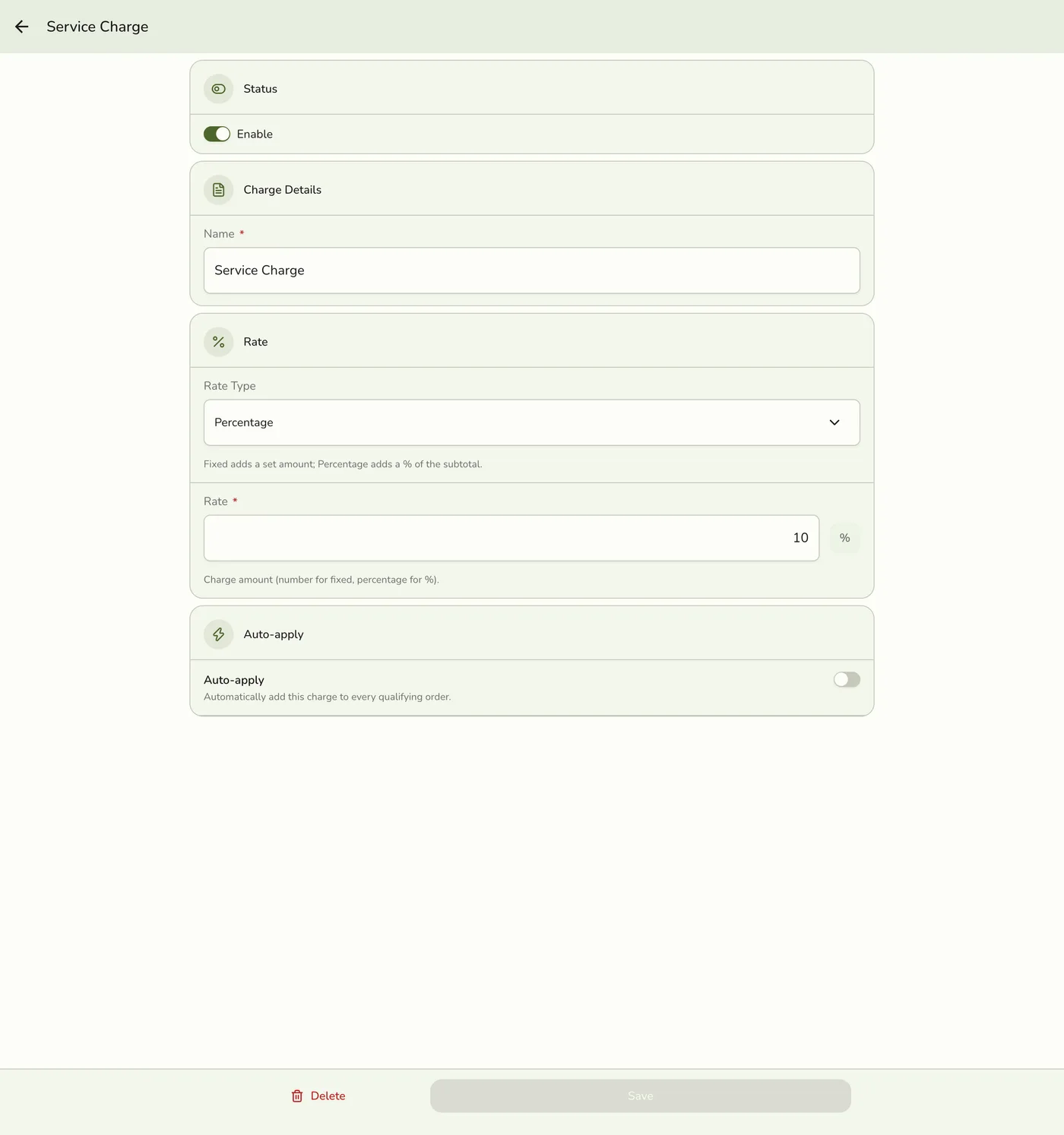
Update any field: Enable, Name, Rate Type, Rate, Auto-apply, Service Modes.

4
Save
Tap Save. Your updates apply to new orders right away.
What happens next
- The charge lists are cleared on the server and the register. Other devices are told only on plans with live sync.
- An open order picks up the change the next time it is changed on the register. Completed orders keep their charge lines.
Edge cases
- Delete a charge: tap ⋮, then Remove, and confirm. You can also use Delete on the charge's page. The charge is hidden, not erased, so past orders keep their charge lines. New orders no longer auto-apply or list it.
- Turning Auto-apply off also clears its service modes.
- Same checks as creating: a rate of 0 or more, rounded to 2 places.
- Already gone? Removing a charge that someone else removed first answers that it was not found.
Works with
| Add-on or plan | What changes on this page |
|---|---|
| Any plan | Charges work on every plan. |