

How to Add a Payment to an Order
Record how the customer paid on the POS register. The app supports several tenders on one order, works out change for cash and cash on delivery, and lets you record a tip.
Before you start
- The Point of Sale · Modify permission.
- At least one enabled payment method.
Steps
Open the order
Ring up the order on the POS Register, then open its Order Details (from the Orders list tap the order number or View Details). Before a payment is recorded the order shows No payment data and a Total Paid of PHP 0.00. You can also open the payment dialog straight from the register.

Collect the payment
Collect the payment from the customer using your own channel: take the cash, run your card terminal, or show your store's QR.
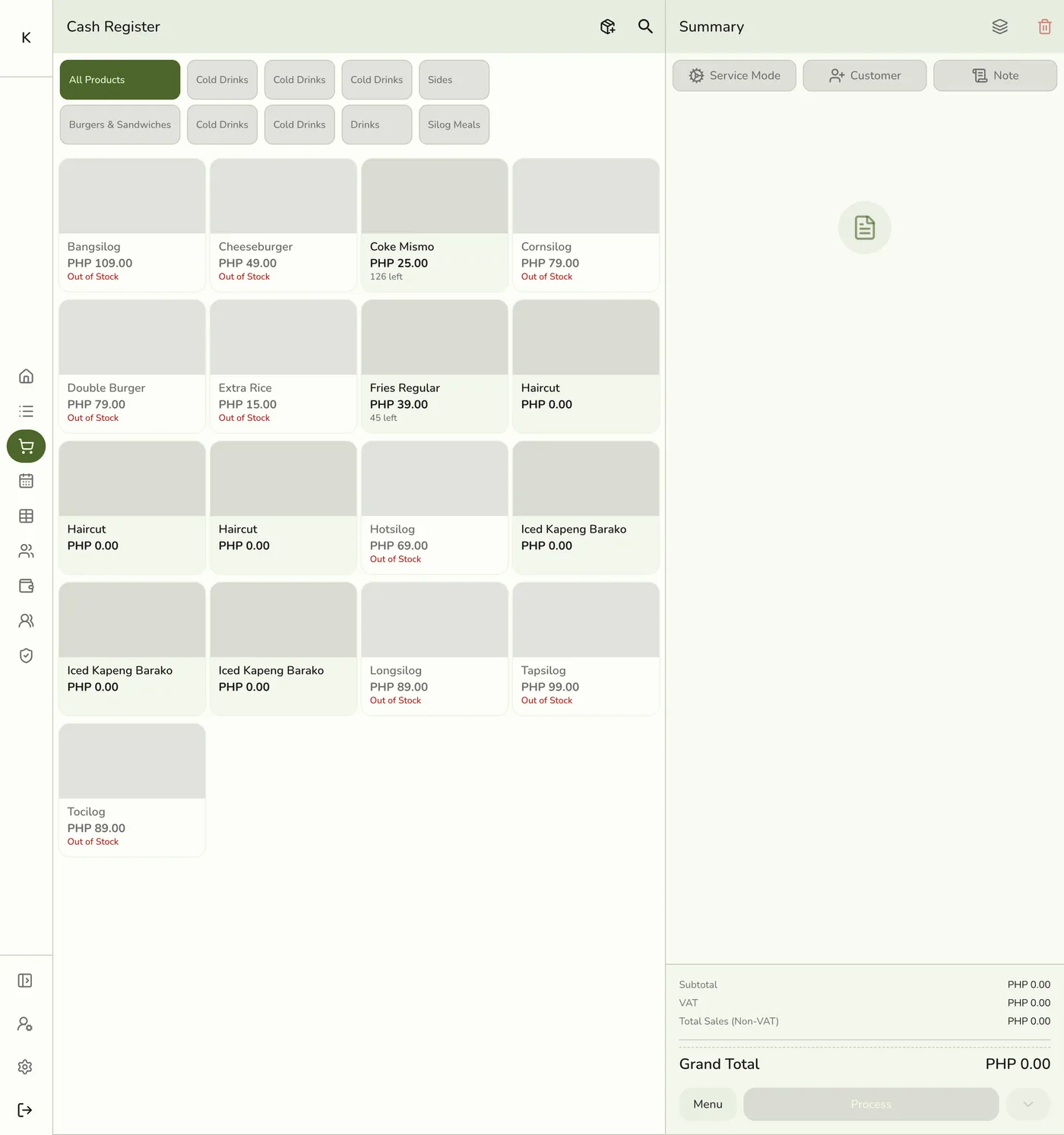
Open Menu → Payments
On the order detail screen, tap Menu, then Payments to open the New Payment sheet.

Choose the method and amount
Pick one or more tenders and enter the amount received. The keypad's quick-amount buttons speed up common amounts. For a non-cash payment, optionally note a Reference Number, such as an e-wallet reference or card slip number. Any tender can be more than the balance. On cash and cash on delivery the extra is change. On other tenders the app asks what the extra is: Tip (selected to start), Cash change (you hand it back in cash), or Overpaid (it stays on the order until you refund it).
The payment sheet with a method and amount entered — screenshot coming soon
Save the payment
Tap Save Payment, or Complete to record the payment and complete the order. The order shows the recorded tender and an updated Total Paid.

What happens next
- The Order Completed panel shows the change to give, the lines, the totals, and the customer. An order with several cars, bags, or pets lists its lines under a heading for each one.
- The receipt is emailed and printed where those are set up, and loyalty points are awarded. The amount shows on the customer display while you key it.
Edge cases
- No gateway. A payment never fails or sits pending in the app. Once you take the money, you record it as done.
- Short payments. Completing short of the balance is refused (ORD_INSUFFICIENT_AMOUNT). Save as partial payment records what you keyed and leaves the order open. The main button, short of the balance, only stages the amount as one tender of a split payment and records nothing until the balance is covered.
- What earlier payments count for. Change and tips come off, and so does money refunded from them, such as a deposit given back on an open order.
- Change and tips. Change is recorded only on cash and cash on delivery, and the order still counts as paid in full so you can close it. Cash on delivery money is not counted in your cash drawer. A tip is counted in the method it was paid into and shown as its own line on the shift report and the Daily Sheet. It is not part of sales.
- Overpaid keeps the order open. Its badge reads Overpaid. Tap Refund: the reason starts as Overpayment and the amount as the extra. After that the order is paid and you can close it.
- Complete from the register saves the order as Pending first, then opens the payment screen. If you close that screen, the unpaid order stays Pending, and with the kitchen display on the kitchen already has the ticket.
- A failed payment can show two errors, the specific one and a generic "Something went wrong". A payment is never retried by itself. Press Pay again: the same request is replayed, so it is safe.
- Confirm digital money arrived before you record it, and keep terminal slips or e-wallet references for lookup.
Works with
| Add-on or plan | What changes on this page |
|---|---|
| Any plan | Recording payments works on every plan. |
| Store Sessions add-on | Each payment counts in the shift that takes it. Tips and cash change affect expected cash. See Using Store Sessions. |
| Gift Cards add-on | A gift card can pay part of the order. See Applying Gift Cards. |
| Loyalty add-on | Points are awarded when the order completes. |