

How to Add Payment Methods to Your Store
Give your customers more ways to pay by adding payment methods to your POS.
Before you start
- The Payment Methods · Modify permission.
- Your own account details and QR, for digital methods.
Steps
Go to Payment Methods
Open the sidebar menu, go to Configurations, and select Payment Methods.

Tap New Payment Method
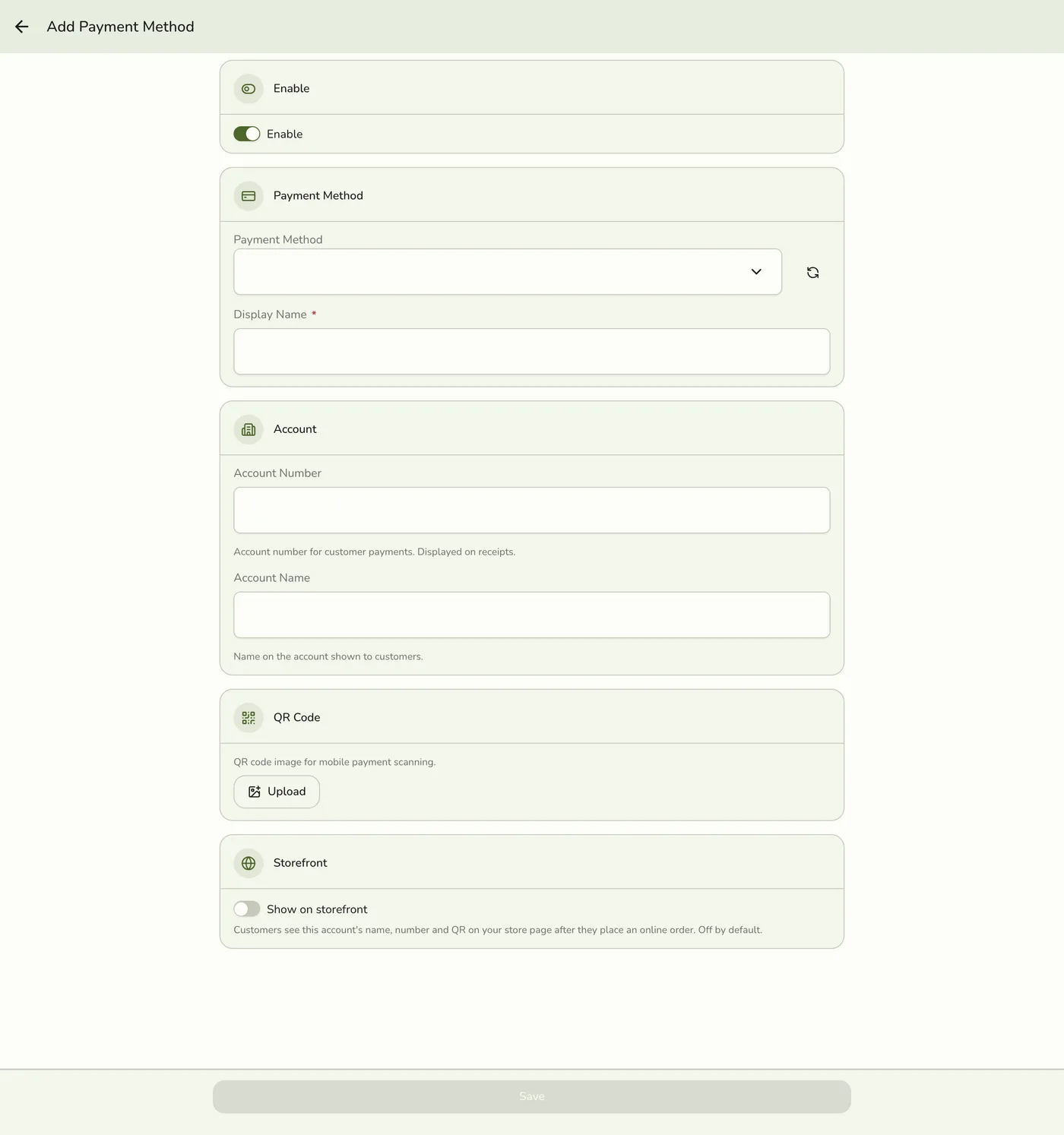
Tap New Payment Method. The form may be titled Add Payment Method. The button shows only to people who may change payment methods.

Fill in the details
Enable keeps the method at checkout. Pick the Payment Method type from the catalog (Cash, e-wallet, card, and so on). The Display Name is what staff see on the register: picking a type fills it in, you can change it, and your own name is kept if you pick a different type afterwards. Account Number and Account Name are optional details for your own accounts. A QR Code is an optional image for staff to show customers: upload one or take a photo of a printed QR on a phone or tablet.

Decide whether to show it on your storefront
Show on storefront publishes the account name, number, and QR on your public order page after a customer checks out online. It is off for every method until you turn it on, so publish only an account you are happy for anyone with an order link to see. You can flip it from the form, or from the ⋯ menu or Storefront column on the list.
Save
Tap Save. The method is available when recording a payment on an order.

What happens next
- The store's public page is refreshed after the save commits, so a method shown on the storefront appears there. Other devices are told only on plans with live sync.
- A method with an account or QR shows them to the cashier in the payment dialog.
Edge cases
- Required: the kind and the display name. Names and account details are up to 255 characters. The QR must be a JPEG or PNG of at most 2 MB. If the save fails after the upload, the picture is removed again.
- Switching a method off keeps it and its past sales, and the server then refuses new payments with it. Open the method and turn Enable off to do it.
- Replacing the QR replaces the old file. Removing the picture deletes it. A save that does not touch the picture leaves it as it was.
- View-only staff cannot open a method's details page. On a phone the card still tries to open it, so the tap does nothing.
- There is no manual order. The register puts the default method first, then the ones this device used last, then the rest.
- Publish with care. Anyone who has an order link can see a method shown on the storefront.
Works with
| Add-on or plan | What changes on this page |
|---|---|
| Any plan | Payment methods are free on every plan. |
| Online ordering | Only methods shown on the storefront appear on the customer's order page. See Taking Orders Online. |