

Organization Inventory
Once your stores belong to an organization and each has the Advanced Inventory add-on, you can manage inventory across stores — not just inside one. The organization layer sits on top of each store's own inventory; stock is still owned by each store, and the organization gives you a shared view and shared tools.
Where to find it — in the Fuze Store app
Cross-store inventory lives in the Fuze Store app, not on the website. Open Organizations from the side menu in the app, and you'll find Product Links and Catalog Sync in your organization's menu, and Stock Overview on its Reports page. The website's organization page shows a banner pointing you to the app.

Product Links
A product link ties one logical product across several stores — for example, "Americano (Hot)" as sold in three branches. Links are what let cross-store transfers and combined stock know that two products are really the same item.
Suggested Links
Fuze Store looks for products that match across your stores by barcode, then SKU, then name, and lists them under Suggested links with a confidence badge. To confirm a suggestion:
- Open Product Links from the organization screen.
- Review a suggestion — it shows the matching product in each store.
- Tap Link to create the link group, or Dismiss to ignore it.
Managing Links
Confirmed links appear below the suggestions — as cards on a phone, as a table on a tablet or computer. Tap the delete icon on a card, or Delete on a table row, to unlink the products — this only removes the link; stock and product details are never changed.
Search from the bar at the top of the screen, or press Filters to search and to show only links that include one branch. The filters you applied show beside the button; Clear All removes them.
Barcodes and SKUs aren't unique
Because two products can share a barcode or SKU, the link itself — not the
code — is what defines identity. If a suggestion looks wrong, dismiss it and
link the correct products manually.
Stock Overview
Stock Overview shows on-hand quantity for each linked product, broken down by store, with an organization-wide total:
| Column | Meaning |
|---|---|
| Product | The linked product group. |
| On hand | The combined quantity across every store. |
| Per store | How much each store currently holds. |
Search from the bar at the top of the screen, or press Filters to search and to show only products a branch carries.
The overview covers the branches you have access to. A branch without the Advanced Inventory add-on is left out, and a note above the list names it.
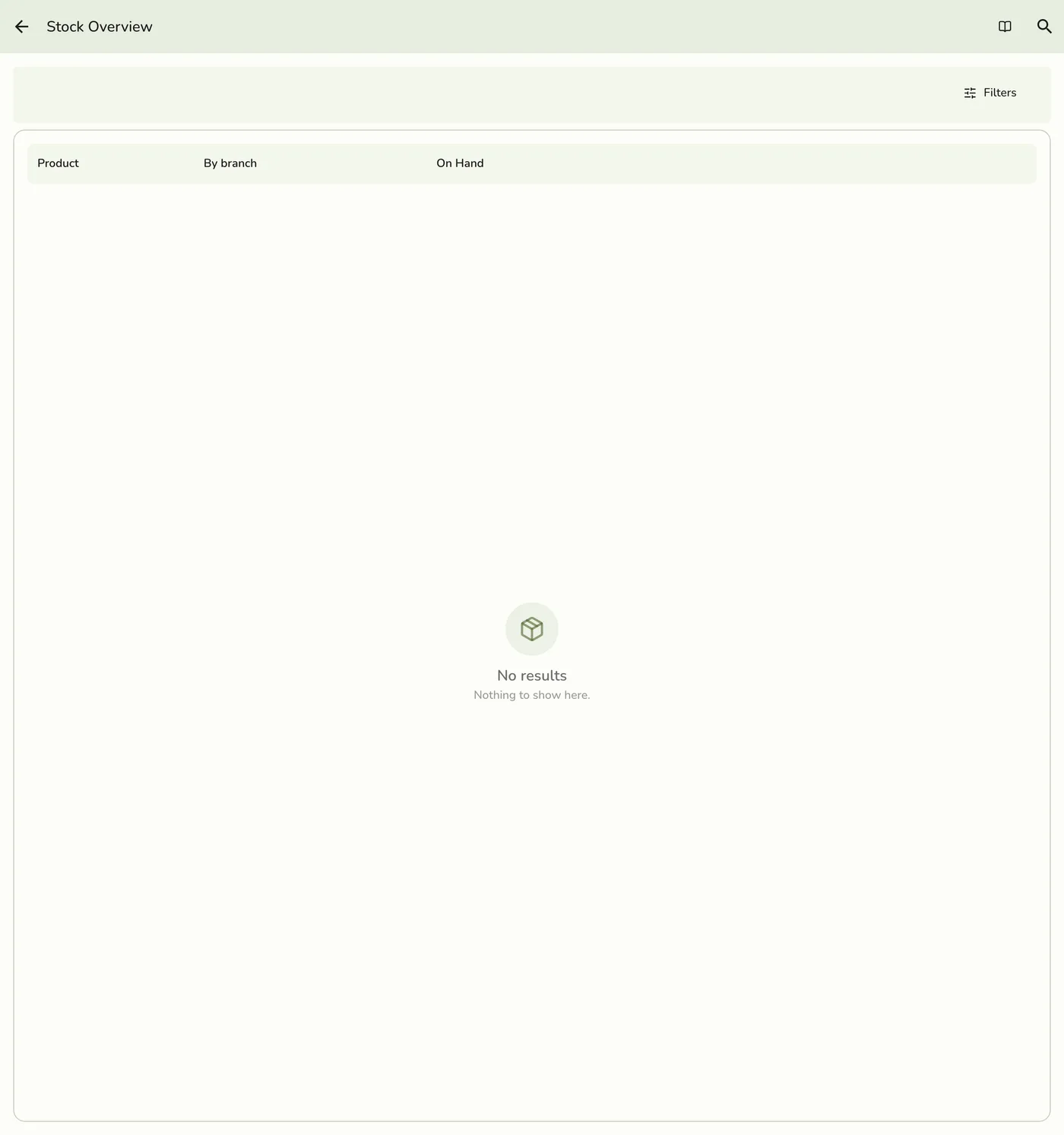
This is a read-only view that adds up what each store owns — it does not create a shared pool. To move stock between stores, use Cross-Store Transfers.
Edge cases
- A link left with one product is removed.
- Unlinked branch: its products leave every link when the branch is unlinked.
Works with
| Add-on or plan | What changes on this page |
|---|---|
| Organization Management add-on | Required for the organization to open and for anyone to link, invite or manage. If it lapses the organization pauses; see Paused Organization. |
| Advanced Inventory add-on | Required in a store to send or receive transfers and to count its stock in the overview. |