

Adding Stores to an Organization
You can link your stores to an organization to manage them as a group. Members whose role works in branches can then open the linked stores in their branch access without being added as staff.
How Store Linking Works
Each store has an optional organization field. When you assign a store to an organization:
- The store appears in the organization's store list
- Members whose role works in branches can reach the store, if it is in their branch access
- The store keeps its own staff, roles, and permissions
- Billing does not change: the store keeps its own plan, paid by its owner
One organization per store
A store can belong to at most one organization at a time. You can change or remove the assignment later.
Adding a Store During Creation
You can assign a store to an organization when creating it:
Open the organization
In the app, open Organizations from the side menu (it sits under Stores); on the website, go to Account → Organizations. Then open the organization.
Open the organization in the Fuze Store app — screenshot coming soon
Start a store
Press Create store. You are handed off into the store app's setup wizard, already signed in and with this organization pre-selected.
Start a store in the Fuze Store app — screenshot coming soon
Confirm the organization
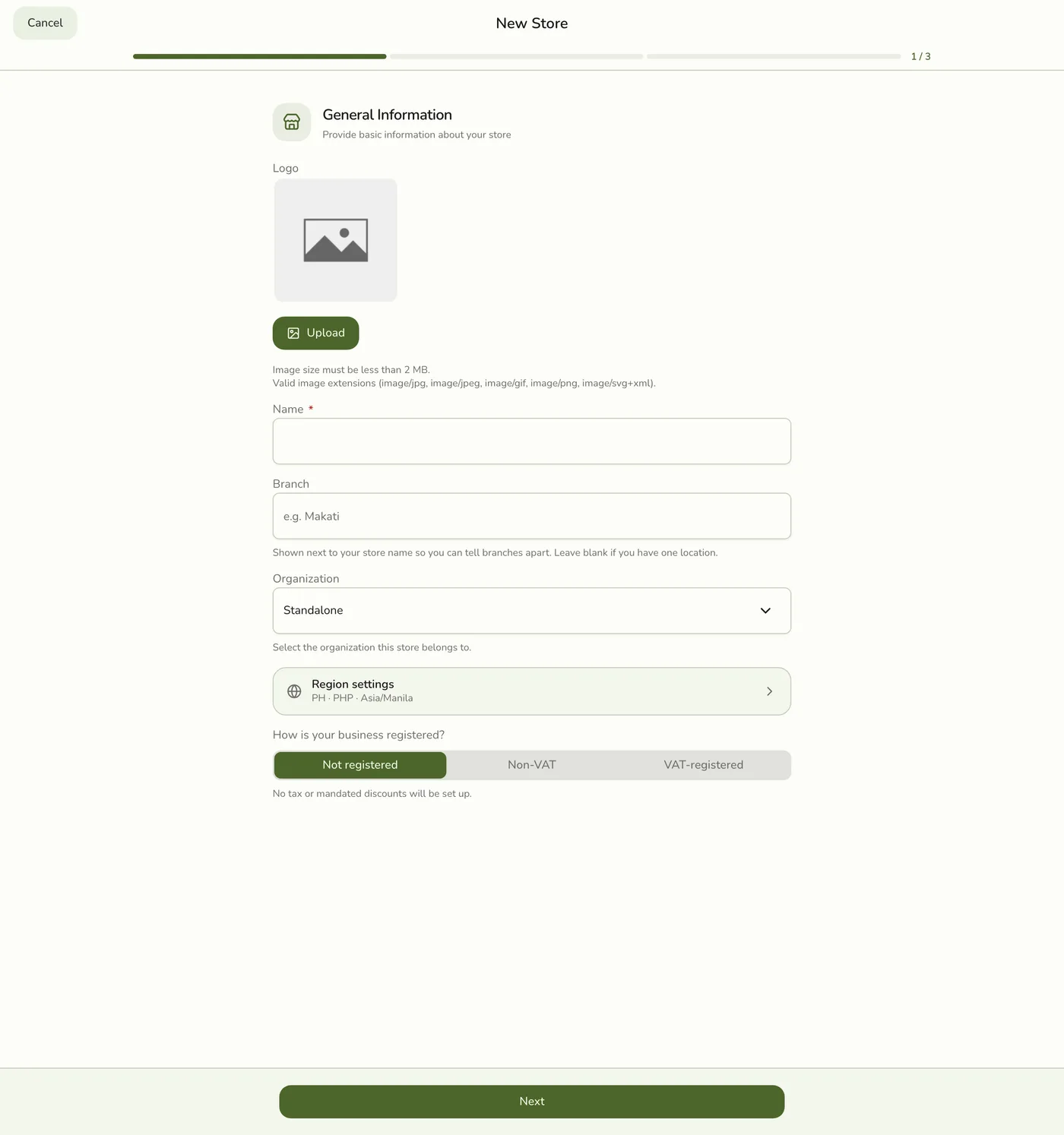
On the first wizard step, the Organization field shows which organization the store will join. (It only appears when you belong to more than one.)
Finish the wizard
Complete the remaining steps and create the store.
Finish the wizard in the Fuze Store app — screenshot coming soon
Only the organization's owner or an admin (or a custom role allowed to change the organization) can create a store inside it. Other members see the organization in the field, but the store is refused when they create it.
Linking an Existing Store
You can link a store that already exists to an organization from the store details page:

Open the store
Go to Account and open Stores, then select the store you want to link.
Find the Organization card
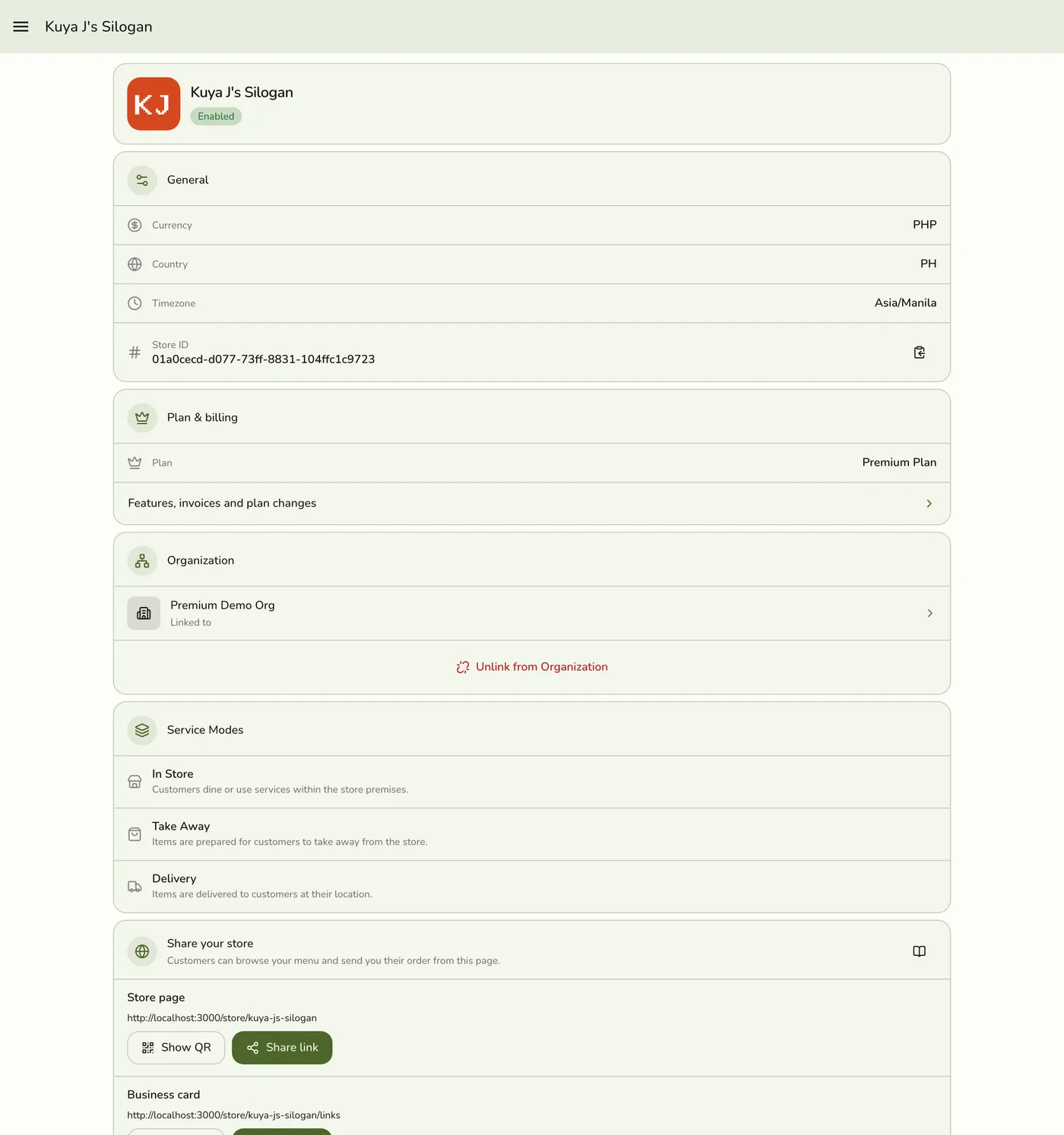
Scroll to the Organization card on the store details page.
Find the Organization card in the Fuze Store app — screenshot coming soon
Link it
Press the Link to … button for the organization you want, and confirm in the dialog.
Link it in the Fuze Store app — screenshot coming soon
There is no Organization dropdown and no Save button — linking happens the moment you confirm.
You can also link from the organization: open it, tap Branches in its menu, then Link a branch, choose one of your stores and tap Link branch. Only stores you own, and that aren't in another organization, are listed.
The Branches page of an organization in the Fuze Store app, listing the linked branches with their status, an Unlink button on each branch and Link a branch at the top — screenshot coming soon
Only the store's owner can link it
Linking lets the organization's members reach the store through their roles, so only the person who owns the store can link it. Anyone else sees "Only the owner can do that."
Billing stays with the store
Linking does not move billing. The store keeps its own plan, and its owner keeps paying for it.
Unlinking a Store
You can unlink a store from an organization to make it standalone again:
Open the store
Go to Account and open Stores, then select the store you want to unlink.
Open the store in the Fuze Store app — screenshot coming soon
Unlink it
On the Organization card, press Unlink from organization and confirm in the dialog.
Unlink it in the Fuze Store app — screenshot coming soon
Unlinking also ends access for every member who reached the store through the organization, and removes the store from their branch access.
Wallet credit stays where it is
Linking moves no money. While a store is linked, it sends texts from the
organization's shared wallet. After you unlink it, it sends from its owner's
account wallet again. See Organization Wallet &
SMS.
For a detailed guide on linking and unlinking, see Linking & Unlinking Stores.
Viewing Organization Stores
To see all stores linked to an organization:
- In the app, open Organizations from the side menu (it sits under Stores); on the website, go to Account → Organizations.
- Select the organization.
- In the app, tap Branches in the organization's menu; on the website, see the Stores section. Both show the linked stores with their name, country, currency, and active status. A member limited to chosen branches sees only those.
Access through the organization
Owners and Admins can open every linked store, and Area managers the stores in their branch access, without being added as staff. See Organization Roles and Branch Access.
Invisible at store level
Members who reach a store through the organization do not appear in its staff
list. To sell at a register there, they need a staff place.
Edge cases
- One organization per store: a store already in another organization is refused until it is unlinked there.
- Owner only: only the store's owner can link it; an organization admin who does not own the store cannot.
Works with
| Add-on or plan | What changes on this page |
|---|---|
| Organization Management add-on | Required for the organization to open and for anyone to link, invite or manage. If it lapses the organization pauses; see Paused Organization. |
| Store plans | Linking never changes a store's plan. Each store keeps its own plan and its owner keeps paying for it, so a Basic branch and a Premium branch can sit in the same organization. |
| SMS Notifications add-on | Once linked, the store's texts are paid from the organization's shared wallet. |