

Linking and Unlinking Stores
You can link an existing store from the organization's Branches page, or from the store's own details page. You can also unlink a store to make it standalone again. Neither action changes how the store is billed: its owner keeps paying for its plan.
Linking from the Organization
Open Branches
Open Organizations from the side menu. In the organization's menu, tap
Branches.
Open Branches in the Fuze Store app — screenshot coming soon
Start the link
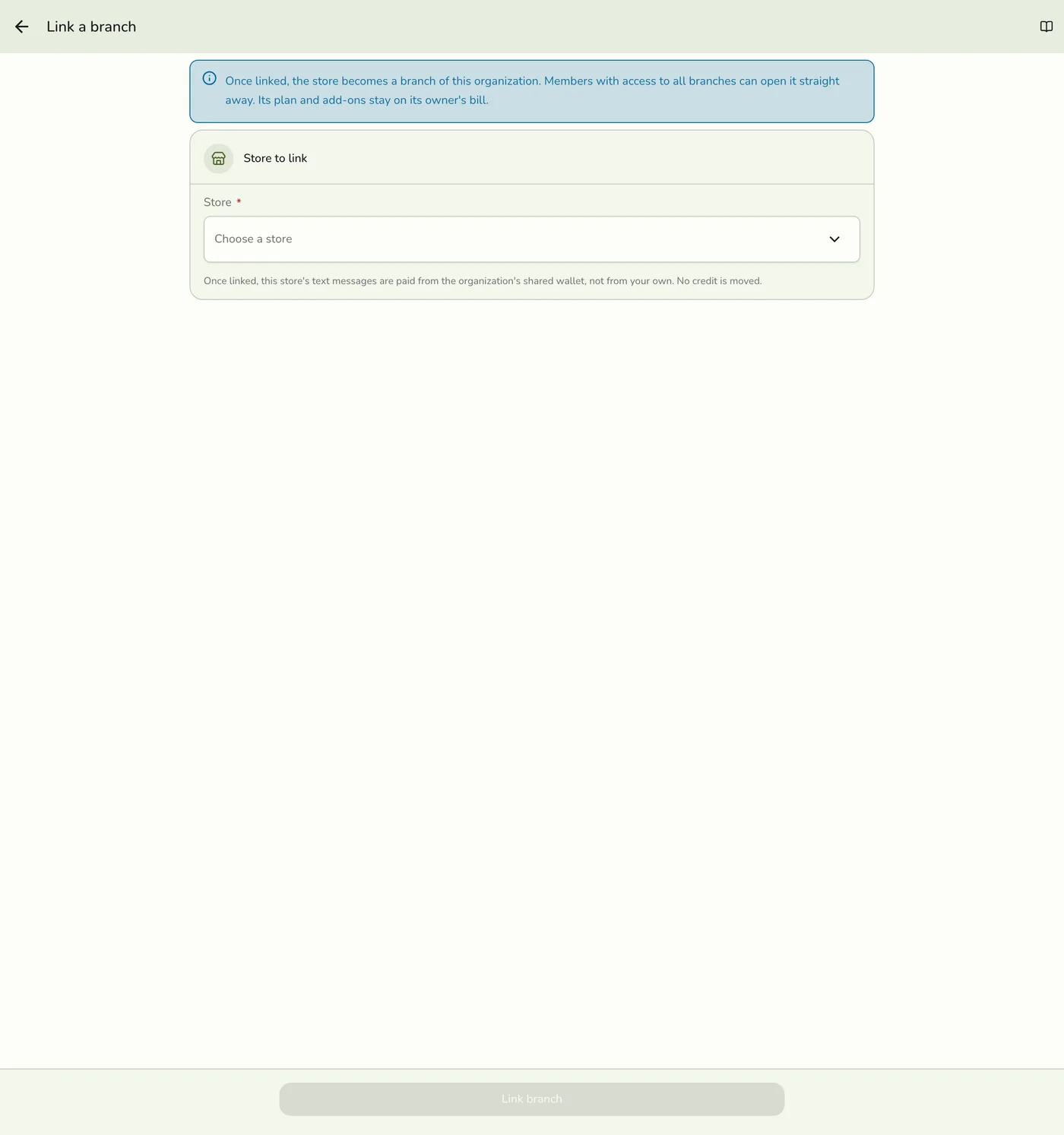
Tap Link a branch.
Choose the store
Under Store, choose the store. Only stores you own that are not in
another organization are listed.
Choose the store in the Fuze Store app — screenshot coming soon
Save
Tap Link branch. You return to Branches, and the store is in the
list.
Save in the Fuze Store app — screenshot coming soon
Under the Store field the page says which wallet pays for the store's texts once it is linked: the organization's shared wallet, not your own. No credit is moved.
Linking from the Store's Details Page
To link an existing store to an organization:
Open the store
Go to Account and open Stores, then select the store you want to link.
Find the Organization card
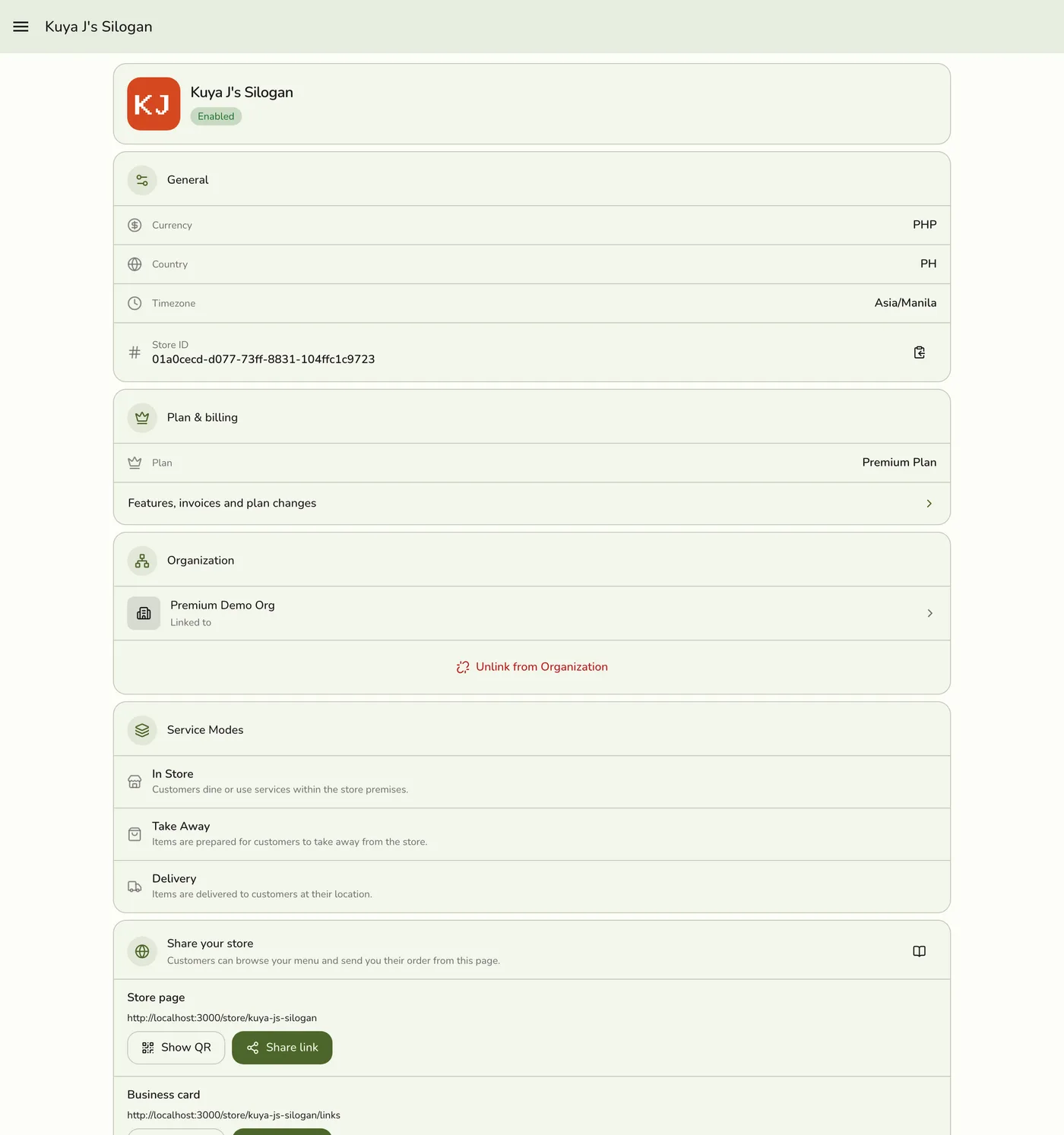
Scroll to the Organization card on the store details page.
Find the Organization card in the Fuze Store app — screenshot coming soon
Link it
Press the Link to … button for that organization and confirm in the dialog. There is no field to fill in and no Save button.
Link it in the Fuze Store app — screenshot coming soon

One organization per store
A store can belong to at most one organization at a time. If the store is already linked to another organization, you must unlink it first.
What Happens When You Link a Store
- The store appears in the organization's store list.
- Members whose role works in branches and whose branch access is All branches can open it straight away. Members with chosen branches reach it once it is added to their list.
- The store keeps its own staff, roles and permissions.
- Billing does not change: the store's owner keeps paying for its plan.
- The store starts sending texts from the organization's shared wallet. No credit moves.
Unlinking a Store from an Organization
To unlink a store and make it standalone:
Open the store
Go to Account and open Stores, then select the store you want to unlink.
Open the store in the Fuze Store app — screenshot coming soon
Unlink it
On the Organization card, press Unlink from organization and confirm in the dialog.
Unlink it in the Fuze Store app — screenshot coming soon
You can also open Branches in the organization's menu and tap Unlink on the branch.

What Happens When You Unlink a Store
- The store is removed from the organization's store list and from every member's chosen branches.
- Members lose the access they had through the organization straight away.
- Staff added to the store directly are not affected.
- The organization's people who worked there become ordinary staff of the store again, with the pay they had on their own staff record.
- Billing does not change: the store's owner keeps paying for its plan.
- The store's products leave the organization's product links. If it was the master catalog store, the master is cleared.
- The store sends texts from its owner's account wallet again.
You can only unlink a store that is within your own branch access. You can't unlink a store while one of the organization's people is assigned there today or later: end or cancel those visits, or move their home, first.
Access through the organization
Members reach linked stores through their role and branch access, without being added as staff. See Organization Roles and Branch Access.
Invisible at store level
Members who reach a store through the organization do not appear in its staff
list. To sell at a register there, they need a staff place.
Edge cases
- Unlink is limited to your own access: you can unlink only a branch you can reach yourself.
- Unlinking cleans up: product links for that branch are removed and the master catalog is cleared if it was this store.
- While paused: Link a branch is hidden until the add-on is back.
Works with
| Add-on or plan | What changes on this page |
|---|---|
| Organization Management add-on | Required for the organization to open and for anyone to link, invite or manage. If it lapses the organization pauses; see Paused Organization. |
| Store plans | Linking never changes a store's plan. Each store keeps its own plan and its owner keeps paying for it, so a Basic branch and a Premium branch can sit in the same organization. |
| SMS Notifications add-on | Linked branches pay for texts from the organization wallet; unlinked ones from the owner's account wallet. |
| Advanced Inventory add-on | Cross-store transfers need linked stores and the add-on in each. |