

Managing Loyalty Tiers
Applies toEvery plan, including free BasicLoyalty Programs add-onNeeds Loyalty Program · Modify; Loyalty Program · ViewUsually owner, manager
Tiers are the reward levels of your program. Each has a name, a point threshold and a multiplier.
Before you start
- The program exists.
- The Loyalty Program · Modify permission.
Steps
1
Open Tiers
Open Configurations → Loyalty → Tiers. The list runs from the lowest threshold to the highest.
2
Add a tier
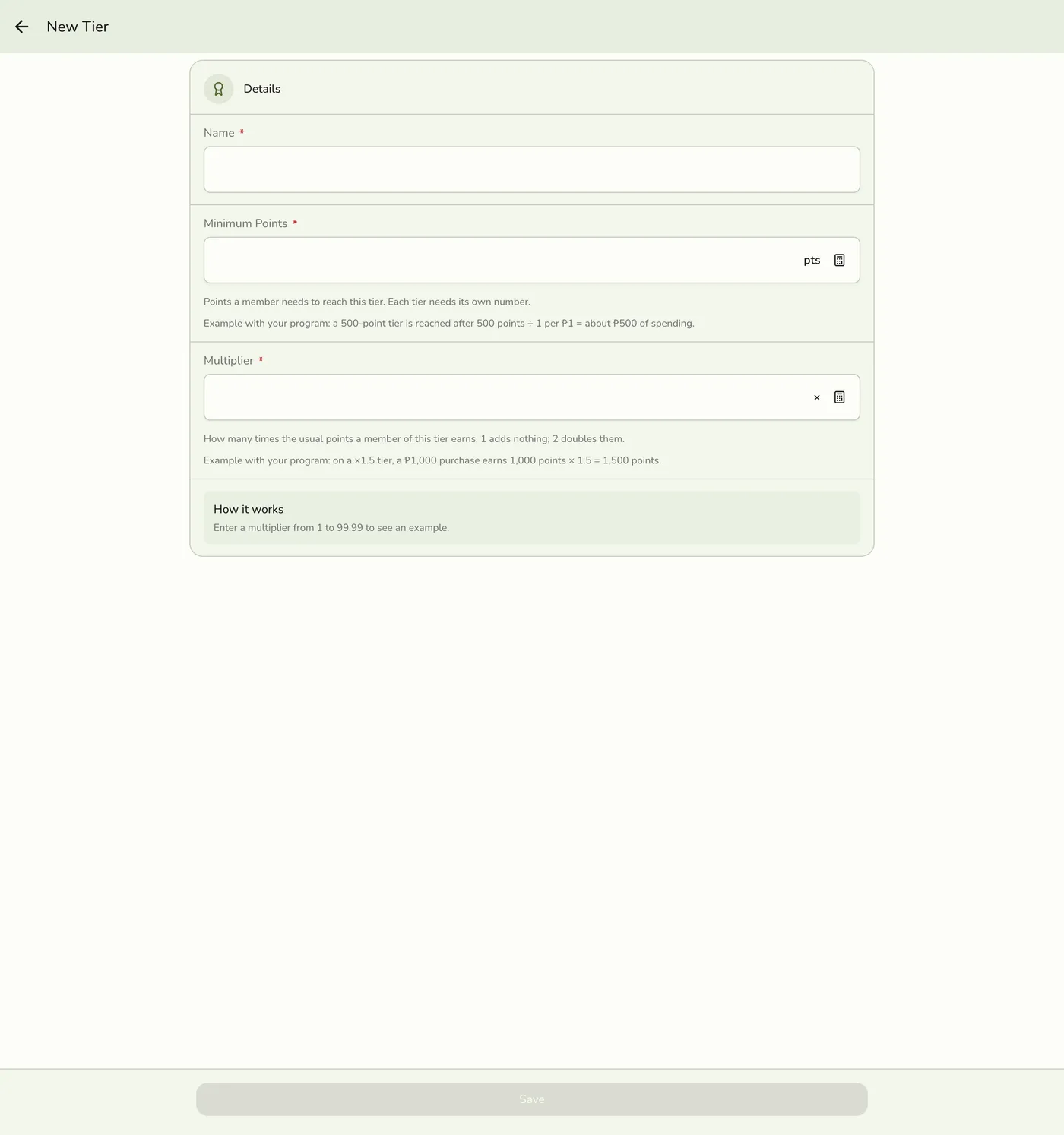
Tap New Tier. Enter a Name, a Point Threshold (Minimum points, 0 or more) and a Multiplier (1 to 99.99). Tap Save.

3
Edit or delete a tier
Open a tier, change it and save, or delete it from the tier or the list and confirm.
A tier being edited — screenshot coming soon
What happens next
- The tier list refreshes. Members are not re-sorted on the spot. They move at their next earn or redeem, or at the monthly review.
Edge cases
- No duplicates. Two tiers cannot share a threshold or a name, ignoring capitals. If two people save the same one at once, the second is asked to pick another.
- How a tier is worked out. The highest tier whose threshold the member's qualifying points reach. With no evaluation window, qualifying points are everything ever earned. With a window, only points earned in that many months count, so a member who stops buying drops a tier.
- Refunds count. Points taken back by a refund no longer count. Manual adjustments do not. To grant points that count toward a tier, use Earn, not Adjust.
- Up at once, down at the monthly review. The sale that crosses a threshold moves them up and their next purchase earns at the new multiplier. Tiers are checked on the 1st of each month and never lowered mid-sale. A refund can lower a tier by taking back the points that earned it.
- New members get the tier whose threshold is 0, if you have one, when they enrol.
- Deleting a tier leaves its members with no tier until their next earn or the monthly review. Deleting the last tier is allowed and leaves everyone untiered, so keep one while the program is live.
- A multiplier never goes below 1. A tier never earns less than having no tier.
- Sort order is still asked for but no longer decides the list.
- Keep it short. Three to five tiers work best, spaced so each feels reachable.
Works with
| Add-on or plan | What changes on this page |
|---|---|
| Loyalty add-on | Required. Free during the free trial. Without it the Loyalty menu hides and the server refuses. |
| Customers | Only enrolled customers earn points. New customers are not enrolled automatically. |
| Gift Cards add-on | The part of a sale paid by gift card earns points. The part paid with points does not. |
| Customer cards | A customer can see their points on their own phone. See Customer Cards. |
| Live sync (Lite and up) | Other devices see the change at once. On lower plans they pick it up the next time they refresh. |