

Creating an Organization
Organizations let you group stores and team members under one account. Follow these steps to create one.
Before you start
You need the Organization Management add-on on your account. It is one monthly fee for the whole account, billed with your plan. If none of your stores is on a paid plan yet, buying it starts your billing date. People you invite to your organization don't need it.
Steps

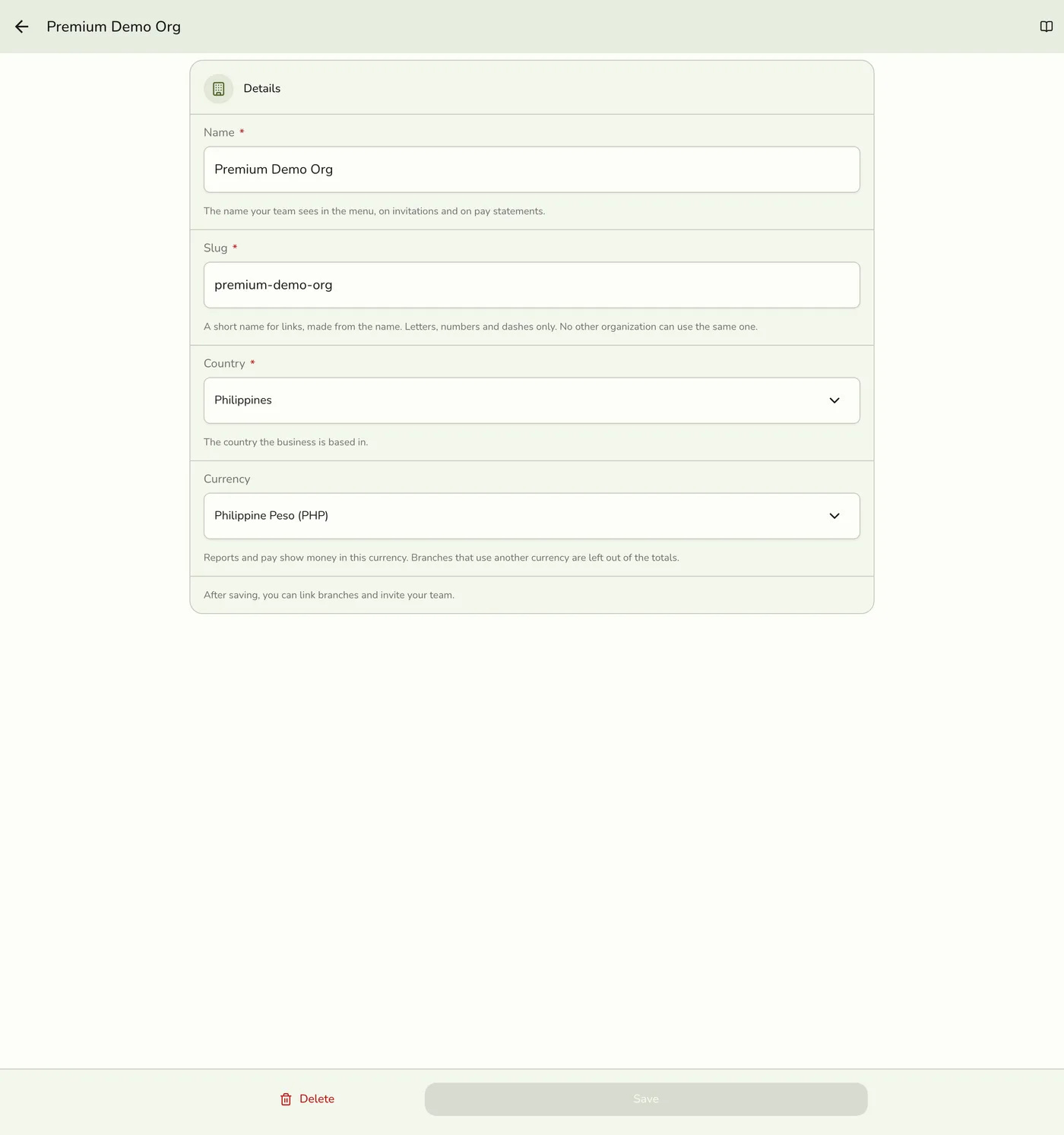
Field Descriptions
| Field | Required | Description |
|---|---|---|
| Name | Yes | The display name of your organization. |
| Slug | Yes in the app, optional on the website | A short web-friendly name, using letters, numbers and hyphens. Made from the name if you leave it as it is. |
| Country | Yes | Where your organization is based. |
| Currency | No | The currency reports and pay show money in. It follows the country until you pick another; branches that use a different currency are left out of the totals. A pay run keeps the currency it was created in. |
The slug must be different from every other organization's. If it is taken, the form tells you under the field and you can pick another.
You are the owner
When you create an organization, you are automatically its Owner. You
get full control over the organization, its branches, members and people.
No new bill
Creating an organization adds no plan and no monthly fee. Each store you
link keeps its own plan, billed to its owner as before.
Edit the organization
Open the organization and tap Edit at the top of Home. Change the name, slug, country or currency and tap Save. You need a role that can change the organization, such as Owner or Admin; Edit shows only on organizations where your role can. A slug another organization uses is refused here too.
What happens next
After creating the organization, you can:
- Add stores as branches
- Invite members with a role and a branch access
- Add the people who work across your branches
Edge cases
- No Organization add-on: the Organizations screens refuse the request until the add-on is on for your account. Turn it on under Account → Add-ons first.
- Link name taken: no other organization may use the same link name. Use letters, numbers and dashes, change it and save again.
- Country: it is required and starts on the Philippines.
Works with
| Add-on or plan | What changes on this page |
|---|---|
| Organization Management add-on | Required for the organization to open and for anyone to link, invite or manage. If it lapses the organization pauses; see Paused Organization. |
| Store plans | Linking never changes a store's plan. Each store keeps its own plan and its owner keeps paying for it, so a Basic branch and a Premium branch can sit in the same organization. |