

How to Update a Modifier
Keep your modifiers up to date so your POS offers the right choices. You can change a modifier's name, options, pricing, or any other detail at any time.
Before you start
- The Products · Modify permission.
Steps
1
Go to Modifiers
Open the sidebar menu and choose Modifiers (under Catalog).

2
Choose a modifier
Tap the modifier you want to edit, for example "Extra Cheese". You can also open it from a product: on the product's Modifiers tab, tap the edit button on the modifier's row.

3
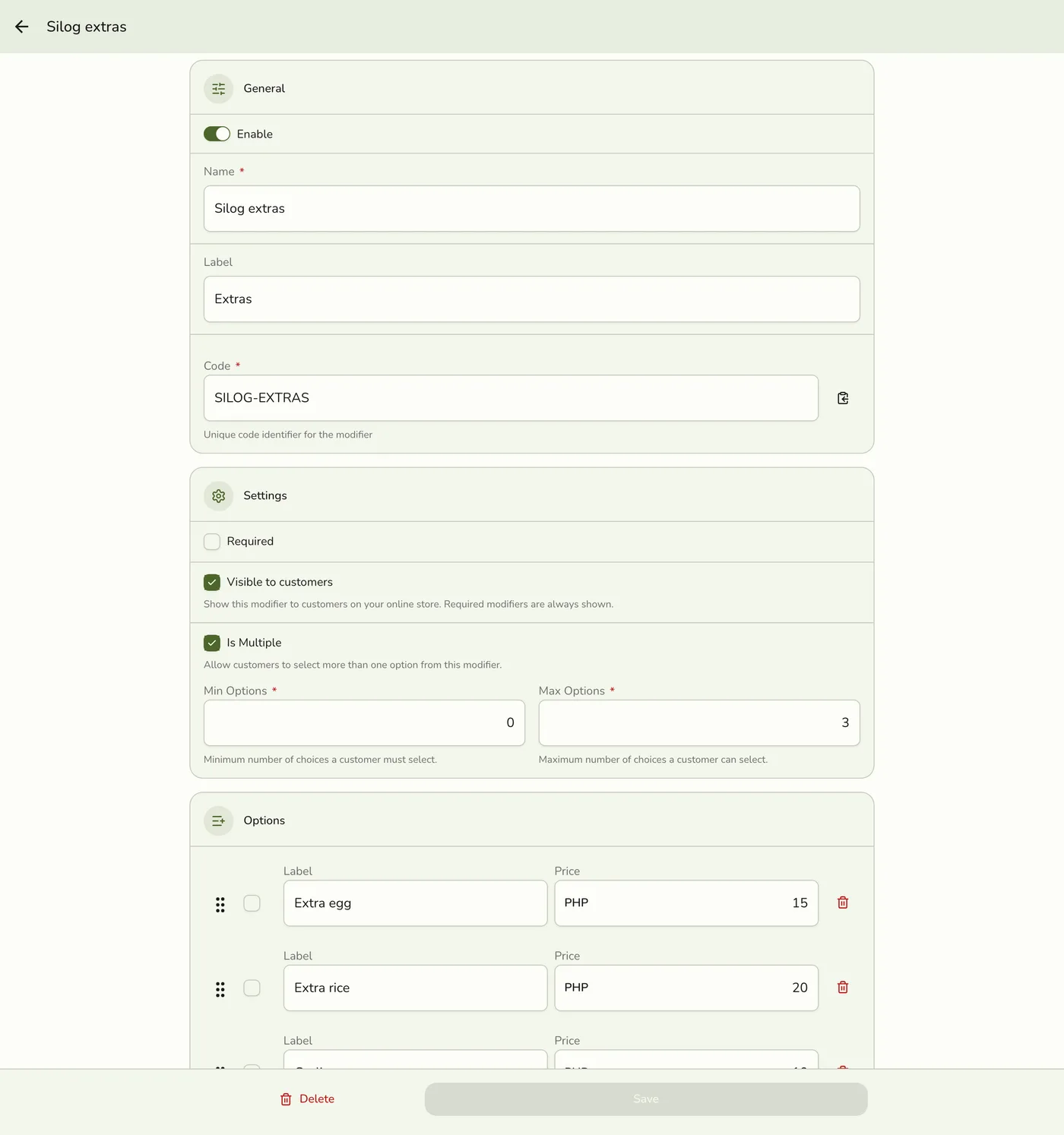
Edit the details
Update any field, and add, reprice, reorder, or remove options.

4
Save
Press Save. Your updates appear in your POS and menus.
What happens next
- A change reaches every item the modifier is on. The register and the public menu are refreshed.
- Orders already made keep their own copy of each option's name and price.
- If you came from a product, you go back to its Modifiers tab with its unsaved changes kept.
Edge cases
- Options left out of the form are deleted. Orders already made keep what they were sold with.
- Fields the form does not send keep their old values.
- A code another modifier already uses is refused, but the app shows a "not found" style error instead of a "code exists" message.
- Without Products · Modify the form is read-only and the Save bar is hidden. A view button shows on the product tab instead of the edit button.
- If you delete the modifier from here, the product shows it as no longer there, to be removed.
Works with
| Add-on or plan | What changes on this page |
|---|---|
| Any plan | Modifiers work on every plan. |