

How to Update a Category
Keep your categories current so your POS and menus reflect what you offer. You can change a category's name, color, image, or any other detail at any time.
Before you start
- The Categories · Modify permission.
Steps
1
Go to Categories
Open the sidebar menu and choose Categories (under Catalog).

2
Choose a category
Tap the category you want to edit, or use Edit on its row. Without permission to change categories the form is read-only and there is no Save.

3
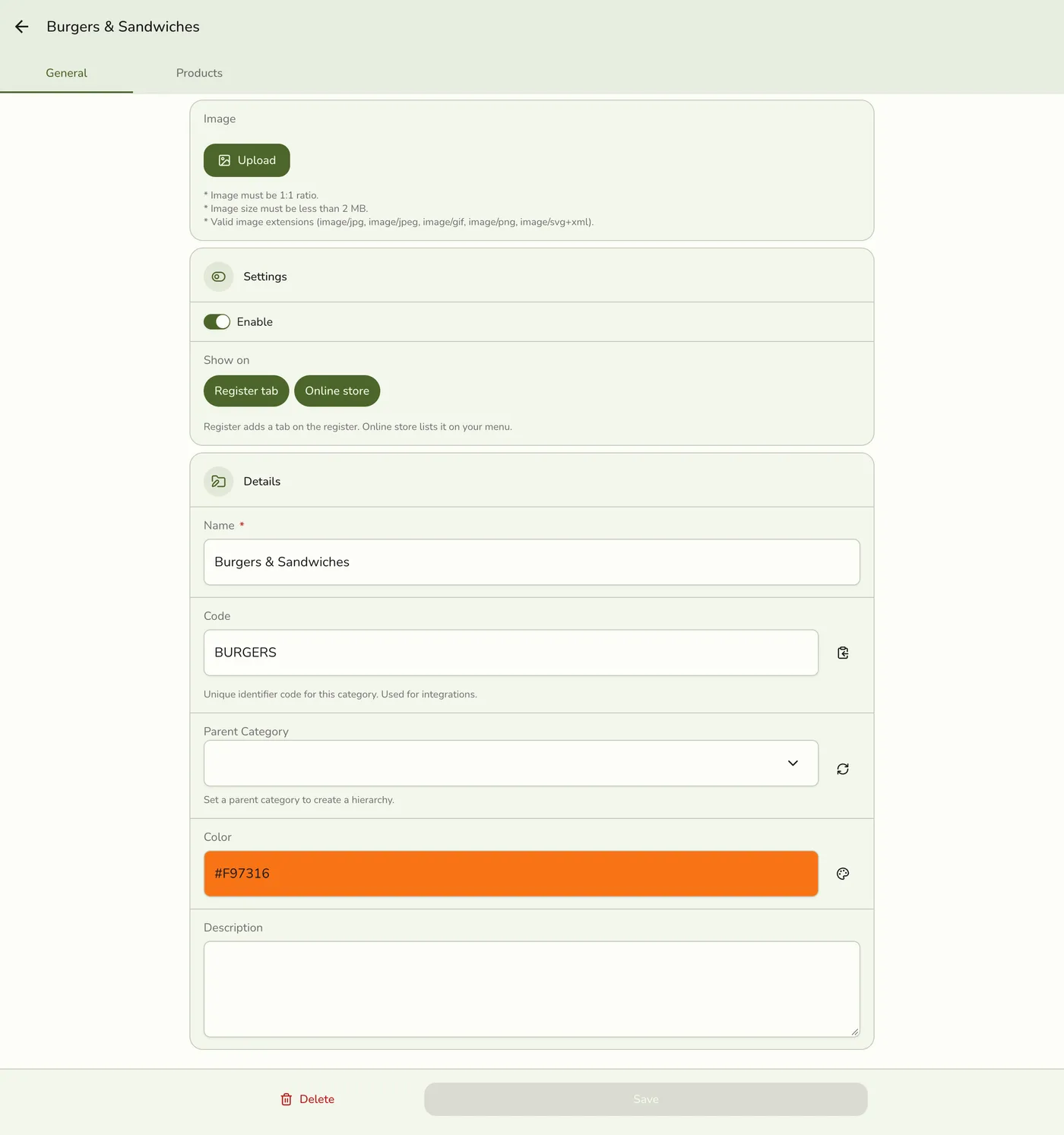
Edit the General tab
Update any field. In Show on, Register tab adds a register tab and Online store lists it on your online menu.

4
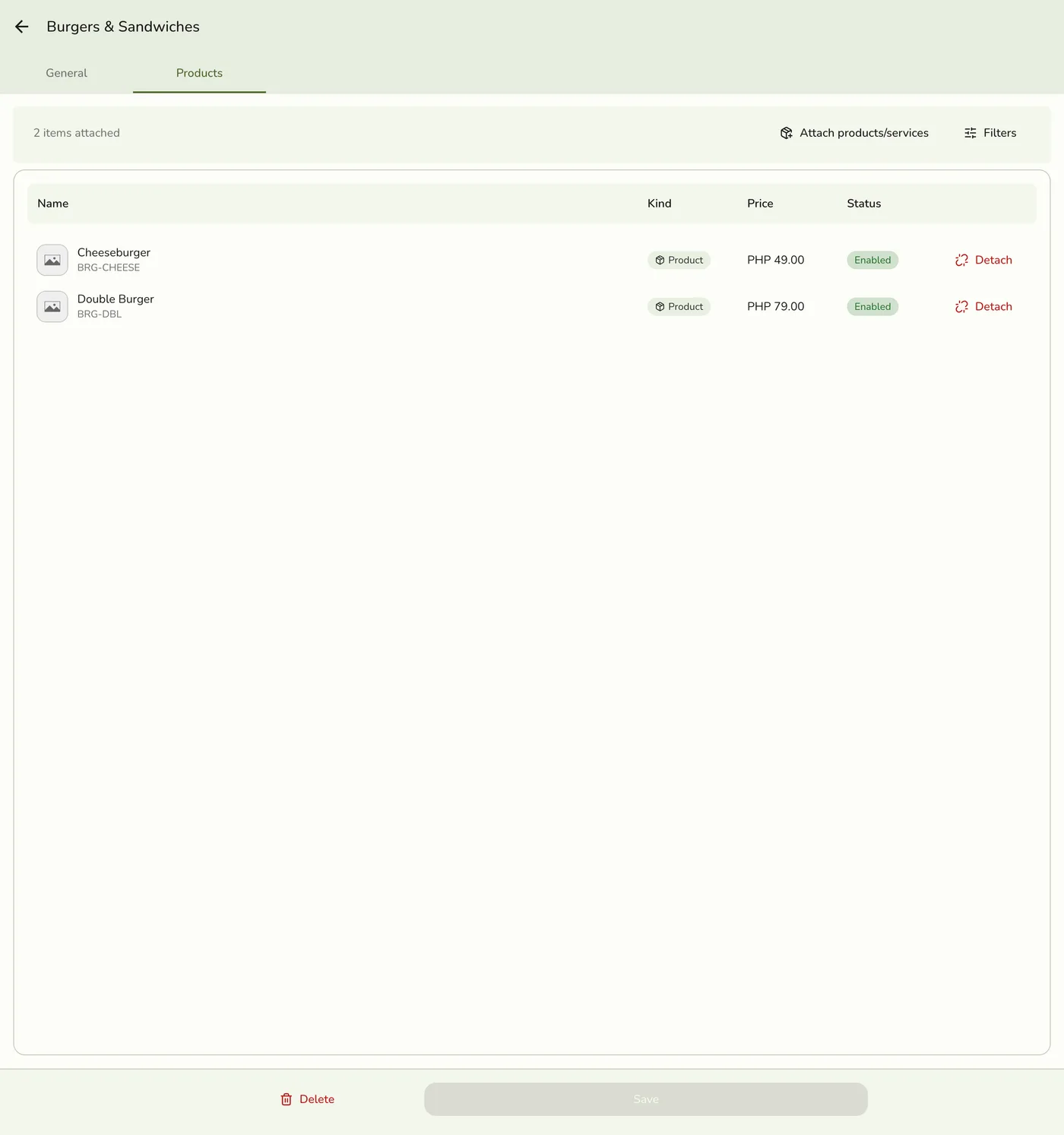
Change the attached items (optional)
Open the Products tab. Press Detach to take an item out or Attach products/services to add more. In a long list, press Filters to find an item by name, SKU, barcode, kind, where it sells, status, or type.
5
Save
Press Save. Changes appear in the POS and menus.
What happens next
- The register and the public menu are refreshed. Other devices are told only on plans with live sync.
- A new picture replaces the old file. Removing the picture deletes the file.
Edge cases
- A loop is refused. Putting a category inside itself, or inside one of its own children at any depth, is refused.
- Item links change only when you change them. The app sends the final list only if you changed it. Not sent, the links stay as they are. Sent empty, every link is removed.
- Turning Online store off hides the items that are only in this category from your online menu, item pages, and online orders. An item also in a shown category stays visible there.
- Older app versions. An older version of the app changes Online store only when you switch Register tab, and then sets it to match. Update the app to set them separately.
- The Products tab list is read fresh each time you open the form, not from the cached category, and is left out for anyone who cannot read the catalog.
- Code and on/off settings keep their old values when the form does not send them.
Works with
| Add-on or plan | What changes on this page |
|---|---|
| Any plan | Categories work the same on every plan. |