

Two-Step Sign-In
Two-step sign-in adds a 6-digit code from an authenticator app to your password. Once it is on, every sign-in and every password reset asks for a code.
Before you start
- You need an authenticator app on your phone.
Steps
1
Open Security
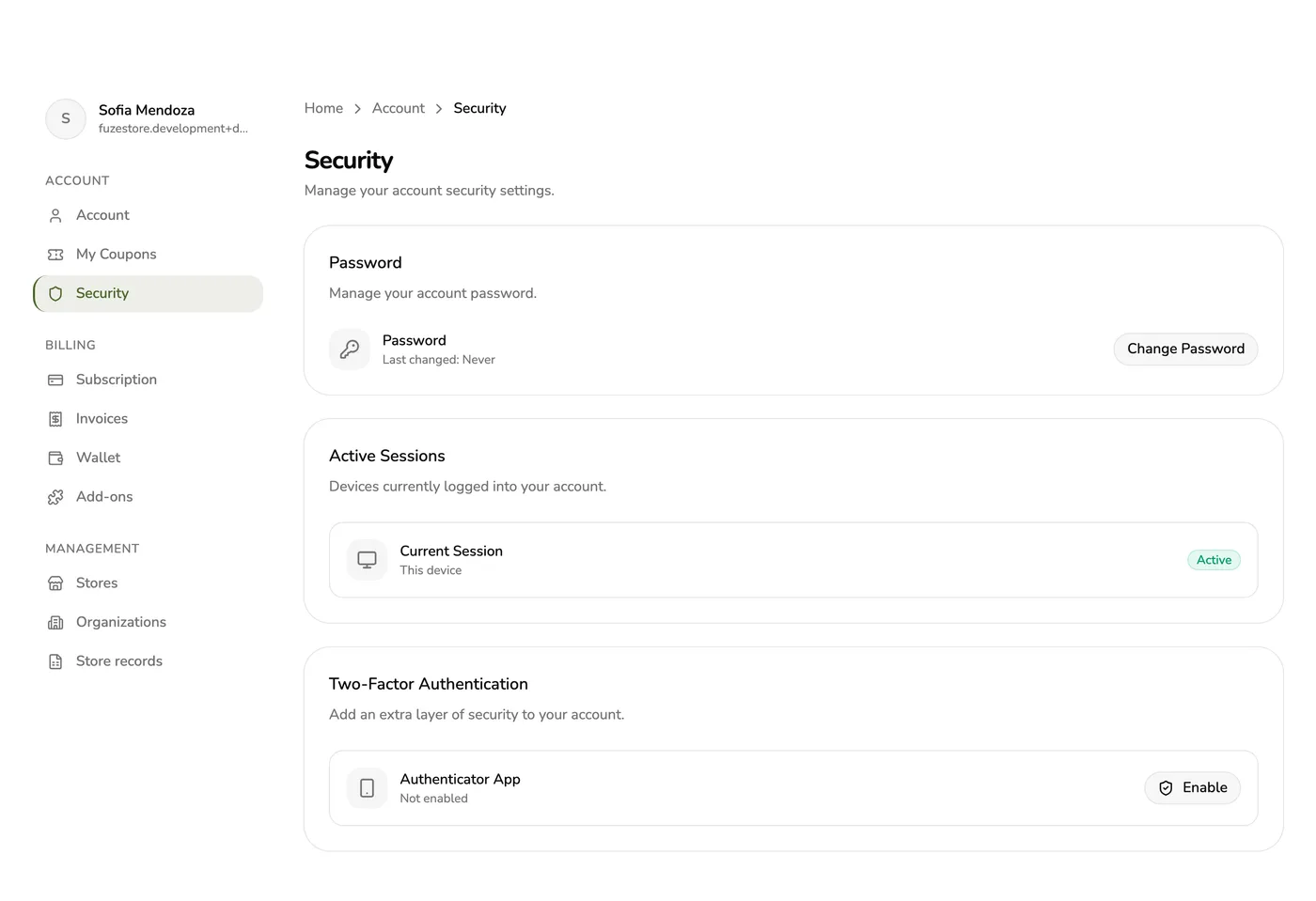
Open Account, then Security, and find Two-factor authentication.
2
Tap Enable
Tap Enable. A QR code and a text key appear. No password is asked at this step, and starting again replaces an unfinished setup.
The QR code to scan with an authenticator app — screenshot coming soon
3
Scan and confirm
Scan the QR code with your authenticator app, then type the 6-digit code it shows.
Entering the 6-digit code from the authenticator app — screenshot coming soon
4
Save your backup codes
Eight backup codes are shown. Save them somewhere safe: each works once in place of a code.
The eight backup codes — screenshot coming soon
What happens next
- Two-step sign-in is on. From now on every sign-in, including a Google, Facebook or Apple sign-in, and every password reset asks for a code.
- View or replace backup codes any time from the same screen. Your password is asked unless you confirmed it in the last 3 hours, and making new codes makes every old code stop working.
- Disable asks for your password, then throws away the secret and the backup codes.
Edge cases
- Code limits: the sign-in step is good for 5 minutes and can be passed once; five wrong codes lock it for 5 minutes.
- Lost your phone: use a backup code at sign-in or at password reset. If you have no authenticator and no backup code left, contact support. They check who you are outside the app, and clearing it is refused if the account would be left with no password, no linked provider and an unconfirmed email.
- No password: an account made with Google, Facebook or Apple sets a password first, through the emailed link, before it can view codes or disable.
Works with
| Add-on or plan | What changes on this page |
|---|---|
| Any plan | Two-step sign-in belongs to your account, so it is the same on every plan and add-on. |