

How to Update a Role
Applies toEvery plan, including free BasicRoles & Permissions add-onNeeds Roles · ModifyUsually owner
Update a role after a promotion, a team change, or when you find a permission missing. The change applies to everyone assigned to the role.
Before you start
- The Roles · Modify permission.
Steps
1
Open the role
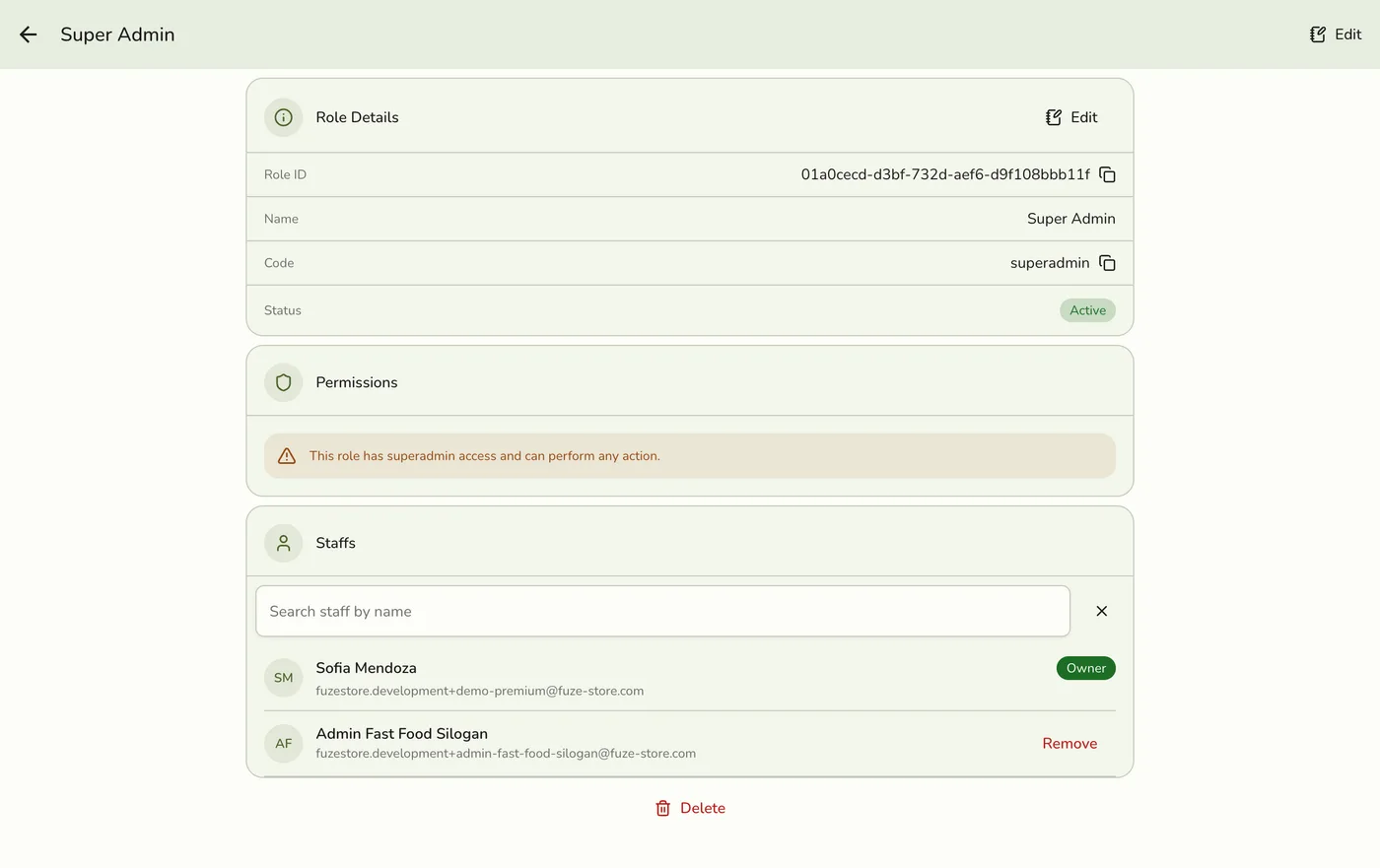
Open Configurations → Roles and tap the role. Its page shows the name, code, status, permissions and the staff who hold it.

2
Tap Edit
Tap Edit at the top right or on the Role Details card.

3
Change the name, description or permissions
Rename the role or tick and clear permissions. You can also switch the role off.

4
Save
Tap Save. The change takes effect for everyone who holds the role. Their saved staff records are refreshed so the new permissions are read.
What happens next
- People signed in on a phone pick up new permissions the next time their records refresh.
Edge cases
- Switching a role off takes its permissions from everyone who holds it, until it is switched on again. They keep the role.
- Super Admin keeps its permissions. It can only be renamed or re-described, and cannot be switched off.
- Unknown permissions are refused, each change permission brings its view permission, and Full Access replaces the rest, as when creating a role.
- Take someone off a role from the role page by removing them from its staff list. The owner stays on it, and a request that names them removes only the others.
- Who can see a role. Anyone allowed to see roles can open its details, but Edit, Delete and Remove from role show only to those allowed to use them.
- Warn the team when you take something away, since a button may stop working without explanation.
Works with
| Add-on or plan | What changes on this page |
|---|---|
| Roles & Permissions add-on | Controls whether roles are enforced. With it on, a staff member may do only what their role allows. With it off, every staff member has full access and the Role field is hidden. Roles stay on file and apply again when the add-on returns. |
| Live sync (Lite and up) | Other devices learn of staff and role changes at once. On lower plans they pick the change up the next time they refresh. |